- This course has been archived because the content is no longer up-to-date or relevant to most students
- You can watch the new, up-to-date course by clicking here.

Adobe Illustrator CC - Advanced Training
This hands-on Adobe Illustrator CC - Advanced Training course is perfect for beginners and anyone wanting to level up their skills. We've designed the course content so that anyone can start from scratch, and students with experience can expand their skills and create awesome projects for their portfolio.
You'll learn step-by-step, building confidence and professional design skills while working on real projects along with Daniel Walter Scott, and earn your certificate of achievement.
What’s in the course?
Hint: Get a feel for the course by watching the free lessons!
Why our students love learning with BYOL
“Dan’s instruction is exceptionally well-structured and fun, making high-level concepts like non-destructive editing and advanced path logic feel intuitive. I highly recommend this to anyone ready to stop just 'using' Illustrator and start truly 'designing' with it.”
“Dan Scott’s Adobe Illustrator Advanced course is yet another excellent learning experience. While the Essentials course gave me the confidence to finally master the software, the Advanced curriculum pushed me into the realm of professional-grade workflows. I moved beyond simple shapes into complex, generative techniques—using the Blend Tool to build architectural, low-poly portraits and the Appear...”
“Dan is hands down the best Adobe Instructor. This course was an incredibly rewarding experience. Dan delivered each lesson with clarity and enthusiasm, making even complex topics feel approachable. I found the content consistently engaging, especially the examples that made the material come alive. The course was well-structured, with clearly defined objectives. Thank you, Dan.”
“Just great ! Is it only me or do you all want to be friend with this guy yet !”
“Daniel is a wonderful instructor - I took his Beginner's course/Essential's course, with no knowledge of Adobe Illustrator at all. I feel more and more confident each lesson! Thank you!!!”
“Informative, well laid out and lots of useful tips, definitely recommend! Thanks”
“Great course with excellent material and tips. Daniel way of teaching and his courses are extraordinary”
“Even though I am only one lesson in, I can already tell that I shall be learning some amazing things within this course - plus I have taken Dan's courses on other Adobe products before and know he is a great tutor, really makes it fun to learn. Totally recommend for those slightly comfortable within Illustrator and are looking to learn more.”
“Dan is the best! I’ve learned so much from this course, I thought I knew everything about Illustrator, but there is so much more to learn :)”
“I love Dan, I enjoy his delivery its lighthearted but also very concise easy and simple! He has a vast experience and it shows trough his delivery of the course, also he gives out great tips for future designers. Overall Dan is a great instructor!”
“well i've knew nothing about illustrator before the beginner and advanced courses now i'm happy to say i can make anything from scratch. daniel is so fun to watch i'd recommend this course to anyone who wants to have fun learning everything about design”
“This was a great course and I enjoyed it a lot! Daniel is a fantastic teacher and I really learned multiple new things that will make my work more efficient in the future. It was fun and informative. What more could I want?”
“Even though working on the industry for two years now, I learned many neat little tips and tricks that I’ve simply never had time to dig in to. By attending this course, my goal was to find ways to renovate and improve these kind of restricted working habits of mine, and I definitely think I achieved what I was looking for. I'm excited to see what designer's life relieving tricks you've got up you...”
“Aulas muito boas, explicadas de uma forma mais descontraída e com uma dinâmica boa de entender.”
“Great Course. Started with zero knowledge of Adobe Illustrator and now feel comfortable to use it to the full of its potential. Teacher is very good as well. Thumbs up!”
“This course goes way beyond on Illustrator skills. I've learned a lot to improve workflow. Dan, as always, presents a flawless, fun and well-paced content. Thanks for another great teaching, wish you a merry Christmas!”
“i really liked this course because it gave me a really indept understanding of the most common tools in illustrator and it helped me to better master and uderstand some features. Also, for me, it was really helpful the way Dan teaches because he makes it fun with the little exercises and project. Overall I very pleased with the course”
“This course was really great, I have been using Illustrator for a decade and there are so many tools I did not use / know existed! this course has definitely improved my workflow! thank you Dan!”
“I am amazed at what I learned from this course. This is what I have been looking all along to help me understand Photo Shop. Dan does a fabulous job explaining everything to us along with video.”
“Dan is my go to design guru! He explains the techniques and tools so clearly and easily! 10/10 Would choose another course with him again! Thanks Dan!”
Class projects & community

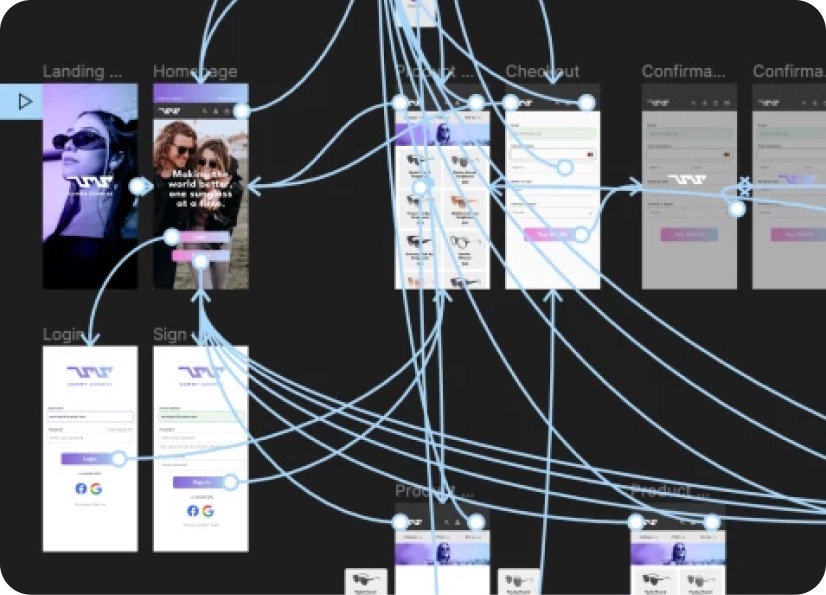
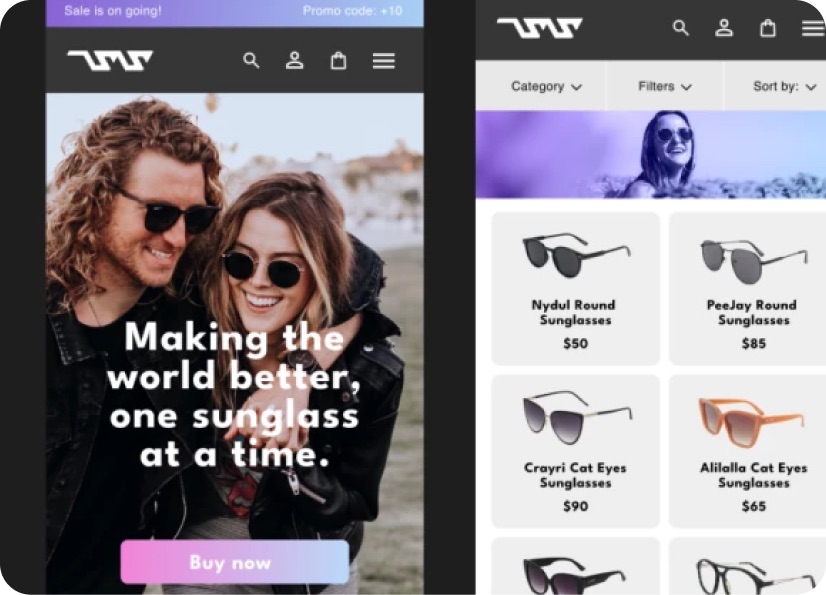
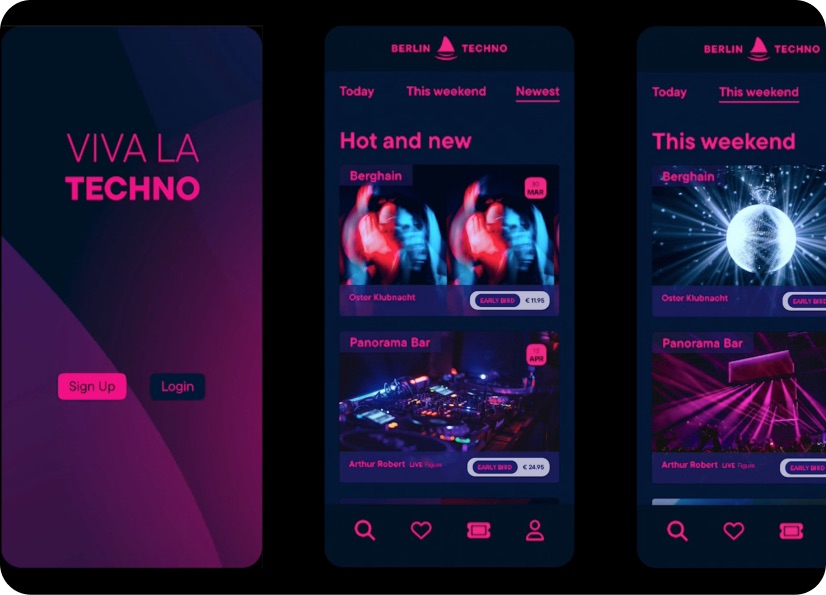
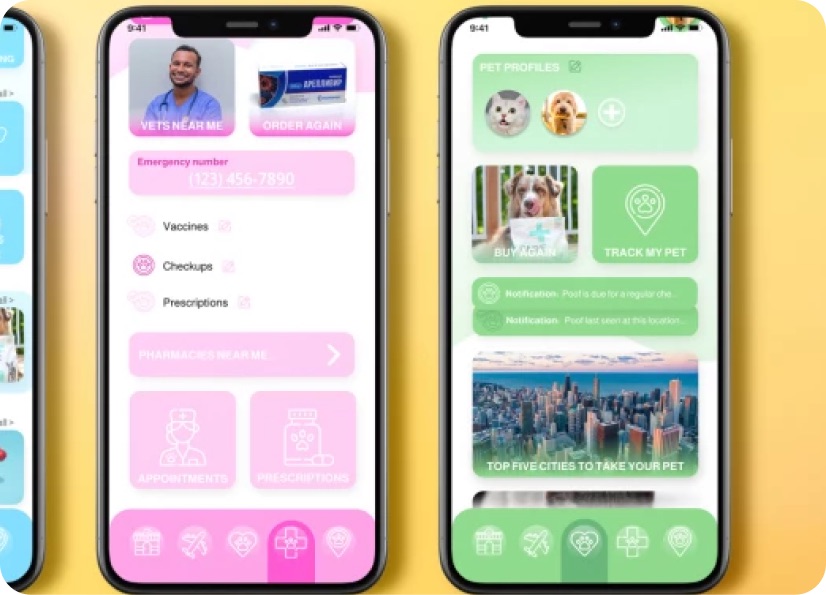
Build real world projects as you learn, create portfolio worthy work, and gain practical experience by doing - not just watching. Share your work with our global creative community, get feedback and support, and learn alongside other students every step of the way.


Meet your instructor
Daniel Walter Scott
Founder of Bring Your Own Laptop & Chief Instructor
Figma | Illustrator | Premiere Pro | Lightroom
I discovered the world of design as an art student when I stumbled upon a lab full of green & blue iMac G3’s. My initial curiosity around using the computer to create ‘art’ developed into a full-blown passion, eventually leading me to become a digital designer and founder of Bring Your Own Laptop.
Sharing and teaching are a huge part of who I am. As a certified Adobe instructor, I've had the honor of winning multiple Adobe teaching awards at their annual MAX conference. I see Bring Your Own Laptop as the supportive community I wished for when I was first starting out and intimidated by design. Through teaching, I hope to bring others along for the ride and empower my students to bring their stories, labors of love, and art into the world.
True to my Kiwi roots, I've lived in many places, and currently, I reside in Ireland with my wife and kids.


Choose your membership plan.
Get unlimited access to every BYOL course and feature. Go monthly for flexibility, or choose yearly and save with our best value option.
Yearly | Best value
- 12 months access for the price of 7
- Save $60.00 vs monthly
- Just $7.00 per month when billed yearly
- Give yourself a full year to level up
- Unlimited access to 35+ design courses
- New course launches and updates
- Take as many courses as you like
- Learn at your own pace
- Class projects & certificates
- Design challenges
- BYOL Expert support
- Private student community
Pay $84.00 today.
Auto-renews annually at $84.00.
Cancel at any time before your renewal.
Monthly | Flexible
- Unlimited access to 35+ design courses
- New course launches and updates
- Take as many courses as you like
- Learn at your own pace
- Class projects & certificates
- Design challenges
- BYOL Expert support
- Private student community
Pay $12.00 today.
Auto-renews monthly at $12.00.
Cancel at any time before your renewal.
Take your design skills to the next level.
Join a private community of designers, with guaranteed feedback and small-group live sessions designed to accelerate your growth.

BYOL+ is for designers who:
- Work solo and want meaningful feedback from peers.
- Are building a freelance business and need guidance.
- Want thoughtful critique to strengthen their portfolio and unlock new opportunities.
"I love the live sessions, the advice has really helped me to move up in my career."
Charlie, BYOL+ student

Includes everything in BYOLCORE, plus:
- 💜 Exclusive BYOL+ Discord community
- ☕️ Live Office Hours with Dan
- ⚡️ Live portfolio review sessions
- 🧠 Live creative community sessions
- 🎬 Live session replay library
- ✏️ BYOL+ exclusive design challenges
- 🔥 Priority BYOL Expert support
- 💬 Priority Class Project feedback
- 📺 Download lessons to watch offline anytime
Pay $199.00 today.
Auto-renews yearly at $199.00.
Cancel at any time before your renewal
Pay $29.00 today.
Auto-renews monthly at $29.00.
Cancel at any time before your renewal
You might also like...

Be the first to hear about new courses and special offers!
