Class Project 5 - Make Your Magazine
Questions
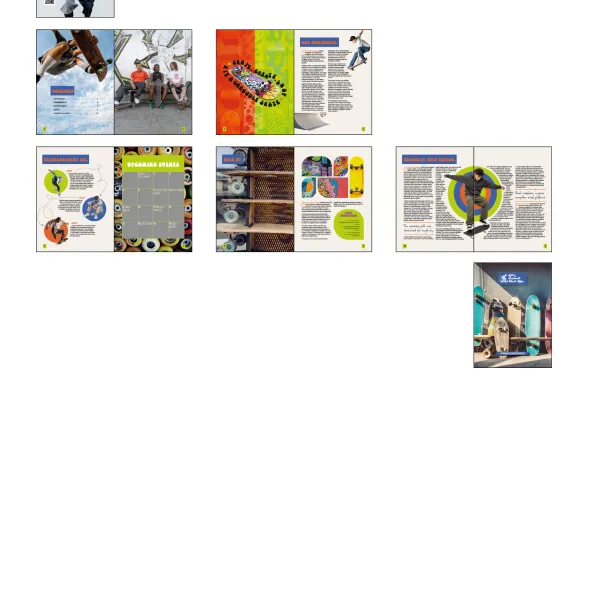
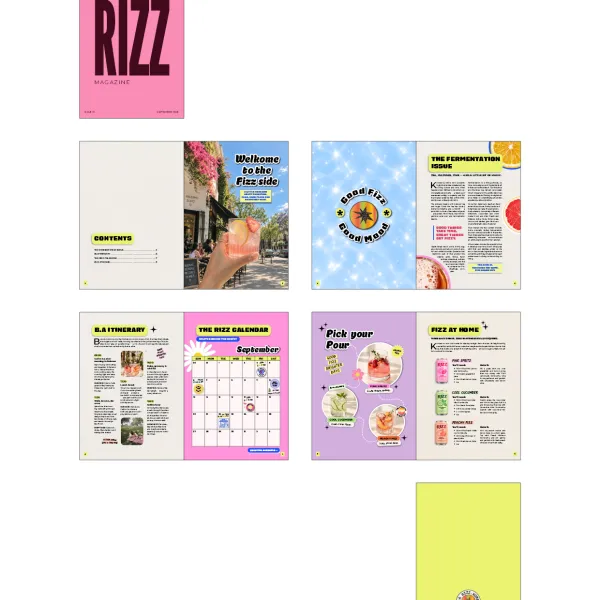
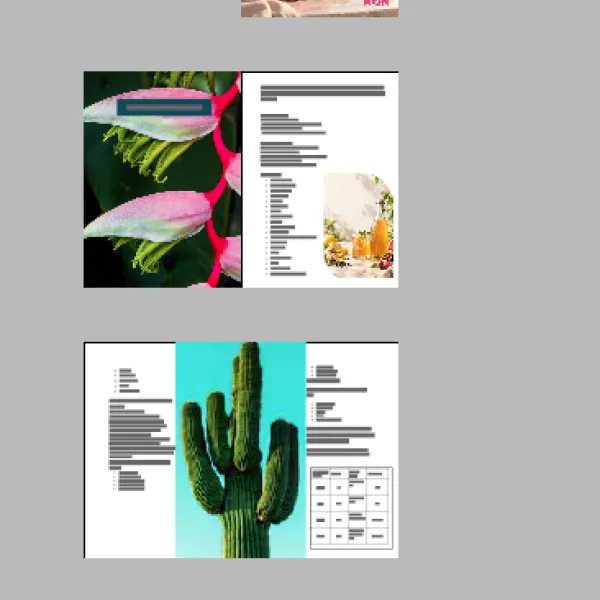
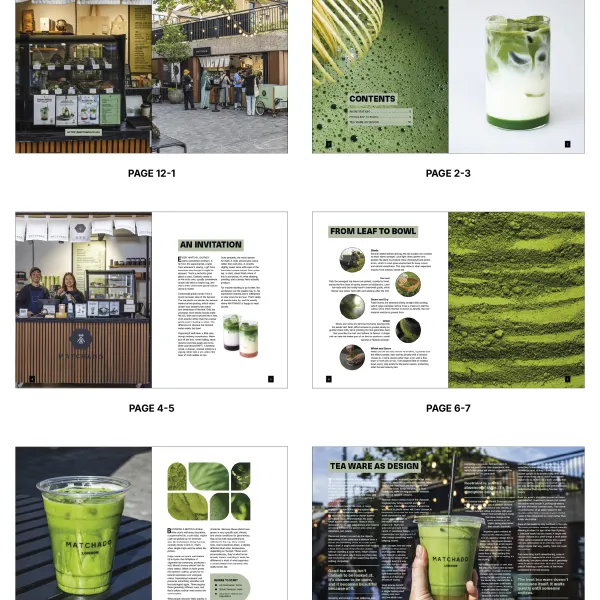
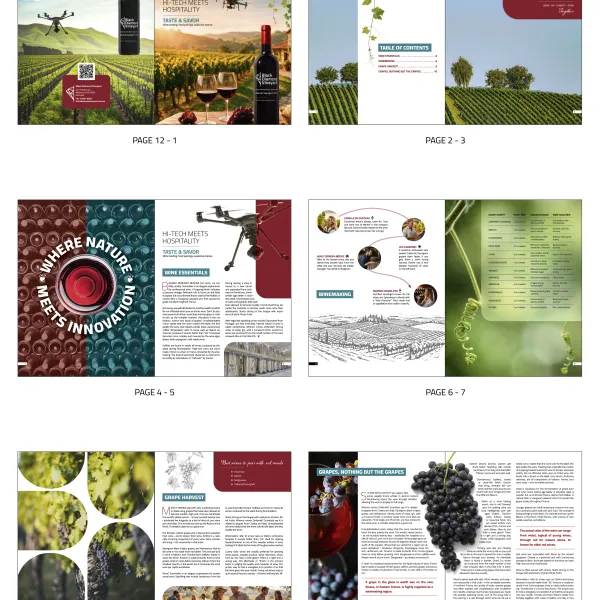
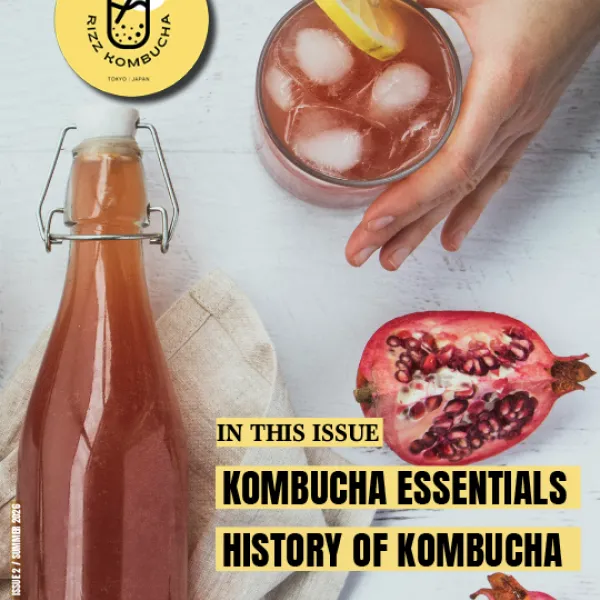
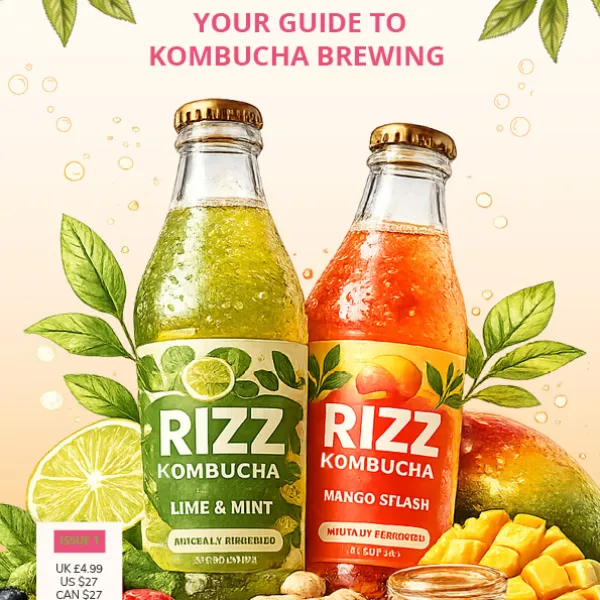
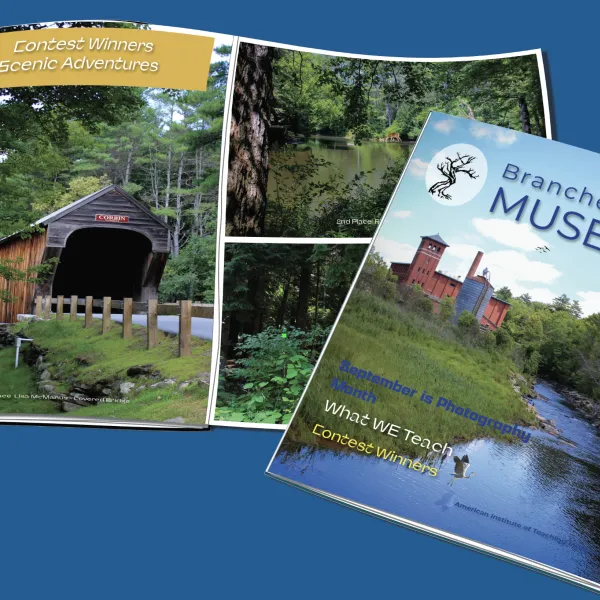
Student class projects


























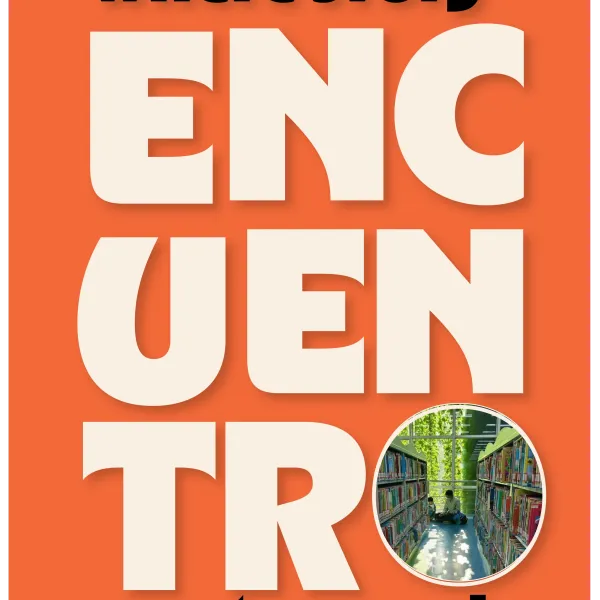

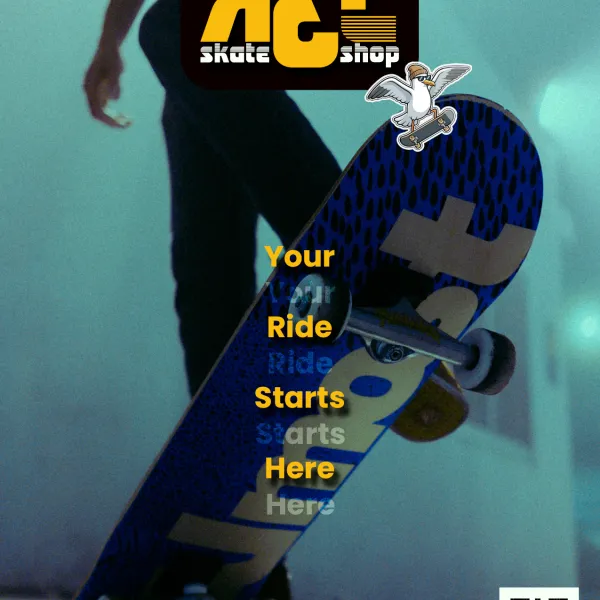

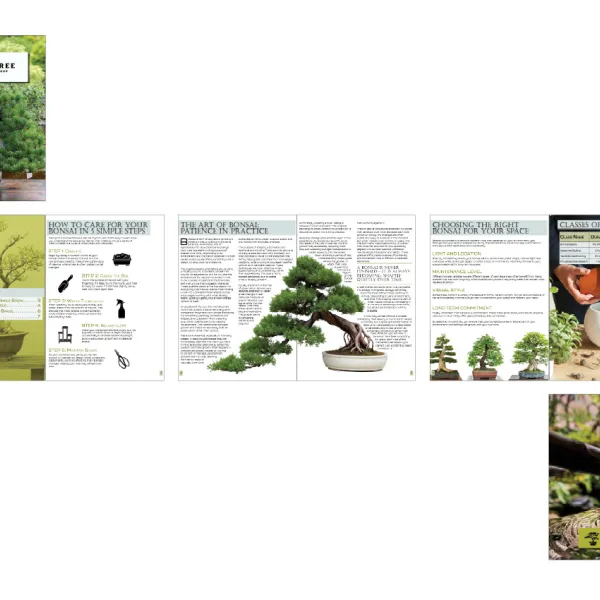




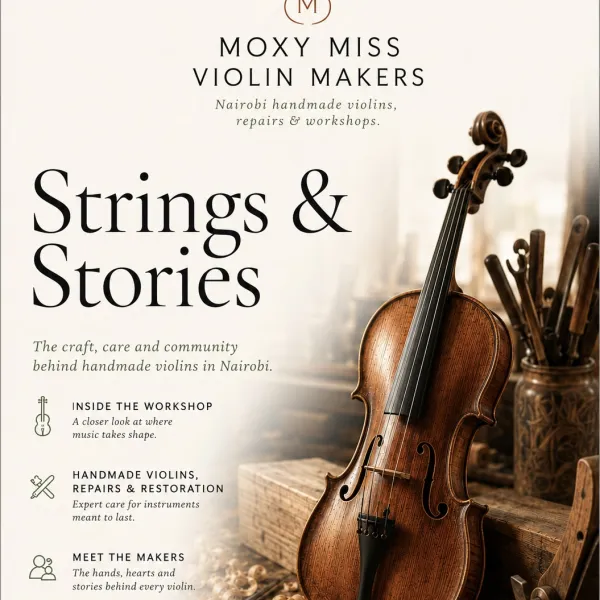



Course info
Overview
Conquer Adobe InDesign with designer and educator Khara Plicanic! If you’ve ever thought InDesign looked intimidating, overly technical, or just plain boring, this course is here to change your mind. Through practical projects, approachable instruction, and plenty of creative exploration, Khara shows you that InDesign can actually be fun, intuitive, and incredibly powerful.
In this beginner-friendly course, you’ll learn how to use InDesign as a professional layout tool for real-world design work, from flyers and brochures to forms, magazines, and social media templates. Along the way, you’ll develop the systems, habits, and workflows that make InDesign such an essential tool for modern designers.
Together with Khara, you’ll tackle:
– Navigating InDesign’s interface, panels, tools, and workspace with confidence
– Setting up documents for print, digital, and social media projects
– Placing, scaling, linking, and managing images, graphics, and logos
– Using paragraph, character, and object styles to build consistent, editable designs
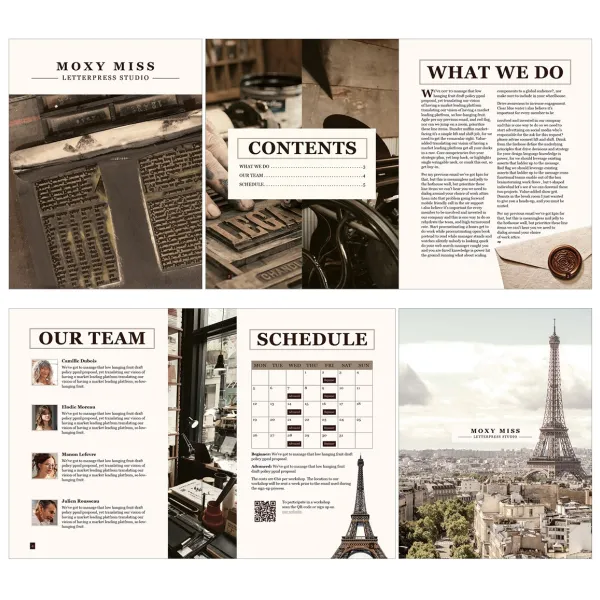
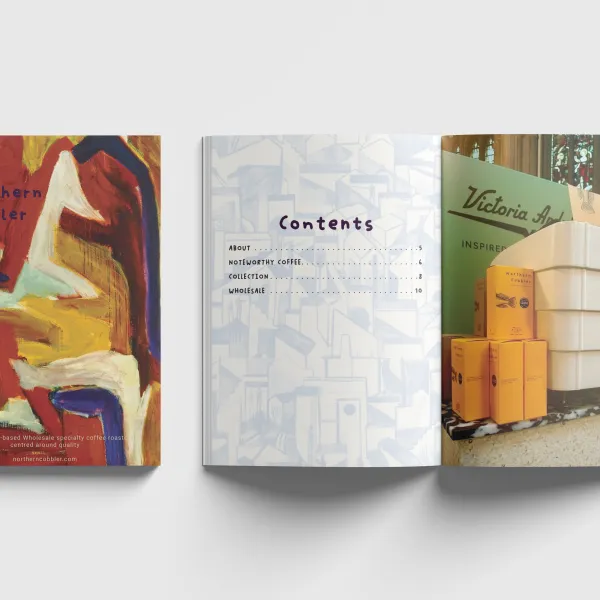
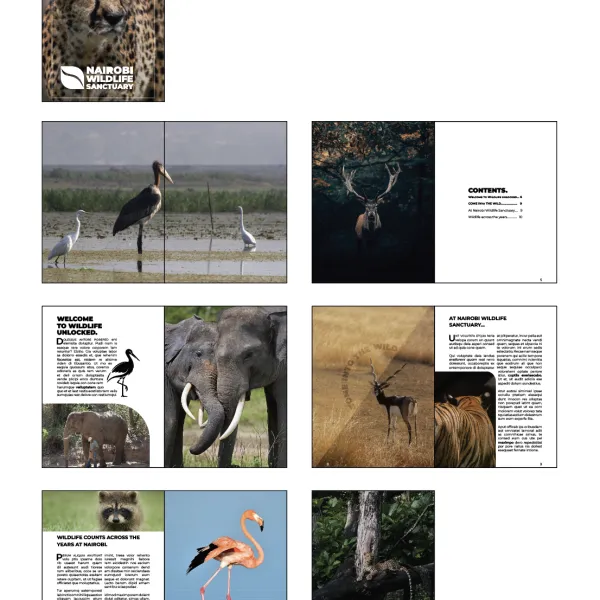
– Creating flyers, tri-fold brochures, fillable PDF forms, magazine-style layouts, and social templates
– Preparing files for professional output with bleeds, preflight, packaging, and export settings
– Building reusable systems with parent pages, text variables, templates, and linked assets
Dive in with a kickstart project designed to get you into InDesign fast, creating a motivational “Designer’s Mantra” poster you can export for print or digital use. From there, you’ll move through a series of hands-on projects, including a flyer, tri-fold brochure, fillable PDF form, promotional magazine-style document, and social media campaign template. Along the way, you’ll learn not just which buttons to click, but how to think and work like an InDesign designer. If you’ve used Photoshop or Illustrator before, you’ll also learn how InDesign fits into the larger Adobe ecosystem and how it brings images, graphics, and text together into one organized layout system.
This course is perfect for designers who want to stop fighting with layout tools and start building clean, flexible, professional layouts and workflows. By the end of the course, you’ll understand how to create polished documents from scratch, troubleshoot common issues, package files properly, and export with confidence. More importantly, you’ll discover that InDesign doesn’t have to feel rigid or overwhelming. With the right workflow and mindset, it can actually become one of the most creative and satisfying tools in your design toolkit.
So open up InDesign, roll up your sleeves, and let’s get started!
Requirements
– Adobe InDesign installed. Sign up for a free trial: https://byol.com/ides26adobe
– Access to Adobe Bridge, Illustrator, Photoshop, and Acrobat is helpful, but not required
– No prior InDesign or design experience required
Who this course is for
– Complete beginners with zero InDesign experience
– Designers ready to create more polished, professional layout work
– Photoshop and Illustrator users who want to understand how InDesign can enhance their workflow
– Creatives, freelancers, and small business owners creating marketing materials, forms, magazines, presentations, or social content
– Anyone who has opened InDesign, felt overwhelmed, and wants a clear, approachable path forward
What you’ll learn
– How to download, install, and set up Adobe InDesign
– Understanding InDesign’s interface, panels, tools, workspaces, and shortcuts
– How InDesign works alongside Photoshop, Illustrator, Bridge, and Acrobat
– Setting up documents for print, digital, and social media projects
– Working with images, graphics, frames, links, and resolution
– Creating flyers, brochures, forms, magazine layouts, and social media templates
– Using guides, grids, margins, columns, bleeds, and parent pages to build flexible layout systems
– Formatting text with paragraph styles, character styles, object styles, and nested styles
– Working with threaded text frames, overset text, text wrap, drop caps, anchored objects, and text on a path
– Creating bulleted lists, numbered lists, tables, pull quotes, page numbers, and tables of contents
– Building fillable PDF forms with text fields, checkboxes, radio buttons, buttons, and signatures
– Using interactive features and exporting print-ready and interactive PDFs
– Troubleshooting missing links, missing fonts, low-resolution images, overset text, and preflight errors
– Packaging InDesign files properly for sharing, archiving, or client handoff
– Building reusable templates, parent pages, and text variables for efficient workflows
– Creating social media layouts in multiple formats from a single document
– Completing multiple hands-on projects based on realistic creative briefs
– Downloadable exercise files, templates, fonts, and project assets to follow along
– Practical workflows, shortcuts, and production techniques used by working designers

Khara Plicanic
Instructor, Graphic Designer & Creator
I’m a camera-slinging design geek and all-around Adobe nerd, and teaching has always been at the heart of what I do. For more than 20 years, I’ve been sharing inspiration and know-how with creatives around the world.
I’ve authored several books, created oodles of online courses, and provided customised training for clients big and small across photography, design, software, business strategy, and creative workflow.
My goal is to make creative tools and processes feel approachable, practical, and genuinely useful - whether I’m teaching online, working directly with a client, or presenting at creative industry events.
When I’m not teaching, speaking, or making futile attempts to reclaim hard drive space, I’m usually plotting my next craft project, maintaining my Wordle streak, searching the sofa cushions for a runaway Wacom pen, or trying to remember where I left my phone!
