How to change hair eye & lip color in Lightroom
Questions


Student Gallery
Course info
Overview
I've won many Adobe teaching awards and recently reached a huge milestone....I have now had over a million people worldwide who have studied using my online courses like this one!
What’s in the course?
- - White balance
- - Temperature and color correction
- - Masking
- - Portrait
- - Wedding
- - Landscape
- - Wildlife
- - Automotive
- - Event
- - Architectural
- - Drone
- - Travel
- - Product
- - Food
- - Soften and smooth skin texture
- - Highlight eyes and whiten teeth
- - Enhance hair and make eyes and lips really stand out in a portrait
- - Remove unwanted elements from a photograph
- - Color grade videos
- - Reduce noise and graininess from photos
- - Best practices for white balance, temperature & color correction.
- - Unlock the power of masking.
- - You’ll cover all types of photography genres including Portrait, Landscape, Wedding, Night, Wildlife, Automotive, Event, Architectural, Drone, Travel, Product Food.
- - You’ll know how to color grade like a professional, simple grades and then moving into distinctive powerful color grades to make your images really pop.
- - You’ll retouch images, making skin smoother, eyes & teeth whiter. Make hair, eyes and lips standout in portraits.
- - Learn how to remove parts of an image.
- - Learn how to color grade videos.
- - You’ll even learn when and how it might be appropriate to jump out to Adobe Photoshop.
- - Do you have noisy, grainy images? After this course, you’ll know what tools and techniques to use to remove it.
- - Learn how to add the noise, grunge & grain back in for a powerful visual statement.
- - Need to work fast? You’ll learn where to find and how to use the best Presets, LUTS & Profiles.
- - You’ll take your skills and apply your edits in bulk to a huge group of images all at once.
- - Learn Lightroom's amazing organizational abilities. Quickly sorting, comparing, searching, grading & backing up images.
- - You'll learn the best settings for printing your images and sharing on social media without losing details and how to package up a shoot and easily share with a client
- - Adobe Lightroom CC Desktop (not Lightroom Classic)
- - No prior knowledge or experience with Lightroom is required
- - No prior knowledge or experience in Photography is required
- - This course is really aimed at people new to photo editing software and photography in general. We’ll start right at the beginning and work our way through step by step.
- - You might be using the biggest fanciest camera in the world or shooting on your phone that’s held together mostly with sellotape. It doesn’ matter, Lightroom is amazing for both.

Daniel Walter Scott
Founder of Bring Your Own Laptop & Chief Instructor
I discovered the world of design as an art student when I stumbled upon a lab full of green & blue iMac G3’s. My initial curiosity around using the computer to create ‘art’ developed into a full-blown passion, eventually leading me to become a digital designer and founder of Bring Your Own Laptop.
Sharing and teaching are a huge part of who I am. As a certified Adobe instructor, I've had the honor of winning multiple Adobe teaching awards at their annual MAX conference. I see Bring Your Own Laptop as the supportive community I wished for when I was first starting out and intimidated by design. Through teaching, I hope to bring others along for the ride and empower my students to bring their stories, labors of love, and art into the world.
True to my Kiwi roots, I've lived in many places, and currently, I reside in Ireland with my wife and kids.
Certificates
We’re awarding certificates for this course!
Check out the How to earn your certificate video for instructions on how to earn yours and click the available certificate levels below for more information.
Downloads & Exercise files
Transcript
Hello everyone, in this video we're going to do some crazy stuff...
we're going to change people...
we're going to make them change their eye color...
and their hair color, and their lip color...
and I'll freely admit, I shouldn't be in charge of anybody's makeup...
I can barely do my own, but I'm going to give you the power...
to be able to change eye color, lip color, hair color...
all in this video, so let's get started.
So we're going to work on this image here...
I'll hit 'I' on my keyboard, it is 'Masking People07'...
I'm going to double click to open, if you have edited this one already...
you can hit 'Command R', or 'Ctrl R' on a PC, up to you...
you can leave your edits, that's totally fine...
we're going to work on just the lips at the moment...
so I'm going to zoom in a little bit I'm going to hit...
'Command +' a couple of times, or 'Ctrl +' on a PC...
and I am going to go, 'M' for Mask...
and I'm going to wait for the people's thing to do its work...
then click on the person...
and then I'm going to wait for her lips, let's click 'Create'...
now we've got a great selection for the lips...
and we are going through, down here, under my Mask...
I can say, I can do what I want...
so let's look at just enhancing what's there.
So you just grab saturation, you can yank it all the way up, or part of the way up...
so we're just kind of accentuating what's there, so before, after...
it'll depend on how rich they are to start with...
whether you can, like that one, I got quite...
I could go quite high without it going overboard...
yours, if they have really kind of strong lipstick already...
or just very colorful lips, the saturation can't go as high.
You can change it with your temperature as well...
you can warm them up and change the color here...
but let's say that we want to change the color a lot more...
I want to make them green, or something...
that's where this slider comes into play, it's called Hue...
Tint is just dragging the colors slightly...
a real natural way of working, this one here, click, hold, and drag...
you can see, you can do some crazy stuff with it.
Now we've got it isolated, it's really cool...
now we've got our masking down...
we can actually select things and change the color of them...
we're doing with lips here, but you can do it with products...
whatever you want to make a selection of...
we can trust this hue, we don't want green lips...
I don't particularly want purple lips...
and once you've got them kind of maybe to the hue that you want...
you might have to lower the saturation...
and what you'll find in here, if I click it...
and drag it around, it's going to change the color...
but I really need to take back the hue...
I'm trying to, I'm trying to decide what I'm doing, I'm not good at this...
I don't put on lipstick enough...
before, after.
All right, I'm not going to pretend like I know what I'm doing here...
I'm going to pick something else, you wait there...
I'm not a total caveman, that's better...
so what I did there was I picked a color that was relatively natural...
and then I went back through on the mask...
and just played around with contrast, highlights, the shadows, the whites...
just get something that I liked...
there you go, before, and after, good work, Dan...
let's turn those little people off, you know where they are now.
Let's look at doing the hair because the hair is the exact same thing...
so I'm going to go create a new mask, there's my person already selected...
and I'm going to go find the hair, perfect.
This is pretty special, this one, I love it...
because hair is really hard to select, I'm going to click 'Create'...
and what I'm going to do is, I am going to do...
the colorize, so, again you can just play around with these...
increase the contrast, play around with...
the lights and the shadows but if you want to add color...
we can't make it blonde, that's too hard...
the light's all wrong, she's got dark hair, you can make it lighter, definitely...
again, we can add color, but we can't reverse it out, this looks weird.
What we're going to do, we're going to add some color to kind of brown up her hair...
so we're going to use the same thing down here...
we're going to use Hue, watch this, if I drag Hue...
kind of changes it a little bit, which might be enough, depending on the hair...
if there's some color in it, you can change it, if there's no color in it...
like this one's quite, you know, there's not a lot of color in there...
so it's hard to change where there is no color...
so you can force color in there by going to this option here, and say...
wow, there's no color, add colorize, nothing really happened...
down here, you can drag this little dot up...
you can say, ready, bam, red here, green here, blue here.
So you can drag this around, and basically the higher it is the more intense it is...
you can see, you can drag, I'm clicking, holding my mouse, you can drag it past...
down here, you can lower it down, so it's just a subtle--
so say you want to make it just warmer, or red-ier, auburn...
not sure the name of it for hair...
but to get to kind of here, you can go obviously too far...
but then come back down here and find that happy medium...
click it once to come full out, before, after.
Can you see, it just richened up the hair, rather than going too crazy...
but it's an amazing selection, I love it.
So you can just play around with the Hue slider...
if something already has color, like we did the lips...
but if the hair doesn't have color we can add it...
by ticking this little box on the Colorize, force color in there...
and how much, is by how high it is, on this little Hue Rainbow slider here...
oh, cool.
While we're here, we've done eyes before but we're going to...
kind of combine it with this Hue Colorize...
so I'm going to 'Command +' a couple of times, 'Ctrl +' on a PC...
and I'm going to work on the eyes.
So we've kind of already done this, but we're going to combine some tools...
so the whites of the eyes, sure, will do that second, I'll do this one...
while I've got them, you know, I've got this up, I'm going to say...
create two separate masks for both...
the whites of the eyes and the Iris, click 'Create'...
I'm going to work on the Iris and Pupil first...
and down here, again, like before, if there's not a lot of color...
you can't change the Hue...
but we can go and do the colorize, took this on...
what I might do beforehand though...
is really kind of try and bring them out a little bit...
and I'm going to try and do it here, in...
like, there's the Enhance, remember the preset...
we can say, 'Enhance Eyes', 'Enhance'...
and that's done an okay job, I-- you know, they're just, they're in shadow.
So I'm going to have to go off and do a bit more work...
and what is it, again, there's no rule here...
I'm just dragging these back and forth, see where the information is...
some of them do nothing, some of them do a lot, whoa...
probably too much...
let's go, oh, there's some...
some nice lines here in the eyes that are appearing...
way too much...
so before, after, I like it, believable-ish.
Now I've got some lightness in there, now I can go down and say...
let's see if I can just change the Hue, you can, nice subtle change...
or you can say, colorize, and go bananas...
where's my blue, green, come down...
around there.
All right, so this is a, like--
I should not be in charge of makeup...
sorry woman, sorry lady I don't know, I'm going to turn off my mask one...
my lips, because that was terrible...
you, my friend, might be doing it way better than me...
and same with the hair, I'm going to go down to my Mask tool...
I'm going to name these ones...
good work, Harry...
and I'm probably going to just lower the amount because I can't be trusted...
and the one thing I definitely can't be trusted with...
is this last one, let's do eyebrows.
Whenever it comes to me retouching people's eyebrows, I shouldn't be allowed to...
so let's just crank up the contrast, there we go...
I'm not sure what is better...
there you go...
I'm not even going to do that one but you can mess around with eyebrows...
and get them to your liking, I'm just going to say...
eyebrows look great the way they are, and I'm going to leave them alone.
So that's it, the big takeaways is, we know how to select stuff now...
like eyes and the whites of the eyes, and the hair, that's really easy to do...
what happens afterwards will depend on how much color's in there...
because you can just adjust the hue and the saturation...
if there's already color there...
if there's not, you can come down here and you can hit Colorize...
and color them yourself...
I'm quite proud of the eyes...
and actually what I might do is do the whites of the eyes as well...
and I'm just going to start with the Teeth slider...
and probably just turn it down a little bit, before, after, before, after...
we do run into a problem though now that--
let's say these are portrait photographs, for head shots for a model...
they're going to turn up to the casting agency and go...
"Whoa, you were blue eyes," now you don't...
so you've got to be careful about its purpose...
but I don't want to be changing people too much...
all right, that's it, I will see you in the next video.
How do you change hair, eye or lip colour in Lightroom?
Use Lightroom’s People masking to select the feature you want to edit, then adjust its colour within that mask. If the feature already has visible colour, start with Hue and Saturation. If it is too dark or has very little colour, brighten it where needed and use Colorize to add colour.
How to Change Hair, Eye and Lip Colour in Lightroom
Key takeaways
People masking can select lips, hair, irises and the whites of the eyes without painstaking manual tracing.
Hue shifts existing colour; Colorize is more useful when there is little colour to shift.
Light, contrast and saturation matter just as much as the colour you choose.
The right edit depends on the photograph’s purpose. A creative portrait and a casting headshot are not the same thing.
Lightroom makes it surprisingly easy to give someone different lipstick, warmer hair or blue eyes. Whether I should be trusted with anyone’s makeup is another question. The trick is to isolate each feature first, then make the colour change believable rather than simply pushing every slider as far as it goes.
Start with a People mask
Open your portrait and zoom in enough to see the feature you are editing. You can use Command + Plus on a Mac or Control + Plus on a PC. Press M to open Masking, wait for Lightroom to detect the person, then select them to see the available features.
Choose the feature you need and click Create. Keep separate masks for lips, hair and eyes so you can adjust or turn off each edit independently. If you are following along with an image you have already edited, Command + R or Control + R can reset it, but there is no need to discard existing edits just to practise masking.
Change lip colour without losing the natural detail
Start with the lips mask. It gives you a precise selection, which means you can work on colour without changing the surrounding skin.
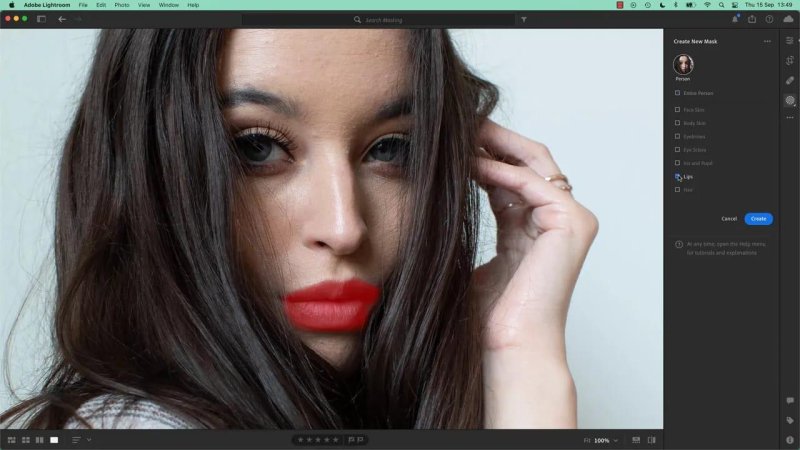
A dedicated lips mask keeps the colour adjustment on the lips rather than the surrounding face.
For a small enhancement, raise Saturation to bring out the colour already there. How far you can go depends on the starting image. Naturally muted lips might tolerate a stronger adjustment; vivid lipstick may need hardly any. Temperature and Tint can nudge the result warmer or cooler.
For a more obvious change, use Hue. Dragging it can take the lips through colours you may or may not want to keep. Once you find a promising shade, bring Saturation back down if it looks too strong. I also adjust Contrast, Highlights, Shadows and Whites within the lip mask until the new colour sits more comfortably in the photograph.
Keep checking the before and after. A technically perfect selection can still produce lipstick that looks completely wrong. I know because I managed it.
Recolour dark hair with Colorize
Create a new People mask and select Hair. Hair is notoriously awkward to select by hand, so this is where the automatic selection feels particularly useful.
You can begin with light and contrast adjustments to bring out what is already in the hair. Then try Hue. If the hair contains visible colour, a Hue shift may be enough. On very dark, low-colour hair, though, there is not much colour for that slider to move.
That is when Colorize comes in. Turn it on, choose a colour on the colour control and adjust its intensity. You can make the hair green or blue if that is the brief, but a lower-intensity warm or reddish tone can simply make dark hair look richer.
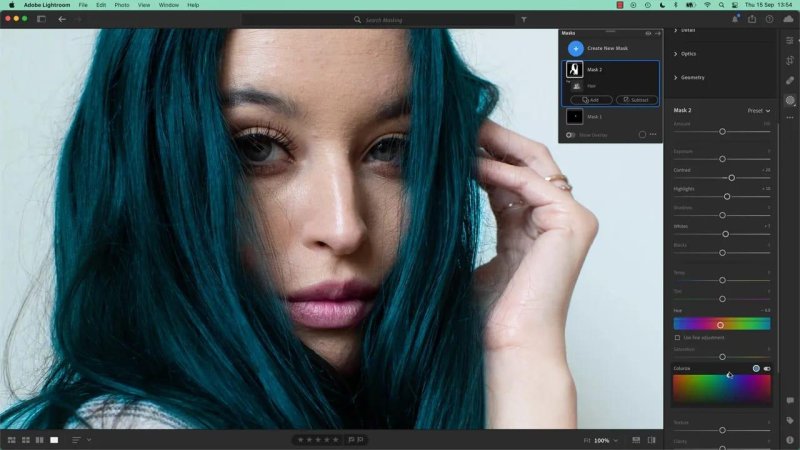
Colorize can add a dramatic new colour even when dark hair gives Hue very little to work with.
Be realistic about the source photograph. You can lighten dark hair and add colour, but turning it convincingly blonde is another matter when the original lighting is wrong. For this portrait, a warmer brown is a more convincing destination than trying to remove all the darkness.
Bring out the irises before changing their colour
Zoom in on the eyes and return to People masking. Select the iris and pupil and the whites of the eyes, creating separate masks so you can handle colour and brightness independently.
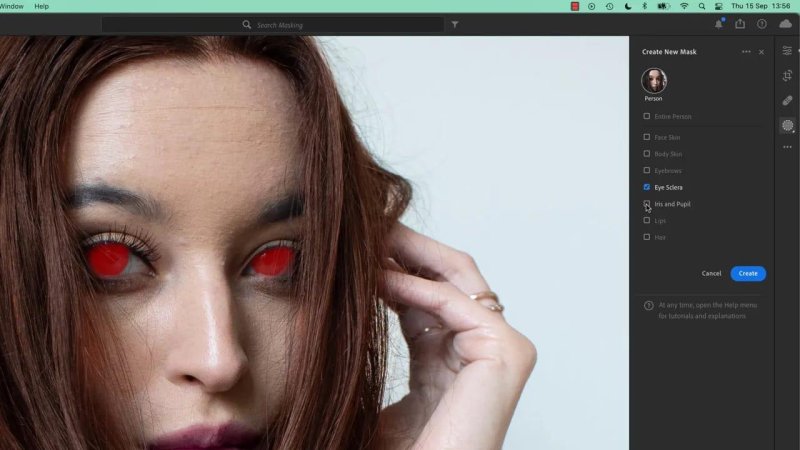
Separate eye masks let me work on iris colour without giving the whites the same treatment.
If the irises are in shadow, changing their colour straight away may do very little. Bring out some of their existing light and detail first. The Enhance Eyes preset is a possible starting point, but you may still need to adjust the mask’s light controls yourself. Move them back and forth and see which ones actually reveal useful detail. Some will have little effect; others can go much too far, very quickly.
With more of the iris visible, try Hue for a subtle shift. If there still is not enough colour to work with, use Colorize and keep its intensity under control. Bright green or blue eyes are easy to produce; eyes that still feel part of the original portrait take a lighter touch.
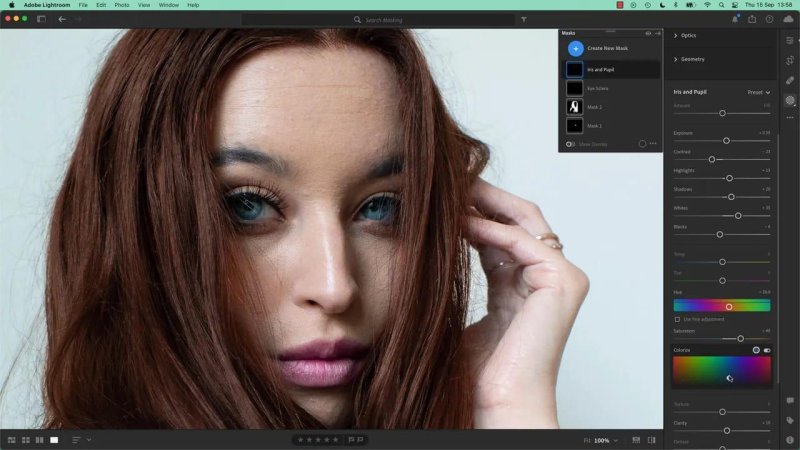
Once I have brought out some iris detail, I can judge the new blue against the rest of the face.
For the whites of the eyes, use their separate mask and make a restrained brightening adjustment. I start with the teeth-brightening slider, then reduce its strength. Toggle the edit off and on to check that the eyes look clearer, not artificially white.
Eyebrows are optional
Lightroom can mask eyebrows too, and Contrast is one way to make them more pronounced. That does not mean they need changing. After trying a stronger contrast adjustment here, I preferred the eyebrows as they were and left them alone. Knowing when to stop is part of the edit.
Match the edit to the photograph’s purpose
The basic choice is straightforward: adjust Hue and Saturation when colour is already present; use Colorize when it is not. The harder choice is deciding how much change is appropriate.
For a creative portrait, an entirely new hair or eye colour might be the point. For a model’s casting headshot, changing blue eyes into a colour the person does not actually have could create a problem when they arrive in person. Have fun with the tools, but keep the intended use of the photograph in mind.
Key terms
People masking
Lightroom’s feature for detecting a person and selecting specific areas, including hair, lips and parts of the eyes, for local adjustments.
Hue
A control that shifts existing colour. It is less effective when the selected area contains very little visible colour.
Saturation
The intensity of a colour. Raising it can enrich a feature’s existing colour, while lowering it can make a new colour less overpowering.
Colorize
An option for adding colour to a mask, particularly useful for dark hair or shadowed irises that do not respond strongly to Hue alone.
FAQs
Why is the Hue slider barely changing dark hair?
Hue shifts colour that is already visible. If the hair has very little colour, turn on Colorize to add a new colour, then lower its intensity until the result suits the portrait.
Should I brighten eyes before changing their colour?
If the irises are in shadow, a little light adjustment can reveal detail and make the colour change easier to judge. Keep the iris and eye-white adjustments on separate masks.
Can Lightroom make dark hair look blonde?
You can lighten dark hair, but a convincing blonde result may be difficult if the original photograph’s lighting does not support it. Adding a warmer brown tone is often more believable.
Written by Daniel Walter Scott — Founder of Bring Your Own Laptop & Chief Instructor
