Position absolute & relative explained in Webflow
Questions


Student Gallery
Be the first to share something.
Course info
Overview
You can get Webflow by clicking here.

Daniel Walter Scott
Founder of Bring Your Own Laptop & Chief Instructor
I discovered the world of design as an art student when I stumbled upon a lab full of green & blue iMac G3’s. My initial curiosity around using the computer to create ‘art’ developed into a full-blown passion, eventually leading me to become a digital designer and founder of Bring Your Own Laptop.
Sharing and teaching are a huge part of who I am. As a certified Adobe instructor, I've had the honor of winning multiple Adobe teaching awards at their annual MAX conference. I see Bring Your Own Laptop as the supportive community I wished for when I was first starting out and intimidated by design. Through teaching, I hope to bring others along for the ride and empower my students to bring their stories, labors of love, and art into the world.
True to my Kiwi roots, I've lived in many places, and currently, I reside in Ireland with my wife and kids.
Certificates
We’re awarding certificates for this course!
Check out the How to earn your certificate video for instructions on how to earn yours and click the available certificate levels below for more information.
Downloads & Exercise files
Transcript
Hi everyone, look what we've got, we've got a button...
in the top corner of our image...
it's over the top, it's overlapping stuff...
it's either magic, or it is absolute positioning...
look, move it around, it's easy, easy-ish...
let me jump in, and show you how to do it.
All right, first up, I'm going to add a button, so 'A' key...
drag it in, I'm going to put it in between those titles...
just because I want to express some of the positioning, what it does...
and it's going to be helpful for that...
so I'm going to give it a '+', I'm going to--
this is stretching too far, this is only because it is...
child of a Flexbox...
if you haven't set up a Flexbox, you don't have to do this bit...
but I'm going to set it to the left...
and now I need to move it up.
Actually, what I'm going to do is do two versions of it...
one using Absolute, and one using Relative...
so I'm going to give it a name, so this is going to be my "Button"...
okay, that already exists, this is going to be my "Button Plus"...
I'm going with two of them so "Button Plus1"...
and I'm going to copy it, and paste it over here...
I grab the whole thing, copied and pasted it...
you, copy, just you, paste, get it in the same position...
now I'm going to give this a different Class...
you've probably done this already...
if you go-- I'm just going to rename it number 2.
You haven't renamed it, you've renamed all of the Classes to number 2...
this first one is now number 2, so we need to undo that...
and say, actually let's duplicate Class...
or you can delete the class and add it again, up to you.
So we've got two separate ones...
this needs to be called 1, this one's called 2...
this particular button, you can use any element...
text, a Div Tag, you can position anything...
let's look at Position, so I'm going to close all this down, open up Position...
default is Static, then we go to Relative...
and then we're going to click, hold, and drag some of these, watch...
oh, look...
it's amazing, hey, going up...
I'll click and drag it to the right, kind of little dragging going on...
here we go, we've got it up in the corner, right up...
like -250, and across, 256...
265, come on, brain...
excellent...
but I left a big hole there, so this is what Relative does...
if you need to it, a hole there, great, I never do...
what I want to do is, say you, are going to be Absolute...
the cousin to Relative...
but watch what happens over here when I turn it to Absolute...
look, kind of closed the gap up...
that's what I want, I want to go up a bit now...
yeah, and over a bit here...
there we go, you're like, "Great"...
let's just use Absolute for everything, and...
it will work, like it's totally working now...
you run into some little problem, so let me explain what might happen...
is that, at the moment, let's look at this first button, this one here...
it's relative to itself, it knows what it used to be in the world, so it can go up...
here, -250, and across, 265...
and this one though...
this one, because the gap's closed...
basically in the matrix, it doesn't know where it used to be.
So what it does is, it says, I'm relative to the...
in this case, the body, what it is, it's actually relative to...
the next parent...
so at the moment the next parent for this guy, my Lower Card Wrapper...
the parent of this one...
is the Card Thumbnail, there's a parent of this as well...
which is my Grid, there's loads of parents going on.
What it does is, this button says, I'm going to look for the...
very next parent, who's set to Relative, we already did that to the side...
but at the moment we got nothing, none of these parents set to Relative...
so it goes all the way back up to the body...
and it works-ish.
The problem with it though is, it is, can you see these giant numbers...
it's like 700 and 800...
it's because it's relative to the body...
and the body starts over here, so it's across eight hundred and...
you know, 844, and down, 724...
and that's fine, as long as you don't change...
the position, so let's say I make this a lot smaller...
let's go 'Size', my 'Minimum Height', going to hold 'Shift', hit down arrow...
getting my button down here...
and hey, it's moving.
That goes relative to himself...
because that position moved, he moved...
this guy, he's relative to the top left hand corner of the body...
and he's still doing exactly what we told him...
he's still 800 across, and 700 down...
doesn't matter what's going on around him...
silly box.
So what we can do is, let's kind of move it where it was...
I hit lots of undos, you wait there...
undo, undo, undo, undo...
there we go...
all we need to do is set one of his parents to Relative...
someone is going to move along with him which is this thing...
or the Card Thumbnail is going to move along, totally...
but used to it, let's use this Card Lower Wrapper...
and we're going to set him to 'Relative', and it's going to break, it's okay...
see button...
button gone.
So that's the Relative, my button, can only click on him over here...
he's still, there he is down here, he's still set to 700 x 800...
so he still remembers that...
but he's now relative to this thing, that bit there...
so he's going across and down, kind of like we did with the body...
do you get the idea, sometimes you might be off screen, you might be like totally...
where is he, you might be totally like, over there, you'll never see him again.
The trick is just to clear these, you, clear...
remember, hold 'Option', or 'Alt', click, click...
he goes back to kind of where he started...
and now, we can drag him across...
and he's relative to that parent...
which in our case is very close, and we move up and down...
let's go to this, let's change it to '100'...
and look, he came up, because he's relative to this, not the body.
So the trick with Absolute is that it will work for a little while...
until you change something, and then it doesn't, so if that happens...
you've just forgotten to say, you are relative to...
something, some sort of parent, some, you might have to wrap it...
in a Div Tag that does nothing else, than be relative...
so grab the parent, make him relative to, nothing else...
so now he is relative to my Card Lower Wrapper...
does that make sense?
One last thing that might catch you out...
it's not at the moment, is...
sometimes Mr. Button here, when you absolute position, and move him around...
he disappears, he goes, just disappears...
I'll fake it at the moment, he does this, you're like...
I can click on him here, in my Navigator, where is he, Text button...
but I can't see him, where is he, is he blank?
He's actually just behind this image...
something called the Z index, so there's my button...
by default, if I clear that out, he's fine...
but sometimes you might be using somebody else's project...
or a template, and they've messed with the Z index, they've said...
image here is going to be a 'Position' of 'Relative'...
and are going to be the Z index of '1'.
Why did I make it relative and not absolute...
because I want him to hold the space...
because if I go Absolute, kind of goes a little bit freaky...
clears out a space and jumps out...
'Relative', get back in your spot, hold your place...
and all-- you know, they're set the Z index to 1...
so I can go to my button, and say, button, you're now going to be 2, I win...
and then the image could go, you wait, this, '3'...
and you can battle it out.
Sometimes, if you get somebody else's one...
some clever designer might go...
or a developer might just go, "I'm just going to turn this to 999999"...
and then you spend the whole time going...
Heading, where is it, where's my Button Heading?
You go 2, 3, you could be there forever...
so you've got to be clever, and put in '999999'...
that gets tricky...
sometimes it jumps too high, stand at 10...
because the poor next person might be trying to type in so many 9s...
it doesn't make all that sense, but do you get the idea?
As long as the Z number is higher...
this one here, I'm just going to clear it up...
as long as it's higher it's fine...
and that's true for anything, if you do find any other part of your project...
there’s something slipping down underneath something, you're like...
yeah, it's the Z index, it's the height...
this needs to be at least one higher than the person that's slipping underneath.
All right, how was that, it's a tricky one, Positioning...
Absolute was on my outline...
and then I was like, "It's too hard," let's get it out of Essentials...
and then, it's back in, and back out...
so like, I feel like, now that we're at part of this course that...
I feel we can handle it a little bit...
and you probably get to the end of this course and go...
you still got to see every single one of these, except for Position...
what intention is this?
It's because it's tricky, and it's meant to be Essentials...
it's the longest Essentials course I've made, but hey...
web design is interesting...
and there's a lot of time to see, so there you go...
Position, Absolute, not that hard, or, your brain melts...
one of those two things happened...
all right, that is it. I will see you in the next video.
How do you position a button over an image in Webflow?
Set the button’s position to Absolute and set a suitable parent wrapper to Relative. Then adjust the button’s offsets to place it over the image. The relative parent gives the button a local reference point, so it moves with the card rather than staying tied to the page.
Absolute and Relative Positioning in Webflow Explained
Key takeaways
Understand why Relative positioning leaves a gap and Absolute does not.
Create independently styled buttons without accidentally renaming a shared class.
Anchor an absolute element to the right parent so layout changes do not leave it behind.
Recover a button that jumps off the canvas after changing its parent.
Use z-index to bring an overlapping button in front of an image.
A little plus button sitting in the top corner of an image looks simple enough. It overlaps the image, you can move it around, and everything seems lovely. Either it is magic, or it is absolute positioning.
It is absolute positioning. And it is easy-ish. The moving part is straightforward; understanding what the button is moving relative to is the bit that catches people out.
Set up two buttons to compare the behaviour
Start with a card containing an image and some text. We will put a plus button into the card’s text area first, then move it up over the image. Starting it in the normal layout makes the difference between Relative and Absolute much easier to understand.
Press A to open Webflow’s Add panel and drag a button into the card, between the text elements.
Change the button’s text to a plus sign.
If the button stretches across the card because it is a child of a flexbox, change its child alignment so it sits on the left rather than stretching. If your parent is not a flexbox, you may not need this step.
Give the button a class such as button-plus-one.
Copy just the button and paste it into the equivalent place in another card.
Give that second button its own class, such as button-plus-two.
Duplicate the class, do not just rename it
Here is a small Webflow trap. If both buttons share a class and you rename that class, you have not created a separate style for the second button. You have renamed the shared class, so the first button gets the new name too.
Instead, use Duplicate class on the second button and name the duplicate. Alternatively, remove its class and assign a new one. Now you can change one button’s positioning without changing the other.
Buttons are only our example. The same positioning controls apply to text, div blocks and other elements.
Relative positioning moves the element but keeps its space
Select the first button and open the Position section in the Style panel. The default setting is Static, which leaves the element in the normal layout.
Change it to Relative. Now adjust the positioning offsets by clicking and dragging their values. You can move the button upwards and across until it sits near the image’s top corner.
In this example, that takes roughly a negative 250-pixel vertical offset and a horizontal offset of about 265 pixels. Those are demonstration values, not a recipe to copy into every card.
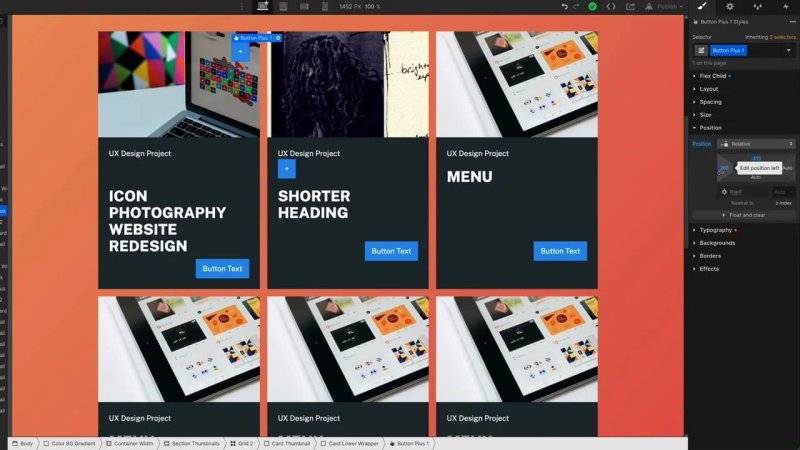
The button has moved, but its original space is still reserved in the card.
The important bit is what happens below the image: the button leaves its original space behind. The surrounding content still behaves as though the button were sitting there.
Think of Relative as moving the visible element away from its usual spot while keeping its place in the layout. If you need that space preserved, great. For this overlapping plus button, though, that is not what we want.
Absolute positioning removes the element from the normal flow
Select the second button and change its position to Absolute. The gap closes up. The surrounding text no longer reserves a place for the button, which is exactly what we need for an overlay.
Adjust its offsets to move it up and across into the image’s corner.
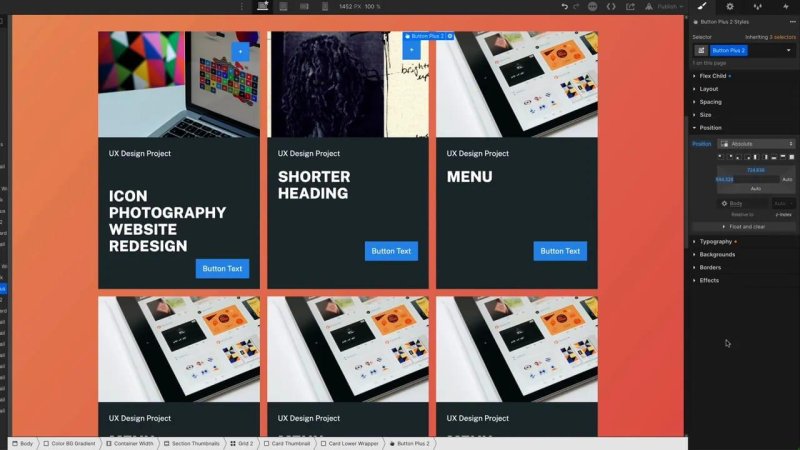
Absolute positioning lets the plus button overlap the image without leaving a gap in the text.
At this point, it is tempting to think, “Excellent. Absolute for everything!” Not quite. It works beautifully here, but there is one question you need to answer before calling it finished:
Where is the button measuring its position from?
Give the absolute button a local reference point
The relative button measures its movement from its own normal position. The absolute button is different: it needs a containing reference point.
For the setup here, it looks up through its parents for a positioned ancestor. Setting an ancestor to Relative is the straightforward way to give it that reference point.
The button sits inside a card lower wrapper, which itself sits inside a larger card structure and grid. There are several ancestors available. If none establishes a local positioning reference, the button ends up positioned against the page-level reference instead.
That is why you can find yourself entering enormous offsets, something like 844 pixels across and 724 pixels down, just to put a small button in a nearby image corner. You are measuring from the page rather than from the card.
Why it looks right until the layout changes
Imagine reducing the minimum height of the section above the cards. The cards move upwards.
The relatively positioned button moves too, because its normal place in the layout has moved. But the absolute button anchored to the page keeps the same large offsets. It is still doing exactly what you told it to do, even though the image is now somewhere else. Silly button. Or, more accurately, the wrong reference point.
A button that looks correct once is not necessarily anchored correctly. Change the surrounding layout and the problem becomes obvious.
Set the parent to Relative
Choose an ancestor that will move with the card and button. In this example, that is the card lower wrapper.
Select the card lower wrapper.
Change its position from Static to Relative.
Leave its offsets alone. It does not need to move.
Select the absolute button again and reset its old offsets.
Adjust the button’s position again using the wrapper as its new reference point.
The parent’s Relative setting has a job even though the parent does not visibly move. It holds its place in the layout and gives the absolute child somewhere local to measure from.
If your structure does not have a suitable parent, you may need to add a div wrapper whose only job is to be set to Relative. Nothing fancy. Just a reliable anchor.
If the button disappears, clear its old offsets
Changing the parent to Relative can make the button jump a long way away. It may even disappear off the canvas. Do not panic: it has probably kept the old page-sized offsets.
An offset of hundreds of pixels now starts from the wrapper instead of from the page. Same numbers, different starting point, wildly different result.
Select the button through the Navigator if you cannot click it on the canvas. Then clear the positioning values. In Webflow, hold Option on Mac or Alt on Windows and click the offset controls to reset them.
Once those old values are cleared, reposition the button near its parent. Now change the height of the section above again. The button should travel with the card instead of being left behind.
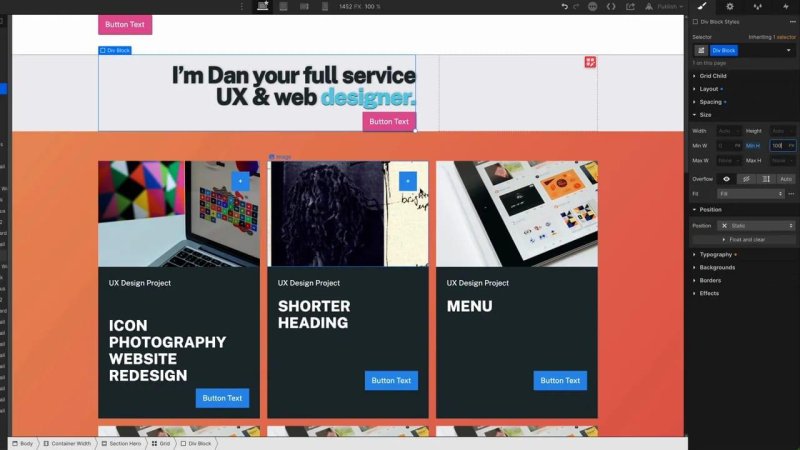
With a relative parent in place, the absolute button follows the card when the section above changes height.
If the button is behind the image, check z-index
There is another kind of disappearing button. You can select it in the Navigator, and it is positioned in the right place, but you cannot see it. This time, it may be behind the image.
That is a layering problem, and the control to check is z-index.
For the overlapping elements in this example, a higher z-index brings an element in front of one with a lower value. If the image has a z-index of 1, setting the button to 2 brings the button above it.
Keep the image’s place in the layout
An existing project or template might have its image set to Relative with a z-index of 1. Relative is useful here because the image still holds its space in the card.
Switching that image to Absolute removes it from the normal flow, which can disrupt the card layout. You do not need to do that just to manage the overlap. Keep the image in place and adjust the button’s z-index instead.
Avoid the battle of the nines
If the button is 2 and the image becomes 3, the image wins again. You could keep increasing the numbers, but please do not immediately reach for 999999.
Someone else may inherit the project and spend ages trying to understand why a perfectly reasonable z-index of 2 or 3 does nothing. Keep the values modest, preferably within the tens for a simple setup like this, and make the intended layering clear.
Before adding a huge value, check whether the image already has an unnecessary z-index that you can clear.
The positioning checklist to remember
Need to preserve the element’s original space? Use Relative.
Need an overlay without a reserved gap? Use Absolute.
Does the overlay stop lining up when the layout changes? Check its parent reference.
Did it jump away after setting the parent to Relative? Clear the old offsets and reposition it.
Is it in the right place but hidden behind the image? Check z-index.
Absolute positioning is a tricky essential, but the core idea is manageable: Absolute on the overlay, Relative on a suitable parent, and sensible layering. Once those pieces are in place, the little plus button stops being mysterious.
Key terms
Static positioning
The default positioning setting. The element stays in the normal layout rather than being moved using positioning offsets.
Relative positioning
Moves an element relative to its normal position while preserving its original space. It can also establish a reference point for an absolutely positioned child.
Absolute positioning
Removes an element from the normal flow so other content does not reserve space for it. Its offsets use a containing reference point, such as a relative parent wrapper.
Offsets
The positioning values used to place an element. Their effect depends on whether the element is positioned relative to its own normal location or to a containing reference point.
Z-index
A control for stacking overlapping elements. In the example here, giving the button a higher value than the image brings it to the front.
FAQs
Why does Relative positioning leave an empty gap?
Relative positioning preserves the element’s original place in the layout, even when its visible position changes. Use Absolute if you want an overlapping element without that reserved space.
Does a relative parent need positioning offsets?
No. Set the parent to Relative and leave its offsets unchanged if its only job is to anchor an absolute child. The parent can stay exactly where it is.
Why did my absolute button disappear after changing its parent?
Its old offsets may now be measured from the new relative parent, placing it far away. Select the button in the Navigator, clear those offsets, and position it again.
Why does renaming the second button’s class change the first button too?
Both buttons share the same class, so renaming it affects both. Duplicate the class or assign a new class to the second button before styling it independently.
Written by Daniel Walter Scott — Founder of Bring Your Own Laptop & Chief Instructor
