🚨 Heads up! This course is no longer supported. We recommend checking out our Webflow Essentials course.
What is a Div Tag
Questions


Student Gallery
Be the first to share something.
Course info
Overview
- You'll need a laptop (Mac or PC)
- Dreamweaver CC installed. Dreamweaver can be downloaded from theAdobe website here.
Can I use this tutorial with Adobe Dreamweaver CS4, CS5 or CS6?

Daniel Walter Scott
Founder of Bring Your Own Laptop & Chief Instructor
I discovered the world of design as an art student when I stumbled upon a lab full of green & blue iMac G3’s. My initial curiosity around using the computer to create ‘art’ developed into a full-blown passion, eventually leading me to become a digital designer and founder of Bring Your Own Laptop.
Sharing and teaching are a huge part of who I am. As a certified Adobe instructor, I've had the honor of winning multiple Adobe teaching awards at their annual MAX conference. I see Bring Your Own Laptop as the supportive community I wished for when I was first starting out and intimidated by design. Through teaching, I hope to bring others along for the ride and empower my students to bring their stories, labors of love, and art into the world.
True to my Kiwi roots, I've lived in many places, and currently, I reside in Ireland with my wife and kids.
Downloads & Exercise files
Transcript
So we're gonna try and create a structure that looks like this. Okay? It's nothing much, but it will help us understand how did tags are created and how you move them around in code. So we've got a red box with a yellow box inside of it with a blue box underneath. So let's look at creating that and we're gonna do it in a separate document. So not in our current vintage campus site.
We're gonna make a new file, okay? So file new, then go to blank HTML, and then the layout is none. Hit create. Then I'd like you to go to file save and let's call this one. Um, our red box Hyen demo. So Red Hyen box hyphen demo.
Okay, this is just gonna be a temporary file. We're gonna throw this away in a second once we've kind of got the understanding of div tanks. So the first thing we need to do is make sure there's a CSS sheet created. Now the CSS that we create for these div tags is the exact same ones we do for the fonts. So if you've got a file that's already got a CSS sheet, like our index currently does, it's got a one called Main css. If that's true, then you don't have to create a new one.
If you're doing this demo with me, we're gonna create our own CSS sheet just for this exercise, and we're gonna do it the exact same way we did the fonts. So over here we're gonna hit the little plus button under sources, we're gonna go create new CSS file. Then we're gonna give it a name. We're gonna call this one red hyphen box. And okay, if I zoom out now you'll see I've got my red box demo, do html, but I've also got this new file called Redbox css. Okay?
So next thing we're gonna do is we're going to create our diviv tag. So there's two parts to it. We're created it in the source code, which is the HTML, which is in here. Then we style it in the CSS. Okay? Which at the moment has nothing in it.
So back to the source code, and I'm gonna go to my design view. So the cursor facing in anywhere, you can either use your insert panel, which is on the right, it might be tied up with the uh, files panel, or you can go to insert and down to div. It's totally up to you. Okay, I'm gonna use the insert panel. So we're gonna use insert and click on div. If you can't see div, it might be under some different setting here.
So make sure you're on common and then click div. All right? Um, now well forget about insert for the moment. We'll look at that in a little bit. We're gonna use IDs to style this box. Okay?
So we're gonna call this one a red hyen box. Now we've looked at tags in an earlier class and we've looked at classes in an earlier, um, one just before this one. So classes had remember a full stop in front of it to make it a class. IDs have something slightly different. They have hashes in the front of it, okay? That's what makes an id.
So we don't have to add it here. Dream move is pretty clever and adds it for us. So if I leave red box there and click okay, you'll see in my HTML, um, it's created this div tag, okay? And it's added some placeholder text for us. If I check in the source code, so under source code code, I've got this thing called div id, red box. Okay?
And then I've got the closing of the diviv. So there's the opening of the diviv, okay, named Red Box. And there's the closing of it and everything inside of it at the moment is only a bit of placeholder text content for id. Red box goes here. This is just placeholder text. You do not need to leave it there.
Um, it's just so that there's something on the screen while you're designing. So we've created in the HTML, now we need to style it in the CSS. And this is where it's, um, very similar to doing the fonts. I wanna make sure over here I've got my CSS selected. I'm gonna pick a selector and it's even defaulted to red box for me. If it doesn't, okay, you can go through and just type in, remember hash to identify, uh, an id, and then red box.
Great. I hit enter, I hit it twice. And now we're dealing with slightly different place down here. Earlier when we were doing fonts, we were dealing with the text part. We're gonna be dealing with this part here. Now, the first bit, the layout that's more applicable to a div tag, it gives us our width, our height, and things like color and those sorts of things.
So the width for this one I've decided is going to be in pixels. So pixels is how you'd style, um, diviv tags unless you start getting into more complicated things like responsive web design, which we will look at at a later tutorial. But for the moment, let's talk to, um, an absolute size. Okay? It's still very common in web design. So we'll get a width of 400 pixels, okay?
We're gonna have a height of pixels at 400, and I'm gonna enter, I'll zoom out and you'll see I've got now a box that is 400 pixels by 400 pixels. Great. Now I need to play around with the background color. So let's have a look, um, through, you can keep scrolling down until you find it. I know that it's under this one here. Okay, under background.
So we've used layout, we've used text before. Now we're gonna skip down to background. That just slides down the list. Now, in this one, it's the top one that I really want. It's this one that says background color. So click on that and then move your cursor.
Move the little circle. I'm clicking and dragging till it goes to the red. Hit enter and ta-da. We've got a red box that is 400 pixels by 400 pixels that has a center color of red. Let's check it out in CSS. So in my source code and my code, I've still got this, just this really simple thing called red box.
Okay, this Id called red box and a closing of the div tag. Red box, no sizings, no nothing. But in my CSS, that's all the work gets done. You can see the corresponding name, red box has a width and height and a background color. Great. So, um, it's a way of splitting these two apart and it means that, um, it keeps the code down to nice and small because what you can do is you can have red box on every single page.
Okay? So you might have red box as the top box on, uh, on all your pages. So you've got a hundred of them or a thousand of them. It means that you don't have to write red box once. And um, the red box class or the red box id styling in here needs to be only written once. Cut that last bit out.
That was dumb. Great. So now we've got these two, uh, this box created. Let's look at building our second box. So the second box is gonna be this blue one underneath. So we're gonna add a little extra complexity to it.
So we're gonna go to insert div or insert div, whichever one you prefer. Now this top one becomes more important. Okay? It says where to insert it. Okay? So at insertion point, it's gonna be wherever my cursor is, uh, flashing in my design view.
Now that can be tough because it's very hard to get the cursor flashing in the right tire or right place every time. So we're gonna at these ones before tag, after start of tag, before end of tag and after tag. Now, um, if I zoom out a little bit, um, we've got, We've got pretty much, we've got one option in this one, okay? So, um, we've got after tag. So what it means is I have the beginning and ending tags. So let me close that and come back at here and go to source view.
I, here's my beginning of tag and there's my close of my tag. If I want the blue box to appear after this one, I have to say after red box. Okay? If I want it to be inside the red box, I say after the start of red box, it'll start inside this guy here. So let's give that a go back to design view. I'm gonna go to insert div tag.
So at insertion point, I'm gonna say after tag Red box, I'd like to insert a new ID of Blue hyphen box and click okay. You'll see after red tag finishes, there is the blue box. Let's go to Cur view. You can see what happens. So there's the red open, there's the red close, and after the close of that tag, which is there, it's the after the, after the red box closes, the blue box starts. So it's right after it.
Now what we need to do is go back to design view and we're gonna style this one just like we did the red box. And to do it, we're going to make sure we're in red box. CSS. We are picking a selector. It's defaulted to blue box, but if it doesn't, don't worry. You can just type in.
Maybe we've gotta start with a hash and we're gonna start with blue box. Hit enter twice. Okay, I'm gonna start with layout. We're gonna do a width of this one is gonna be pixel width of 600 and a height of pixels 200. Great. So, so far we've got the shape kind of in there.
Now we'll do the background color, which is this little tab here, background color. I'll pick a blue and move this circle around clicking and dragging it and pick something that's blue, hit enter. Great. So we've got a red box and a blue box. So the last one we need to do is get that yellow box. Remember this guy, we need to get that yellow box inside the red box.
So let's give that a go. So to do that, I'm gonna insert a div tag. So it doesn't really matter where your cursor is. Okay, just hit insert diviv tag. Now, not at the insertion point. I wanted, if I did before start of red box, okay, before tag red box, it'd end up above the red box.
If I wanted it after red box, it would end up with the blue boxes. Okay, so I want this one that says after start of red box. So after the starting of it, I would like to put this new one cord, yellow box. Great. Let's click. Okay.
So we melt. So it's in the right place. Okay, but it has no styling yet, but there is my yellow box. Let's have a look at code view. You can see red box opens. Then before it closes, which is there, the yellow box starts and closes.
So he is tucked up inside this one. Great. I'll put a couple of returns in just to help you visualize it. Um, returns don't mean anything in code view. Okay? So you can kind of space things out nicely just to see, um, uh, just to see a little easier.
So red box opens, okay, and closes here. Inside of red box is yellow, box opens and closes. All right, let's go back to the design view and let's style this yellow box. So let's make sure in red box css, click on the plus button. It's defaulted to try and styling two of them. I just want to style just the yellow box.
And I'd like a width, okay, of 100 pixels And a height of 100 pixels. And I'd like to pick a background color of, let's use a yellow. So I'm gonna slide this up the hue slider, and then move into hip pick, enter. And fingers crossed, we, I've got a yellow box inside my red box. Now this text here is purely just placeholder text. I can delete all of that text in there and start adding my own content now.
Alright, so that's a kind of a basic in, uh, um, introduction to creating div tags. Now let's look at putting that into more practical use by actually building a website with div tags rather than just little boxes. Alright, I'll see you in the next tutorial.
How do you create and style div tags in Dreamweaver?
Create a div using Dreamweaver’s Insert panel or Insert menu, give it an ID, then add a matching ID selector in your CSS stylesheet. Set its width, height and background colour in CSS. To place another div inside or after it, choose the appropriate insertion option relative to the existing tag.
Dreamweaver Tutorial: Understanding Div Tags
Key takeaways
Create a separate HTML document and CSS stylesheet for a simple practice layout.
Understand how HTML creates a container while CSS controls its appearance.
Use ID selectors to give three boxes different dimensions and colours.
Place divs underneath one another or nest one inside another.
Check opening and closing tags in Code View to understand your page structure.
A few coloured boxes are a useful way to get comfortable with div tags before building a complete website. There is nothing fancy about the design here, and that is the point. We can concentrate on how the boxes are created, styled and arranged without getting distracted by the rest of a page.
We are going to build a red square, put a small yellow square inside it, and add a wider blue rectangle underneath. By the end, the relationship between the HTML and CSS should feel much clearer.
1. Create a separate practice document
Keep this exercise separate from your existing website. It is a temporary practice file, so there is no need to change your current homepage or other site content.
Choose File > New.
Select Blank HTML.
Set the layout to None, then click Create.
Choose File > Save and save the document as red-box-demo.html.
Next, make sure the document has a CSS stylesheet. This is the same kind of stylesheet you would use to format fonts. You do not need a different type of CSS file just because you are styling boxes rather than text.
If you are working in a document that already has a stylesheet, such as main.css, you can use that existing file. For this separate exercise, create a new one:
In the CSS Designer panel, click the plus button under Sources.
Choose Create New CSS File.
Name the stylesheet red-box.css and confirm.
You should now have your HTML document and its associated CSS file ready to use.
2. Insert the red box in HTML
There are two parts to making each box: create the div in HTML, then style it in CSS. Inserting the div alone will not give it the size or colour we want.
Return to the HTML document and switch to Design View. You can insert a div in either of these ways:
Open the Insert panel, select the Common category and click Div.
Choose Insert > Div from the menu.
The Insert panel may be grouped with the Files panel. If you cannot find Div, check that you have selected the Common category.
In the Insert Div dialogue, enter red-box in the ID field, then click OK. For this first box, inserting at the current cursor position in the blank document is fine.
Understand the ID and placeholder text
Dreamweaver creates an opening div tag with the ID red-box, some placeholder text, and a closing div tag. Switch to Code View to see those pieces.
The opening tag starts the container. The closing tag ends it. Anything between them belongs inside that div.
The text Dreamweaver adds is only there to give you something visible while designing. It is not required, and you can remove it later.
There is also a small but important distinction between the ID name and its CSS selector:
In the Insert Div dialogue, enter red-box without a hash.
In CSS, use #red-box to select that ID.
A class selector uses a full stop instead, such as .red-box.
For this exercise, we are using IDs.
3. Style the red box in CSS
With the div created, select red-box.css in the CSS Designer panel. Add a selector using the plus button in the Selectors section.
Dreamweaver may suggest #red-box automatically. If it does not, type it yourself and press Enter to confirm.
Open the Layout properties.
Set Width to 400px.
Set Height to 400px.
Open the Background properties.
Click Background Color, choose a red colour and confirm.
Great, you now have a red square measuring 400 pixels by 400 pixels.
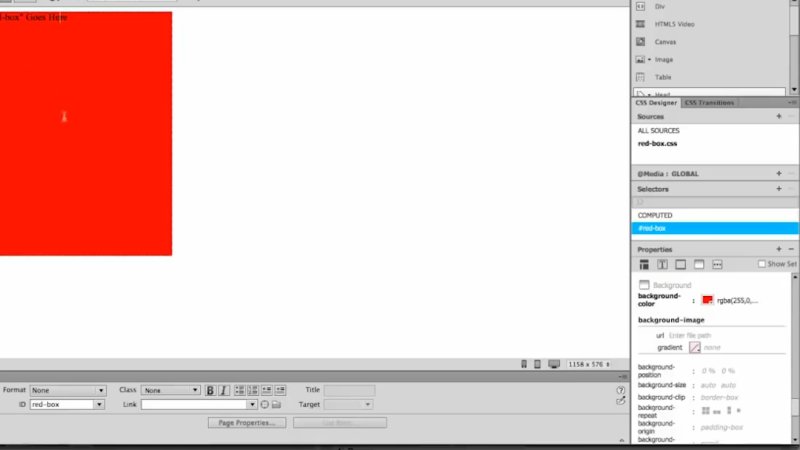
The first div becomes a visible square once its dimensions and background colour are set.
We are deliberately using fixed pixel dimensions to keep this exercise straightforward. Responsive sizing is a separate topic. Here, we just want a predictable size so it is easy to understand what each setting does.
Why keep the styling separate?
Look back at the HTML. The div still only needs its ID, its content and its closing tag. Its width, height and background colour live in the CSS file.
That separation keeps the structure simple and the styling in one place. If multiple pages use the same stylesheet and a corresponding red-box element, the styling rule can be maintained in that shared CSS file rather than repeated on every page.
4. Insert the blue box after the red box
Now we need a blue rectangle underneath the red square. This is where the insertion options become important.
You could try to put the cursor in exactly the right place in Design View, but that can be fiddly. It is clearer to tell Dreamweaver where the new div belongs relative to an existing tag.
What the insertion options mean
At insertion point: inserts the div wherever the cursor is currently positioned.
Before tag: inserts it outside the selected element, before its opening tag.
After start of tag: inserts it inside the selected element, just after its opening tag.
Before end of tag: inserts it inside the selected element, just before its closing tag.
After tag: inserts it outside the selected element, after its closing tag.
For the blue box, we want After tag. It needs to begin after the entire red-box div has finished, not inside it.
Open Insert Div.
Set the insertion option to After tag.
Select red-box as the reference element.
Enter blue-box in the ID field.
Click OK.
Switch to Code View to check the result. You should find the red box’s opening tag and closing tag, followed by the blue box’s opening tag. That order is what puts the second box after the first.
Style the blue rectangle
Return to Design View, select red-box.css and add the selector #blue-box. Again, if Dreamweaver does not suggest the selector you need, type it manually.
Width: 600px
Height: 200px
Background colour: blue
Use Layout for the dimensions and Background for the colour, just as you did for the red box. The blue rectangle should now sit underneath the red square and extend further to the right.
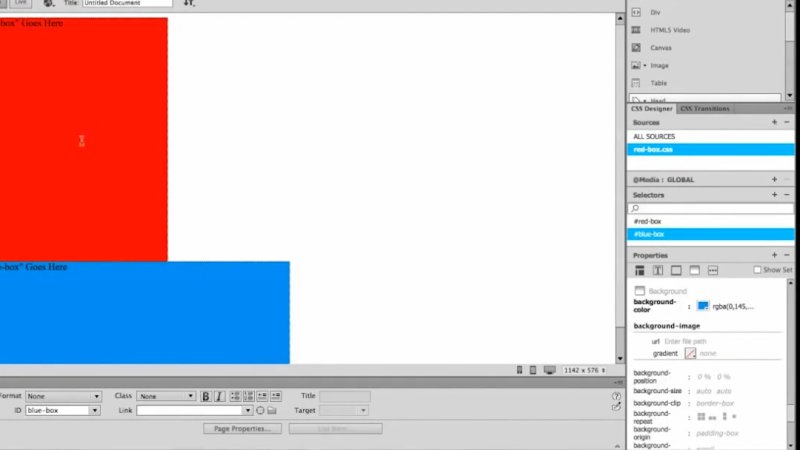
The blue div sits outside the red div because it was inserted after the red box’s closing tag.
5. Nest the yellow box inside the red box
The last box needs a different relationship. We do not want it above or below the red box. We want it inside.
Open Insert Div.
Choose After start of tag.
Select red-box as the reference element.
Enter yellow-box in the ID field.
Click OK.
Choosing Before tag would put the new div before the red box. Choosing After tag would put it outside the red box, like the blue one. After start of tag puts it between the red box’s opening and closing tags.
Check Code View again. The red box should open first, the yellow box should open and close inside it, and only then should the red box close.
With the placeholder text removed, the structure looks like this:
<div id="red-box">
<div id="yellow-box"></div>
</div>
<div id="blue-box"></div>
Spacing the code out makes this relationship easier to read. Extra line breaks do not create the nesting; the positions of the opening and closing tags do.
Style the yellow square
Return to Design View and create a selector in red-box.css. If Dreamweaver suggests a selector involving more than one element, replace it with just #yellow-box. We only want to style the yellow box here.
Width: 100px
Height: 100px
Background colour: yellow
Confirm the colour and there we go: a yellow square inside the red square, with the blue rectangle underneath.
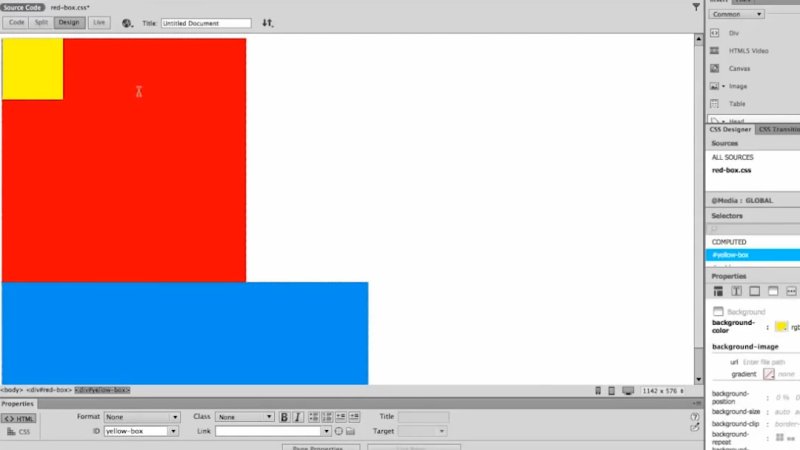
The finished layout shows the difference between a nested div and a separate div placed after it.
6. Remove the placeholder text and check the result
You can now delete Dreamweaver’s placeholder text and start adding your own content. Be careful to remove the text rather than the div tags that hold the layout together.
Your finished practice document should have:
A 400px by 400px red box.
A 100px by 100px yellow box inside the red box.
A 600px by 200px blue box after the red box.
Three matching ID selectors in red-box.css.
The important lesson is not the colours. It is understanding that HTML controls which elements contain other elements, while CSS controls their appearance. Once that relationship makes sense with three simple boxes, you have a much clearer starting point for building a website layout.
Key terms
Div tag
An HTML container with an opening and closing tag. In this exercise, each div becomes a coloured box when CSS is applied.
ID selector
A CSS selector that targets an element by its ID. It begins with a hash, so the HTML ID red-box is targeted with #red-box.
Stylesheet
A CSS file that stores presentation rules, including dimensions, background colours and text formatting. This exercise keeps those rules in red-box.css.
Nesting
Placing one element inside another element’s opening and closing tags. The yellow box is nested inside the red box.
Placeholder text
Temporary content added to make an element easier to identify during design. You can remove it or replace it with your own content.
FAQs
Do I need a separate CSS file for div tags?
No. The same stylesheet can format both text and divs. We create a separate stylesheet here only to keep the practice exercise apart from an existing website.
Should I type the hash into Dreamweaver’s ID field?
No. Enter the name, such as red-box, in the ID field. Use the hash when creating the CSS selector, such as #red-box.
What is the difference between After tag and After start of tag?
After tag places the new div outside the selected element, after its closing tag. After start of tag places it inside the element, immediately after its opening tag.
Why does my new div only show placeholder text?
Inserting a div creates its HTML structure, but it does not automatically give it the dimensions and background colour used here. Add the matching CSS selector and set those properties in the stylesheet.
Written by Daniel Walter Scott — Founder of Bring Your Own Laptop & Chief Instructor
