🚨 Heads up! This course is no longer supported. We recommend checking out our Webflow Essentials course.
Change background on website
Questions
Student Gallery
Be the first to share something.
Course info
Overview
- You'll need a laptop (Mac or PC)
- Dreamweaver CC installed. Dreamweaver can be downloaded from theAdobe website here.
Can I use this tutorial with Adobe Dreamweaver CS4, CS5 or CS6?

Daniel Walter Scott
Founder of Bring Your Own Laptop & Chief Instructor
I discovered the world of design as an art student when I stumbled upon a lab full of green & blue iMac G3’s. My initial curiosity around using the computer to create ‘art’ developed into a full-blown passion, eventually leading me to become a digital designer and founder of Bring Your Own Laptop.
Sharing and teaching are a huge part of who I am. As a certified Adobe instructor, I've had the honor of winning multiple Adobe teaching awards at their annual MAX conference. I see Bring Your Own Laptop as the supportive community I wished for when I was first starting out and intimidated by design. Through teaching, I hope to bring others along for the ride and empower my students to bring their stories, labors of love, and art into the world.
True to my Kiwi roots, I've lived in many places, and currently, I reside in Ireland with my wife and kids.
Downloads & Exercise files
Transcript
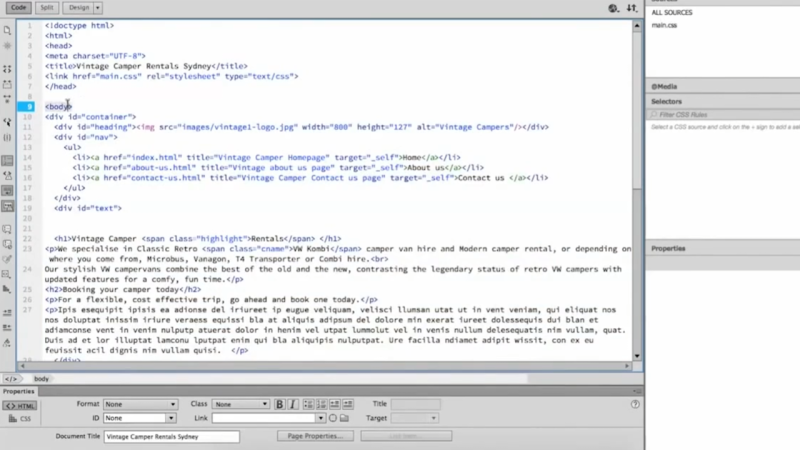
So if I look in code view, okay, I've got two main tags. I've got this body tag, you can see it starts here and it goes all the way to the end of my website. Okay? So that's my body tag. That's everything that the user sees. Now, um, there's another tag, the head tag, okay?
And this is the stuff that the user doesn't see. So this has things like my title for my website that appears in search engines. Okay? It has a link here to my CSS sheet. So this stuff doesn't get displayed to the user, but it's very important for a website and it's in the head. We are gonna look at this body tag, okay?
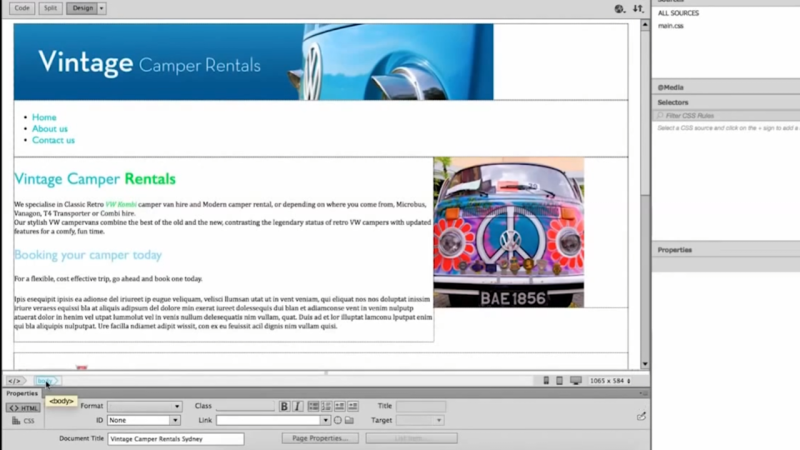
And this is the tag that we color to get the background color. So I'm gonna go back to design view 'cause it's my preference. Now I'm going to click anywhere on my website. I'm gonna click the body tag here down in my breadcrumbs. And over here I'm gonna create a style for this body tag. It's the exact same principle as styling your H one tag or your heading one tag that we did in an earlier um, tutorial.
So clicking on body just helps us preload this thing over here. So select body tag down here in breadcrumbs. Click the main CSS in the sources here. We're gonna ignore media at the moment, okay? In the selectors panel, we're gonna hit this little plus button. Now it's gonna try and default to our body and pick the paragraph tag as well.
So we're just gonna delete the P tag and just have the body and hit enter. Okay, I had hit it twice now. Now I'm styling this tag. Okay, called Body. Now what I wanted to do is go to the background icon, fourth one along and pick background color. Now what color do I want to pick?
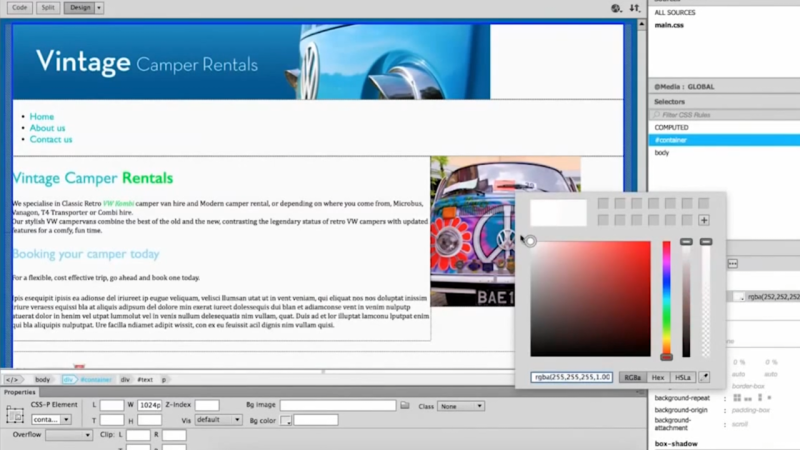
I can type it in down here. Okay, if I know what the HEXA decal number is, I need to leave the hash there and type it in. If you know the RGB color, okay, you can type it in here or you can just mix around with the hue slider here and go through and pick a color and pick up. You'll see a color as the background. If you've got a specific color you want to use, okay? And it's in, say it's from one of these images here.
You can go back into color and hit this little eyedropper. This eyedropper tool will allow you to move around your document. And can you see as I move around in this top image here, you'll notice that the color gets updated in the hue, um, down here. So let's move it around. I'm gonna pick this color here, click enter, And you'll notice it matches this top color. Now there's a slight problem because I would like the background to be that color, but I'd like the actual container div to be white so it sits in the middle.
So what I'm gonna do is I'm gonna style the container diviv. So I'm gonna click inside anywhere inside my website. And you can see down in my breadcrumbs I've got the container and that was everything. Um, so we could send to the website. We can also color this box though. So watch this.
So I've got container selected in my selectors. I'm gonna go down to background and I'm gonna pick white. I'm just gonna drag it from the top right hand corner there. So I'm gonna drag all the way up to the top and choose, and I'll choose white, okay? Okay. And you'll notice that now I have a background.
It's very hard to see. Let's look at in preview mode. So I'm gonna use this little globe in the top right hand corner and I'm gonna preview in Chrome. And you'll notice here I've got a background color of that tealy blue. But my container here has the white background where I can see my type. Alright, that's the end of this tutorial.
I'll see you in the next one.
How do I change a website’s background colour in Dreamweaver?
Select the body tag in Dreamweaver, create a CSS selector for it in your stylesheet, then set its background colour. If your content sits inside a container, give that container its own background colour too. That way, you can colour the space around the page without making the text harder to read.
How to Change the Background Colour in Dreamweaver
Key takeaways
Style the body tag to change the page background.
Use Dreamweaver’s CSS Designer to add the colour to your stylesheet.
Choose a colour with a hex value, RGB value, colour picker or eyedropper.
Style the content container separately if it needs to remain white.
Check the result in a browser to see how the colours work together.
Start with the right tag
Before choosing a colour, we need to decide what we are colouring. For the background of the whole page, that’s the body tag.
In Code view, you’ll see two important parts of the document. The head contains information such as the page title and links to CSS files. The body contains the content displayed on the page. So, if you want a colour behind your website’s content, the body is the place to start.
The browser preview shows the finished effect: a coloured page background with a white centre.
Add a background colour to the body
I’m going back to Design view for this part. Click anywhere on the page, then select body in the breadcrumb trail at the bottom of the document. This tells Dreamweaver which element we want to style.
In CSS Designer, select main.css under Sources.
Leave the Media section alone for now.
Click the plus button in Selectors to create a selector.
If Dreamweaver suggests a selector containing both body and p, remove the p. We want to style the body on its own.
Confirm the selector, then open the Background properties and choose a background colour.
This is the same idea as creating a style for a heading: choose the element, create its CSS selector, and set the property you want to change. Selecting body in the breadcrumbs simply gives Dreamweaver a useful starting point for the selector.
Sampling an existing image gives us a starting colour that belongs with the design.
Choose a colour that suits your site
If you already have a specific colour, enter its hexadecimal value in the colour picker, keeping the hash symbol at the beginning. You can also enter an RGB value. Otherwise, move the hue slider and choose a colour visually.
There’s another handy option when the colour you want is already in an image on the page. Open the colour picker, choose the eyedropper, and sample that colour from the image. Here, I’m taking a blue from the image at the top of the site so the background ties in with the existing design.

Sampling an existing image gives us a starting colour that belongs with the design.
Keep the content container readable
There’s one small problem with colouring the body: the coloured background can appear behind the content as well. On this site, I want the blue around the page, but I want the central content area to stay white so the text is easy to see.
Click inside the content area and select the container in the breadcrumb trail. With its selector selected in CSS Designer, go to Background and set its background colour to white. In the colour picker, white is at the top-right corner.
Now we have two separate background colours doing two different jobs: blue on the body and white on the container. The site’s content sits on a clear white panel, while the colour still frames the page.
The white container restores a clear surface for the text without losing the blue background.
Preview the finished page in a browser
Finally, use the globe icon at the top-right of Dreamweaver to preview the page in Chrome. It’s easier to judge the result there: the blue background surrounds the site, and the white container keeps the content distinct and readable.

The browser preview shows the finished effect: a coloured page background with a white centre.
Key terms
Body tag
The HTML element containing the content displayed on the page. Its background colour provides the colour behind the site.
CSS selector
The part of a CSS rule that identifies what you’re styling. In this case, body targets the page background, while the container selector targets the central content area.
Container
A section that holds the site’s content. Giving it a white background lets it stand apart from the coloured body.
FAQs
Why did Dreamweaver add a paragraph tag to my body selector?
Dreamweaver may suggest a selector based on where you clicked in the page. Remove the paragraph tag so the selector contains only body when you want to colour the page background.
Why did my content area change colour too?
The container may not have its own background colour. Select the container and set its background to white to keep the content area separate from the body colour.
Written by Daniel Walter Scott — Founder of Bring Your Own Laptop & Chief Instructor
