How to update Library items in Adobe CC Libraries
Questions
Student Gallery
Be the first to share something.
Course info
Overview
Join Adobe certified instructor Daniel Scott to learn:

Daniel Walter Scott
Founder of Bring Your Own Laptop & Chief Instructor
I discovered the world of design as an art student when I stumbled upon a lab full of green & blue iMac G3’s. My initial curiosity around using the computer to create ‘art’ developed into a full-blown passion, eventually leading me to become a digital designer and founder of Bring Your Own Laptop.
Sharing and teaching are a huge part of who I am. As a certified Adobe instructor, I've had the honor of winning multiple Adobe teaching awards at their annual MAX conference. I see Bring Your Own Laptop as the supportive community I wished for when I was first starting out and intimidated by design. Through teaching, I hope to bring others along for the ride and empower my students to bring their stories, labors of love, and art into the world.
True to my Kiwi roots, I've lived in many places, and currently, I reside in Ireland with my wife and kids.
Downloads & Exercise files
Transcript
Look over here. Ready city. Hey, they all update where it's being used. I'm gonna also show you how to break that if you don't like that feature. Plus we're gonna tidy up the mask, do some select masking. It's a good video.
Hang around. I bet you'll learn something to speed up your workflow in this one. Alright, first up, we wanna add some of our library items. So we've got this kind of tea thing going on here, but we've got that latte. So it's kind of this group here. I want to add them to it to add them.
Just click hold, drag, drag, drag and pick an up board. I start with this one here says yes. Oh, don't show again. I have to, let's click. Okay. I can't live with that for this whole class.
Uh, don't worry about it. Just says it's gonna convert it to smart objects and it's gonna be connected to the library, which I'll explain. Okay? So don't hold shift, get it to a size you want. Hit enter on your keyboard. Kind of move it down here.
Roughly, same thing. I can move this one in. Okay, I'm gonna drag it down to a more appropriate size. Now, uh, don't hold shift, remember, 'cause that's, uh, a new thing. If that was, if that's driving you bananas and you're like, man, I can't stop holding shift, just turn that off and it will remember forever. It's pretty cool.
You used to have to go into preferences. You can still go in there, but now there's that easy one is turn that off and it will forever do the squishy thing without holding. Uh, shift down. I'm gonna turn mine back on mainly 'cause I need to be the same as the folks on with the new versions. Okay? Oh, I gotta lock it.
So what do I want? I want to be locked. Yeah. Cool. So get it to an appropriate size. Hit return, move him down there.
Now you don't have to keep dragging it from this over. You can actually just duplicate it here. What I tend to do is hold down the option key on a Mac alt, key on a pc and I'm on my latte layer. Okay? And I just drag it from this one to this one. Is this the right size that I need it rather than have to resize it every time.
Now they're all still connected to the library and that's what we're gonna do now is just show you how to update it and get it to connect all of these things. So let's give it a go now to update this, uh, latte here. You can do one of two things. The easiest is to just to double click it in the library. Okay? You can actually double click it in the see this teeny tiny thumbnail here.
Double click that or double click this. What's gonna happen is it's gonna open up and it's own, uh, layer panel. Okay? Uh, it is or tab even it's not connected to that original. You know, we made this mask and then we dragged it into the library. It's its own like little fresh thing in the library.
Okay? Since I've dragged it out, they should all be connected, okay, to this guy. Okay, these guys are all connected, but we're gonna prove it. So, latte, uh, PSD, okay, we are going to just hit command. I just 'cause it's really bright and obvious we're gonna invert it. So on a pc it's control I and it should just invert it.
You can do anything to it. Now I want you to go file save, okay? And leave it open. But I want you to go back to this tab. You can see it's open, updated in the library. Are you ready?
Look at that. Look at the connection. Think of all the times saving. Okay, lots of logos or icons or anything just 'cause they're library items. They're all connected, which is super useful. And if you're like, that's pretty good, you wait, I got a finale.
That's why I've got illustrator open. Look, illustrator updated without me asking. Just did it. It's all connected. You're like, that is awesome Dan. Uh, but what happens when I don't want it connected?
That's why I hate libraries. And you're like, don't hate libraries. Libraries are good. Um, so what you can do is, let's say you want one that's not connected. Um, so I'm gonna kind of go back and undo this. Everyone do it.
Go back to latte. Go to undo edit. Undo hit save. So it's back to normal. Looks good. Wait for an update.
Illustrate updated. Cool. Let's say you don't want it connected. So what you do is you, when you're dragging it out, hold down the option key on a Mac, the old key on a pc. Nothing really changes. I've still got a version.
It looks the same, but, but if you, if you've held down that key, the option on a Mac, hold on a PC whilst you've been clicking and holding and dragging, it won't be connected and I'll prove it to you in a second. Let's drag a couple more out. Uh, let's drag out one more. Where did he end up the wrong one? Ah, port Z. All right, so you're ready.
Uh, we're gonna open up my um, library item. Mine's already open but you can double click it again, it should jump to it. And then you say, all right, now I'm going to do something with adjustments, hue and saturation and I'm gonna oversaturate it and I'm gonna make it a different color. Wow. Okay, let's hit save. And you'll notice some update.
The one original ones we had look updated, updated, updated, but that guy didn't. Why? Because we held the option key as we drag that out. So if you don't like that connection, okay, just hold you like using libraries but you don't want that connection. Just hold down the option key on a Mac. Oh key a pc.
As you drag them out, you can break it afterwards instead of trying to remember, hold down that key. You can say go to these guys. So this one is connected, right? And it is, where is it? In my library layers panel and what's this one here you can right click the word and up here it says, um, it says one of them. It says embed linked.
Okay. And that would just break the connection. It'll still be a smart object. You can kind of see the icon there. Still smart object, but it's not connected to the library anymore. I'm gonna undo that.
So what are we gonna do? Uh, we're gonna go back, undo that craziness, okay? We're going to save it and we are going to go and check all of this. I'm going to delete this giant one that's not connected 'cause that's not what I want. And let's have a look at on delete latte please. Let's go to our illustrator file.
That was the one. Go one. Back to looking tidy. Alright. All right. Um, so we used invert and then crazy uh, hue saturation to prove a point.
So let's look at it a bit more kind of like how we would do it in terms of workflow. 'cause basically I wanna sneak in something called select a mask for you. 'cause it's pretty awesome because when we did remove background it did okay, like let's have a little zoom on this one and you can see the edges are fine. It's not quite, you know, like it's pretty amazing. I'm pretty amazed. Um, but you might want the edges to tidy up.
So let's look at how to tidy those up. So you kind of made it real rough. Okay? And it's not even that rough remove background. Maybe we did it with this guy, okay? But we wanna fix it up a little bit.
So what we can do is go to our latte. If it's not open, remember you can open it up in your libraries panel by double clicking it. Let's zoom in together on the kind of top part on the right and the command plus to zoom in or control plus on a pc. What we wanna do is to fix this edge, we're gonna click on the actual mask part of the layer. So not the image. You can see the little box around it.
Then we're gonna click on this one that says Select and mask. If you can't see it, you probably don't have properties panel open. So just open it up here in the window. All right, so select on that, click on select and mask. And this one here is pretty amazing. So it's gonna show you this thing against the edge in the background.
It's up to you like up here when it says view, I like to say, actually let's go, let's see it against on white or on black. It depends on where yours is going. I think on black gives us a good contrast on white. Now on white gives us a bit contrast and here you can drag it right up to a hundred percent to see what it looks like because that's not really doing anything. It's just showing you your current mask against a solid white background, which I like. Now what you need to do is just play around with all these settings.
I'm gonna tell you the ones, the main ones that give you the main results. But basically every selection is different. Okay? I've worked at the ones that work for this particular selection, but it's pretty amazing what this does. It's good general controls for everything. So what I'm gonna do is drag out the radius to exactly uh, 10 because I've already worked it out.
But you're gonna drag it up, drag it back, okay. And work out what works for you. I worked out 10, uh, works for me and you can see instantly the edge if you're like, I can't see that. Uh, you can see up here. If I click on that show original that one, I'm gonna move it over here so that we can zoom in nice and close and the edit is not trying to move back and forth. Sorry Jason.
All right. So click on that before after you can see already it's starting to move the edge radius is kind of like the, instead of the being this hard edge, it fuzzies it up a little bit in terms of looking either side for better ways it can work. Now you can see, see it says P in there. That's really handy. Instead of going U on U off using the tick, just tap your peaky on and off. See that cool shortcut.
Okay, so I'm gonna put it back on so make sure that there's nothing ticked in there. So radius 10 is gonna work good. I find smooth works good for uh, ragged edge stuff doesn't work for this one 'cause it's already pretty smooth. I never use feather, but you might love it. Contrast I never use shift edge I use a lot. Okay, so I'm just gonna tick it in a little bit.
You can see if I go far too far it kind of removes a lot of the plate and that might be perfect for you. If I go too far out, it kind of pushes out that way. So I find just kind of in a little bit and in this case I just went 20 ish. Okay, so negative 20 kind of just to tuck it in the bend. Maybe the peaky P on be off. Yeah, like a 10-year-old.
Uh, so make sure your P is off and let's go down to like the magic one. So that's some good stuff. Uh, and often you can get away with just this I find under output settings. Hidden under here is the magic decontaminate colors. Okay, this thing here is amazing. Let's look at the edges and let's click on it off on, okay, it looks at the kind of colors over here and tries to remove them from the object.
So this, I guess it's not super exciting for this, um, latte cup, but imagine if you've got a project where you've got, uh, a model in front of a blue background and you know when you're trying to mask them or an object, okay, against the blue background, you know that that blue kind of reaches around to the, and so you know, reflects around the edges of the subject and you know, it's really hard to mask. 'cause the blue's wrapping around that is magic, okay? It just turns it off. The thing is, uh, once you've done that one, uh, what we're gonna do is we're gonna output to new layer with layer mask. Yeah, that's what we want. Okay?
And let's click Okay and let's turn P on again. P on off pretty sweetheart. Let's click okay or hit enter. Okay, so pretty nice. Uh, let's hit save and let's go and check it again. Say the one, maybe an illustrator that should have some good contrast.
Can you see what it's done here? Let's have a zoom. I wanna add a drop shadow to it as well, but I'm not going to for the moment. Okay? You can see the colors kind of reaching around the edges. It's looking sweet, looking nice.
All right. One thing I wanna show you before we go, just 'cause it weirded me out every time I did it when I was kind of learning, uh, at least this new feature, um, is that you ended up with two versions like this one and then you ended up with this other version. You're like, okay, it's kind of weird, like the original and then the one after I did my select and mask, okay? Remember I clicked on the mask and went into here, ended up with two layers. Okay? What is this two layer business?
It's because when I clicked on, uh, the one that said decontaminate colors, that did something really strange, Okay? And I'll show you what it is. See, with it off, you can actually just update your mask, but with it on it forces you to have a new layer and a new mask. Why? Because if you turn this off, okay, so I'm gonna disable the layer mask. You ready?
Hideous edge. You can see what it kind of does. That's how it gets its lovely, beautiful edge by decontaminating the colors, it kind of spills this color into the background to get this really nice edge. Uh, all you need to know is you haven't done it wrong. You just, that's why they've kept this original, because this one here is so destructive. This original one here, if I do, uh, right click it, staple air mask, it's perfect.
There it is. But uh, this other one not so, uh, good. The mask is, the edge is really nice, but the original image gets a bit destroyed. That's why it does a duplicate. Cool. All right, so I'm gonna save this one.
Make sure it's saved. Close that one down and we're gonna move on to the next, uh, video.
How do I update a Photoshop Library asset everywhere it is used?
Double-click the asset in the Libraries panel, edit it in its own document, then choose File > Save. Linked copies update wherever that library item is used, including the Illustrator example here. If you want an independent copy, hold Option on Mac or Alt on Windows while dragging it out.
Photoshop Libraries: Update Linked Assets and Refine Masks
Key Takeaways
Place library graphics as linked Smart Objects and reuse them across artboards.
Edit one library item to update multiple Photoshop layouts and linked Illustrator artwork.
Break the library connection without losing the Smart Object.
Tidy cutout edges using Select and Mask, Radius and Shift Edge.
Understand why Decontaminate Colors creates a new layer and mask.
The brilliant thing about Libraries is the connection. You can use the same image in several layouts, change it once, save it and, bam, the linked copies update. Think of the time saved with repeated logos, icons or product images.
That connection is optional, too. You can keep assets synchronised where it makes sense and create independent copies where it does not. Then, when a cutout needs a better edge, you can fix the library asset rather than repair every placement separately.
I’m using a matcha latte image across a set of Photoshop artboards and an Illustrator menu. It is a handy example because we can test the links with some very obvious colour changes, then make a genuinely useful improvement to the mask.
Place Library Items on Your Photoshop Artboards
Start with a graphic already stored in your Libraries panel. In this example, the latte image has a layer mask from an earlier background removal.
Click and hold the library item, then drag it onto the artboard you want.
If Photoshop displays a notice about converting the graphic to a Smart Object and linking it to the library, click OK.
Resize the graphic to suit the layout.
Press Enter or Return to confirm the transformation, then position it.
With proportions linked in the transform controls, you do not need to hold Shift to resize proportionally. If the older Shift habit is driving you bananas, check the link control in the options bar. You can switch the proportional behaviour there, and Photoshop remembers that choice. For this workflow, I keep proportions locked so the cup does not get squashed.
Duplicate a correctly sized placement
You do not need to drag a fresh copy from Libraries every time. Once one placement is the right size, select its layer and hold Option on Mac or Alt on Windows while dragging it to another artboard.
This duplicates the placed object, saving you another round of resizing. The duplicated placements remain connected to the same library item.
There is an important distinction here: Option or Alt while dragging an existing object duplicates it. The same modifier while dragging an item out of the Libraries panel creates an independent placement. Where you start the drag matters.
Edit One Library Asset and Update All Linked Copies
To edit the shared latte asset, either double-click it in the Libraries panel or double-click the small Smart Object thumbnail on a linked layer. The asset opens in its own document tab.
This is the library item’s own document, not the original document from which you first added the artwork. Once the masked image was added to Libraries, it became its own asset. The linked placements now refer to that library version.
Test the connection with an obvious change
A dramatic edit makes it easy to see whether the connection is working:
Open the latte library item.
Invert the image using Command + I on Mac or Ctrl + I on Windows.
Choose File > Save.
Return to the Photoshop document containing your artboards.
The green latte becomes purple, and all the linked placements change with it. Lovely. You have edited the shared asset once, rather than replacing it on every artboard.
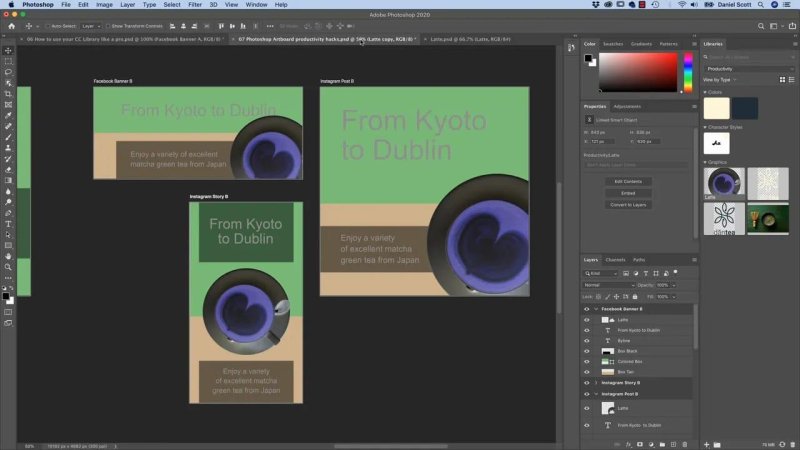
One saved edit updates the latte across all three linked layouts.
The connection also carries across applications. In the Illustrator menu example, the linked latte updates without being replaced manually.
The inversion is only a test, not a design decision. Return to the library asset, choose Edit > Undo, then save again. The linked Photoshop and Illustrator placements return to their original appearance once the update comes through.
Saving is the key step. Making an edit inside the library document is not enough; save that document to pass the change on to its linked placements.
Keep an Asset Independent When You Need To
Perhaps you like having artwork stored in Libraries, but you do not want a particular placement changing whenever the shared asset changes. That is fine. There are two ways to break the connection.
Option 1: Create an independent copy as you place it
Hold Option on Mac or Alt on Windows while clicking, holding and dragging the graphic from the Libraries panel into your document.
The placed image looks the same, but it is not connected to future changes to that library asset.
To prove the difference, open the shared library item and apply an exaggerated Hue/Saturation adjustment. Increase the saturation, change the hue and save. The original linked placements update; the independently placed copy stays as it was.
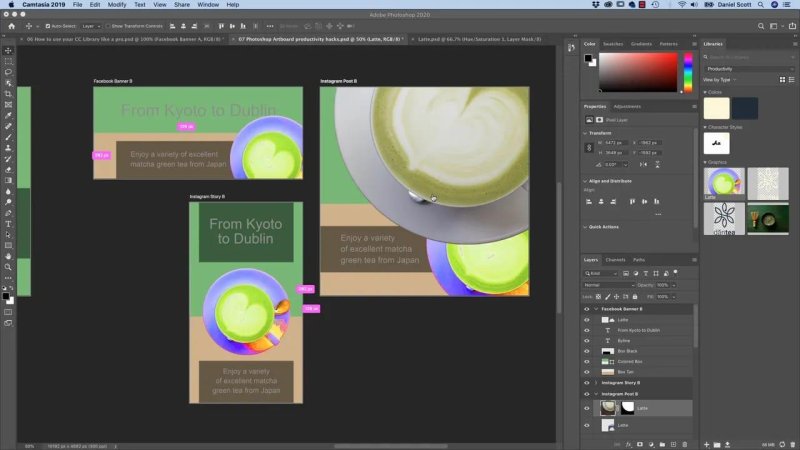
The linked copies change colour, while the independent copy keeps its original appearance.
Option 2: Embed an existing linked placement
If the asset is already placed, you do not have to delete it and start again:
Select the linked layer in the Layers panel.
Right-click the layer name.
Choose Embed Linked.
This breaks the library connection, but the layer remains a Smart Object. It is now an embedded object rather than one linked to Libraries.
For the rest of this example, undo the exaggerated colour adjustment in the library document and save it. Remove the extra independent test copies from the layouts so you are back to tidy artwork.
Refine a Library Asset’s Mask with Select and Mask
Colour changes are a good way to demonstrate the links, but a more useful everyday edit is improving a cutout.
Remove Background has done a pretty amazing job on the latte. At normal size, the edge looks fine. Zoom in, though, and there is room to tidy the plate’s outline. Because the image is linked, we can refine that edge once in the library asset and pass the improvement on to the layouts.
Open the mask, not the image thumbnail
Double-click the latte in Libraries to open its document.
Zoom into the edge you want to inspect using Command + Plus on Mac or Ctrl + Plus on Windows.
In the Layers panel, click the layer mask thumbnail, not the image thumbnail. A border around the thumbnail confirms it is selected.
In the Properties panel, click Select and Mask.
If you cannot find that button, open the Properties panel through Window > Properties, then select the mask again.
Choose a useful preview background
Inside Select and Mask, use the View options to inspect the cutout against white or black. Pick whichever makes the edge easier to judge, taking the intended background into account.
For this plate, I use a white preview and increase its opacity to 100%. That gives me a solid background for inspecting the outline.
This preview does not change the mask. It simply helps you see what the current mask is doing.
Adjust Radius and Shift Edge to Clean Up the Outline
Every selection is different. The settings that work for this latte are useful starting points, not magic numbers for every image. Move a control up and down, inspect the result and compare it with the original.
Radius: give Photoshop more edge information
For this image, a Radius of 10 pixels works well. Radius gives Photoshop an area around the existing boundary to examine when refining the edge, rather than treating that boundary as a fixed hard line.
Use Show Original to compare the starting mask with the refined result. You can also tap P to toggle that comparison instead of repeatedly clicking the checkbox.
Before moving on, make sure Show Original is off so you are judging the edited result.
Smooth, Feather and Contrast: use them when they help
Smooth: I find this useful for ragged outlines. The plate is already fairly smooth, so it does not need much help here.
Feather: This is not a control I use for this example. Your selection may need it, but do not add it just because it is available.
Contrast: I leave this alone for the latte as well.
You do not need to adjust every slider. Concentrate on the controls that improve the edge you actually have.
Shift Edge: tuck the mask in slightly
Shift Edge is one I use a lot. A negative value pulls the boundary inwards; a positive value pushes it outwards.
Push it too far in and you start losing part of the plate. Push it too far out and you bring unwanted edge material back. In this example, about negative 20% tucks the outline in enough to improve it.
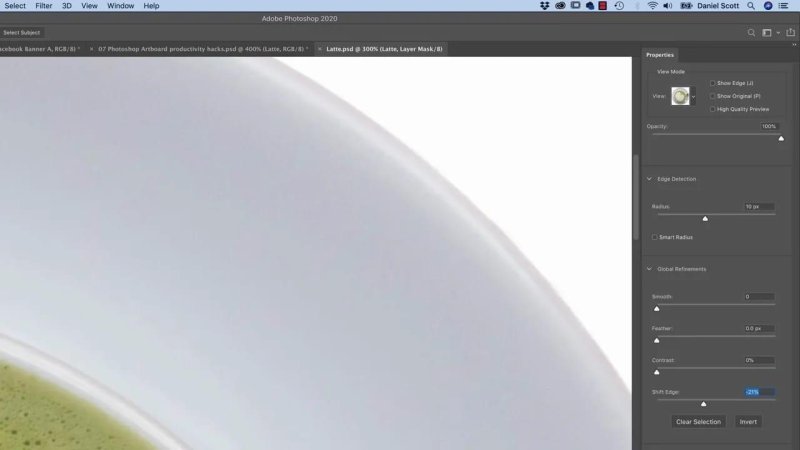
A small inward shift tidies the plate edge without cutting away too much of it.
Tap P again to compare the original and edited mask. Radius and Shift Edge may be all you need, but there is another setting worth trying when background colour is clinging to the subject.
Remove Colour Fringing with Decontaminate Colors
Expand Output Settings and enable Decontaminate Colors. This can make a lovely difference to the edge.
It reduces unwanted background colour around the subject. The latte is a fairly subtle example, but imagine a model photographed against a blue background. That blue can reflect around the subject’s edges, leaving a fringe that is difficult to remove with the mask alone.
Toggle Decontaminate Colors off and on while inspecting the outline. The point is to see whether it improves the result, not simply to enable every available option.
Enable Decontaminate Colors if it helps the edge.
Set Output To to New Layer with Layer Mask.
Click OK to apply the refinement.
Save the library document.
Check the updated placement in your layout.
The Illustrator menu provides a useful check against the surrounding design. Zoom into the plate and inspect how the refined edge sits against the background. I leave a drop shadow for another step; here, the job is simply to get the cutout looking tidy.
Why Decontaminate Colors Creates a Second Layer
If you finish Select and Mask and suddenly have two versions of the image, you have not done anything wrong.
With Decontaminate Colors switched off, you can update the existing mask. With it switched on, Photoshop requires a new-layer output because it changes image pixels as well as refining the mask.
You can see the difference by right-clicking the new layer’s mask and choosing Disable Layer Mask. The unmasked edge may look rather hideous. The colour changes that help create the clean cutout extend into areas normally hidden by the mask.
Compare that with the original layer. Disable its mask and the untouched photograph is still there. That is why Photoshop keeps the original: colour decontamination is a destructive change to the new version’s pixels.
The new layer and mask give you the improved edge, while the original preserves the source image. Restore the mask for the finished cutout, save the library asset and close it when you are done.
The workflow is simple: place linked assets, refine the shared source and save. Keep the connection where you want consistent updates, and embed individual copies when you need them to stay independent.
Key Terms
Library asset
A graphic stored in the Libraries panel for reuse. Linked placements refer to that library version and receive its saved changes.
Linked Smart Object
A placed Smart Object connected to a shared source, such as a library asset. Editing and saving that source updates its linked placements.
Embedded Smart Object
A Smart Object stored within the document rather than connected to the library. Choosing Embed Linked makes an existing placement independent of future library edits.
Layer mask
The part of a layer that controls which areas are visible or hidden. Select its thumbnail to refine the cutout in Select and Mask.
Decontaminate Colors
A Select and Mask setting that reduces unwanted background colour at the subject’s edges. Because it alters image pixels, it requires output to a new layer rather than simply updating the existing mask.
FAQs
Can a Photoshop Library edit update artwork in Illustrator?
Yes. In this example, saving the edited latte library asset updates its linked placements in both Photoshop and Illustrator.
How do I stop a placed library graphic from updating?
Hold Option on Mac or Alt on Windows while dragging it from Libraries to create an independent copy. For an existing linked Photoshop layer, right-click its name and choose Embed Linked.
What Select and Mask settings worked for the latte image?
A Radius of 10 pixels and Shift Edge of about negative 20% worked well, followed by Decontaminate Colors. Treat those values as example settings and adjust them to suit your own image.
Why do I have two layers after using Select and Mask?
Decontaminate Colors changes the image pixels, so Photoshop creates a new layer with a mask and preserves the original. The extra layer is expected, not a mistake.
Written by Daniel Walter Scott — Founder of Bring Your Own Laptop & Chief Instructor
