🚨 Heads up! This course is no longer supported. Check out our Figma Essentials course - it's our go-to UX design tool.
Masking & cropping images in Adobe XD
Questions
Student Gallery
Be the first to share something.
Course info
Overview
Throughout the course I’ll invite you to participate in a real-life freelance project which I’m working on. It’s a project that requires a fresh website and mobile app interface. This will prepare you for dealing with real world projects if you choose to move towards a UX/UI career path.
This course is aimed at people interested in UI/UX Design. We’ll start from the very beginning and work all the way through, step by step. If you already have some UI/UX Design experience but want to get up to speed using Adobe XD then this course is perfect for you too!
First, we will go over the differences between UX and UI Design. We will look at what our brief for this real-world project is, then we will learn about low-fidelity wireframes and how to make use of existing UI design kits.
I’ll go over all of the essential tools necessary for creating excellent wireframes, including: type, colours, icons, Lorem ipsum, artboards, prototyping, models and popups, symbols and repeat grids. We will even make use of the new prototyping app so that you can experience your prototype on your mobile device.
An important part of maximising your UX Design workflow is being able to utilise other software such as Photoshop and Illustrator. This is why I’ll be teaching you how to make use of both to help boost your XD productivity.
One of the awesome new features of XD is micro-interactions. I’ll be teaching you all about those and how to use them to grow icons and scenes. This is one of the parts of web design that’s growing and being adopted rapidly so you won’t want to miss out on learning it early.
There are two class projects for you to complete during this class, these will help develop your skills and will give you something for your own portfolio.
It is now time to upgrade yourself & learn Adobe XD.
What are the requirements?
- You will need a copy of Adobe XD 2018 or above. A free trial can be downloaded from Adobe.
- No previous design experience is needed.
- No previous Adobe XD skills are needed.
What am I going to get from this course?
- 87 lectures of well-structured, step by step content.
- Learn to design websites & mobile phone apps.
- Work with fonts & colors.
- Prototype your designs with interactions.
- Test on mobile phones.
- Send your designs for feedback & commenting.
- Export production ready assets.
- Create your first UX brief & persona.
- Create quick wireframes.
- How to use premade UI kits.
- Learn professional workflow tricks & shortcuts.
- You will get the finished files so you never fall behind
- Downloadable exercise files
- Forum support from me and the rest of the BYOL crew
- All the techniques used by UX professionals
What is the target audience?
- This course is for beginners.
- Aimed at people new to the world of design & user experience.
- No previous Adobe XD experience is necessary.
- For anyone that needs to add ‘UX Design’ to their portfolio.

Daniel Walter Scott
Founder of Bring Your Own Laptop & Chief Instructor
I discovered the world of design as an art student when I stumbled upon a lab full of green & blue iMac G3’s. My initial curiosity around using the computer to create ‘art’ developed into a full-blown passion, eventually leading me to become a digital designer and founder of Bring Your Own Laptop.
Sharing and teaching are a huge part of who I am. As a certified Adobe instructor, I've had the honor of winning multiple Adobe teaching awards at their annual MAX conference. I see Bring Your Own Laptop as the supportive community I wished for when I was first starting out and intimidated by design. Through teaching, I hope to bring others along for the ride and empower my students to bring their stories, labors of love, and art into the world.
True to my Kiwi roots, I've lived in many places, and currently, I reside in Ireland with my wife and kids.
Certificates
We’re awarding certificates for this course!
Check out the How to earn your certificate video for instructions on how to earn yours and click the available certificate levels below for more information.
Downloads & Exercise files
Transcript
Hello you, in this video we're going to do Masking in Adobe XD...
the short version is, put a shape on top of an image, select them both...
and go 'Object', 'Mask with Shape'...
there are a few other things to editing...
both the shape and the image, that I want to share with you...
so continue watching, but if that's all you came for, you're done...
but for everyone else, let's get going.
All right, let's bring in an image...
doesn't matter, 'File', 'Import', or drag them from the Finder, into it...
like I normally do, bring this first one...
with images, often this happens, they come at this gigantic size...
if you hold 'Shift' on one of the corners, and 'Option' on a Mac...
'Alt' on a PC, you can kind of scale them down to appropriateness.
Just so you know, if you are a web designer or developer...
it's not important to get these images the correct size...
either the right resolution or the right kind of quality, before XD...
you do it exporting from XD, which we'll do later in the course...
so just bring them in their full glorious selves...
and you can export them down...
a more appropriate web design size later on...
all right, get onto masking, Dan.
So the official way is to have an image...
then draw a shape over the top of it, can be any shape, or draw a rectangle...
I'm going to make a couple of duplicates over these...
just so I can show you different ways, select them both...
the thing on top that you want to mask inside of needs to be on the top...
so you might have to right click it, and say, 'Bring to Front'...
select them both and then say...
the long way is, 'Object', and go to 'Make with Shape'...
no, says Mask with Shape even, click on that, there you go, hey presto.
So any old shape works, it doesn't matter, as long as it's on top.
The shortcut is 'Command-Shift-M'...
depending on how much images you end up doing...
the shortcut I remember somehow...
and that's 'Command-Shift-M' on a Mac, and 'Ctrl-Shift-M' on PC...
they can be any shape, you didn't even have to draw it...
could be something that somebody else has drawn, that you've imported.
Okay, let's do something crazy-ish, what have we got they didn't draw?
Okay, I didn't draw this Twitter logo...
as long as it's on the top...
which mine happens to be...
you can select it and say 'Command-Shift-M', oh, cool.
You can do your own custom one with the Pen tool as well...
you might decide that-- I'm going to select off everything...
grab the 'Pen tool', I'm going to kind of click there...
and remember, clicking and dragging for a curve...
clicking once for a corner, clicking and dragging...
it's the world's worst mask.
Select them both...
and then use your shortcut...
mine didn't work, why didn't mine work?
I didn't, I don't think I had them both selected, well, yeah I did, that's it...
so make sure they're both selected, and the shape is on top, and you can mask away.
So that is one way of masking, you kind of have two separate shapes...
and smoosh them together, often what I'll do is...
you'll have existing shapes that you want to fill...
let's say down here, I've got these kind of placeholder colors...
you can just drag straight into them...
kind of requires you to be able to kind of get the Finder window...
either Mac or PC, and just kind of have on the top of XD...
which is tricky for some people...
and you can just drag straight in here, into the space...
and it will be appropriately sized, and yeah, scaled, and in the right shape.
You can update images really easily...
by just dragging over the top of them, say you're like...
"Oh, that's great, but I need to change that one out for something else"...
just click, hold, and just drag over the top, and it will switch it out...
oh, adjusting masks, let's do that...
should have done at the beginning.
So say you want to adjust the positioning of this...
you double click it to go inside of it...
and you'll end up access to this image...
and you can, in the middle here, just click, hold, and drag it...
you can decide, actually this is the bit that I want...
and then click out when you're finished, the same as our object editing mode...
when we're doing those icons.
The next thing you might want to do is...
you might want to adjust the edge...
so double click it to go inside, and you can, if you grab the edge of it...
adjust the edge or squish it, or double click it...
and get into that object editing mode, and do some weird stuff...
look at that happy little tea smiley face...
ah, not so smiley.
All right, so that is editing your mask, it's the same with these...
where is it, scroll, scroll, scroll, this guy here...
double click it, you might decide that it's this, and you want to scale it up...
just use your Shift key...
grab one of the corners, decide that that's what you want to do...
double click off, there you go...
we're masking, and editing our mask.
All right, that is making masks...
either dragging them into existing shapes...
or selecting both of them and going to 'Object', 'Mask with Shape'...
all right, I'll see you in the next video.
How do you mask an image in Adobe XD?
Place a shape on top of your image, select both objects, then choose Object > Mask with Shape. The shape defines which part of the image remains visible. To refine the crop afterwards, double-click the masked image and adjust the image position, its scale, or the mask itself.
Masking and Cropping Images in Adobe XD
Key Takeaways
Create image masks with rectangles, circles, imported shapes, or custom paths.
Keep the masking shape above the image and select both before applying the mask.
Drag images straight into existing shapes for a quicker workflow.
Replace an image without rebuilding its shape.
Edit the image and the mask separately to get the crop you want.
Bring Your Image into Adobe XD
You can import an image through File > Import, or drag it into XD from Finder on a Mac or File Explorer on a PC. I usually just drag it in.
Sometimes an image arrives at a gigantic size. That is fine. Hold Shift while dragging a corner to scale it proportionally. Adding Option on a Mac or Alt on a PC lets you scale from the centre.
If you are working on a web design, you do not need to prepare the final web-sized image before bringing it into XD. Bring in the full-quality original and scale it to suit your layout. The appropriate output size and quality can be handled when you export.
Create a Mask with a Shape
The standard masking method starts with two separate objects: your image and the shape you want to crop it into.
Place your image on the canvas.
Draw a shape over it. A rectangle is a simple place to start.
Make sure the shape is above the image in the stacking order. If necessary, right-click the shape and choose Bring to Front.
Select both the image and the shape.
Choose Object > Mask with Shape.
Hey presto! The image is now visible only within the shape. A rectangle gives you a rectangular crop; a circle gives you a circular one.
If you use masks regularly, this shortcut is worth remembering:
Mac: Command + Shift + M
PC: Ctrl + Shift + M
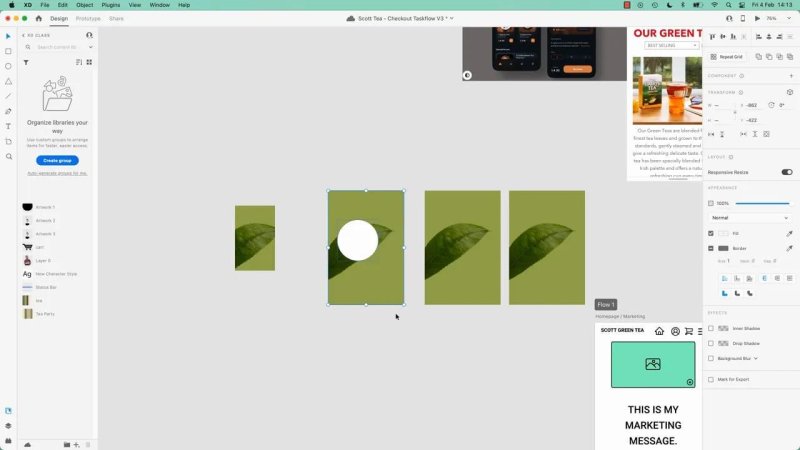
The same image can be cropped into a rectangle or a circle using the shape above it.
Use Imported Shapes or Draw Your Own
You are not limited to the basic shape tools. An imported logo or icon can also act as the mask. Place it above the image, select both, and apply the same command.
For something a little more unusual, draw your own shape with the Pen tool:
Click once to create a corner point.
Click and drag to create a curve.
Finish your shape, then select it together with the image and apply the mask.
Your first custom shape does not have to be a masterpiece. Even a slightly odd shape is enough to see how the technique works.
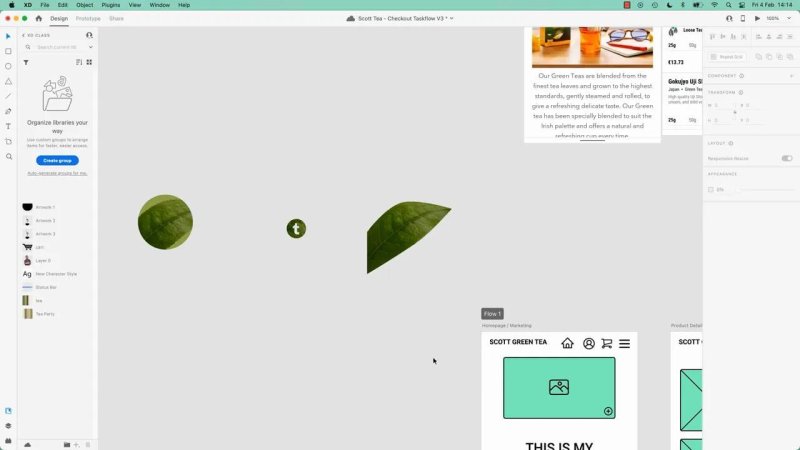
A custom Pen tool shape gives you a crop beyond the usual rectangle or circle.
If the Mask Does Not Work
Before changing anything complicated, check the two essentials: both objects must be selected, and the masking shape must be on top. It is surprisingly easy to miss one of the objects when making the selection.
The Quicker Method: Drag an Image into an Existing Shape
Often, you already have shapes in your layout. They might be coloured placeholders waiting for photographs. There is no need to import an image separately and repeat the full masking process for each one.
Open the folder containing your images.
Arrange Finder or File Explorer so you can access it alongside XD.
Drag an image directly onto the existing shape.
Release it over the shape to fill it.
XD fits the image into the shape, scaling it to fill the available space. This is particularly handy for filling small image placeholders in a page or mobile layout.
Replace an Image by Dropping Another One onto It
Need a different photograph? Drag the replacement image directly over the existing image-filled shape. XD switches the image while keeping the shape.
For example, you can replace a leaf photograph inside a circular crop with a photograph of a tea press. The circle stays in place; only the content changes.
Adjust the Image Inside the Mask
Creating the mask is only the first part. You will often want a different bit of the photograph to show through.
Double-click the masked image to access its contents.
Click and drag the image to reposition it within the mask.
Move it until the detail you want sits inside the visible area.
Click outside the mask when you are finished.
Moving the image changes the crop without changing the mask shape. With the tea press photograph, for instance, you can shift the image so the tea-filled glass is the focus of the circle rather than the top of the press.
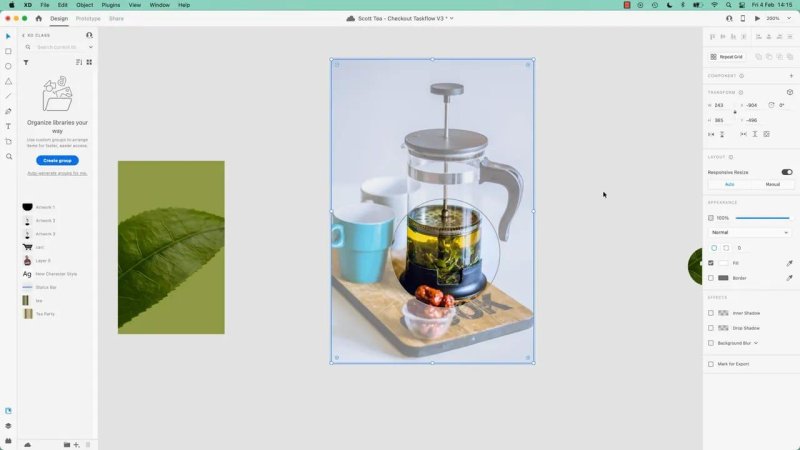
Repositioning the photograph brings the tea-filled glass into the circular crop.
Scale the Image for a Closer Crop
If repositioning alone is not enough, double-click to access the image, hold Shift, and drag a corner to resize it proportionally.
Scaling the image up shows a closer view of its details within the same shape. Reposition it as needed, then click outside to return to the finished crop. This works for small image-filled placeholders too.
Edit the Mask Shape Itself
Sometimes the photograph is positioned correctly, but the boundary needs changing. That is a mask edit rather than an image edit.
Double-click to enter the mask, then select the shape at its edge. You can adjust its dimensions or squash it into a different outline. To change the path itself, double-click the shape to enter object editing mode and adjust its points.
A circular crop can become a much more unusual curved shape. Have a play with it. The important distinction is knowing which part you are changing:
Edit the image to change the position or scale of the photograph inside the crop.
Edit the mask to change the boundary through which the photograph appears.
Those are the two main workflows: combine an image and a shape with Mask with Shape, or drag an image into a shape that already exists. Once it is in place, double-click to refine the result.
Key Terms
Mask
A shape that controls which part of an image is visible. In the Mask with Shape workflow, it must sit above the image before you apply the command.
Crop
The visible portion of an image within a boundary. Repositioning or scaling the image inside a mask changes that portion.
Stacking order
The front-to-back arrangement of objects on the canvas. Bring to Front places the intended masking shape above the image.
Object editing mode
The editing state used to adjust a shape’s path and points. It lets you reshape the mask beyond simply resizing it.
FAQs
What is the shortcut for Mask with Shape in Adobe XD?
Use Command + Shift + M on a Mac or Ctrl + Shift + M on a PC. Select both the image and the shape first, with the shape above the image.
Can I use a custom shape to mask an image?
Yes. You can use a shape drawn with the Pen tool or an imported shape, such as a logo or icon. The selection and stacking-order requirements are the same as for a rectangle or circle.
How do I change the image position without changing the mask?
Double-click the masked image, then drag the image inside it to adjust its position. You can also hold Shift and drag a corner to scale it proportionally. Click outside when you have the crop you want.
Written by Daniel Walter Scott — Founder of Bring Your Own Laptop & Chief Instructor
