This lesson is exclusive to members

Course contents
SECTION: 10
Tips & Tricks 6:49
SECTION: 20
Teams & Projects 3:37
SECTION: 22
Thumbnail Update 3:59
SECTION: 23
Overview of Figma Sites 17:03

Questions

Student class projects

PDF
Avatar

Naomi Kosick

@naoko

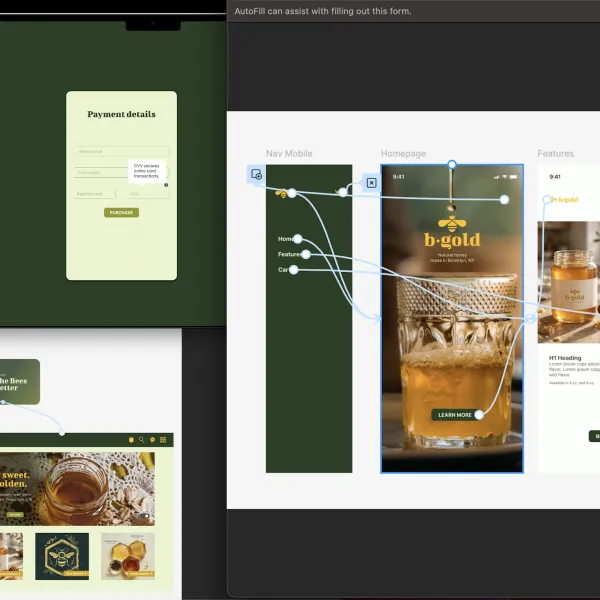
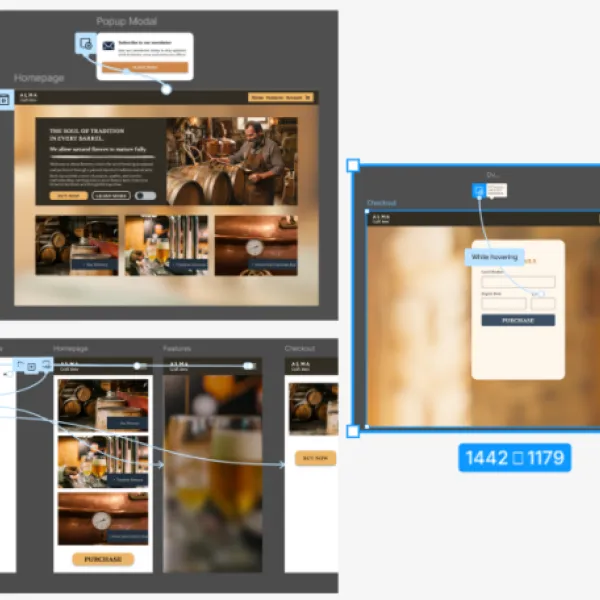
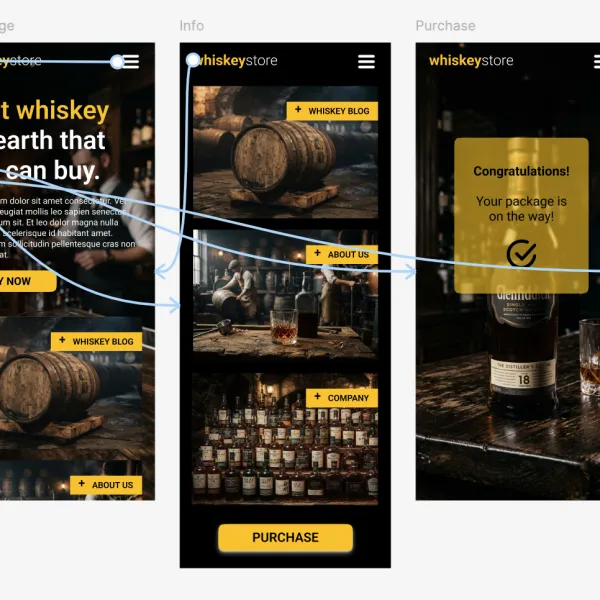
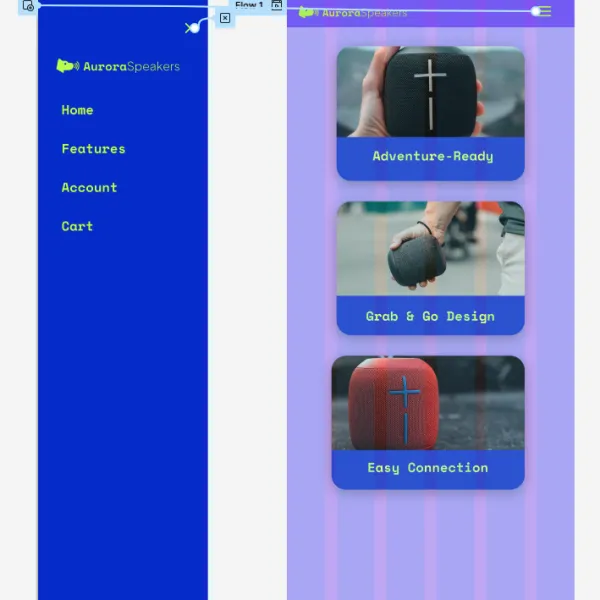
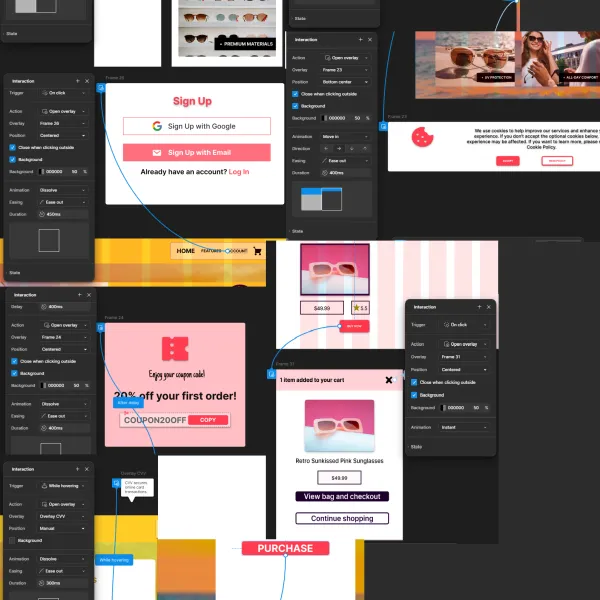
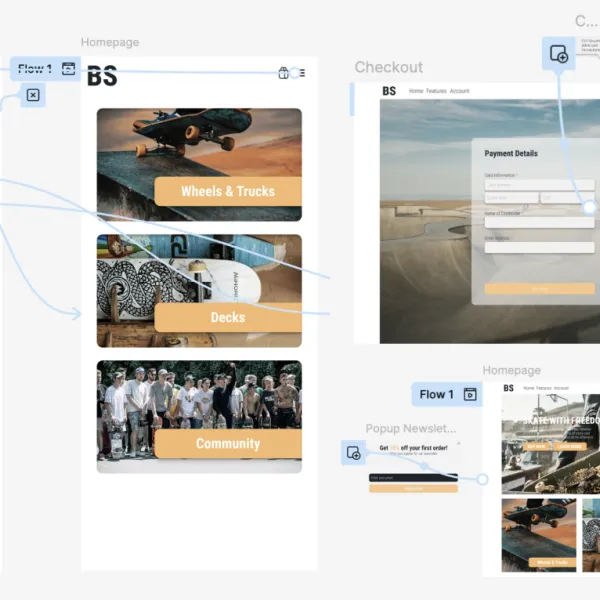
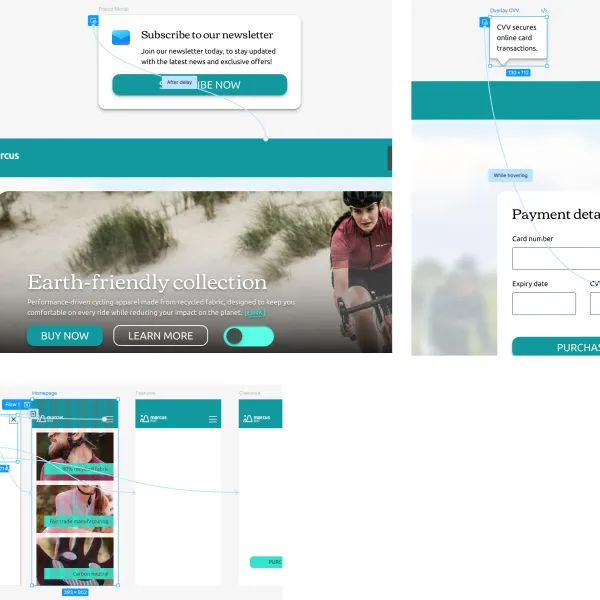
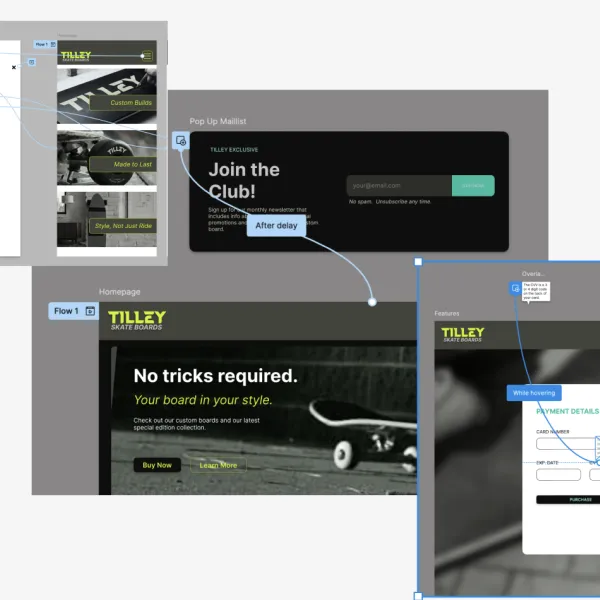
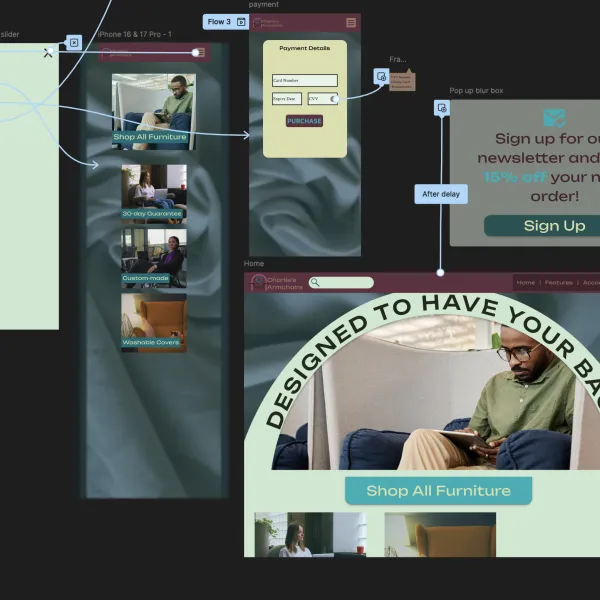
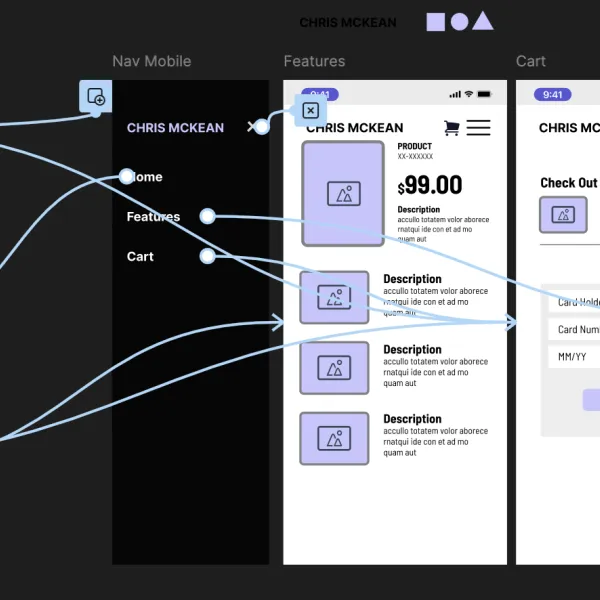
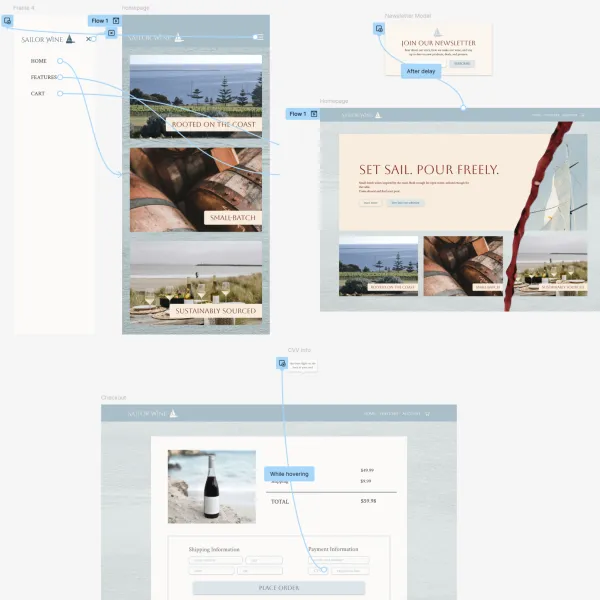
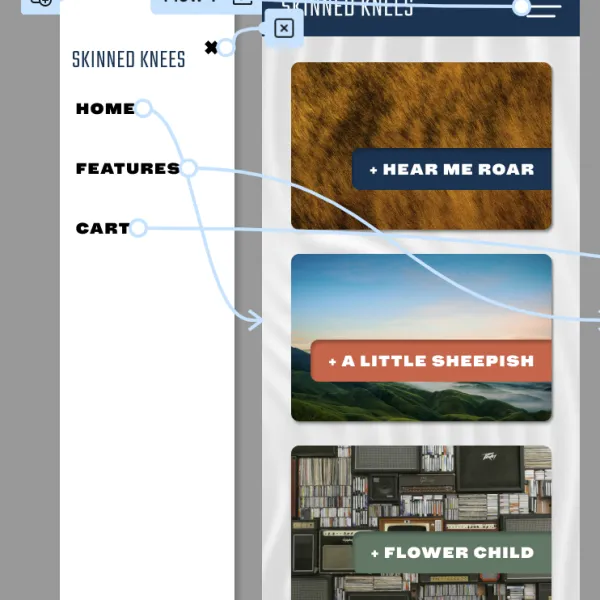
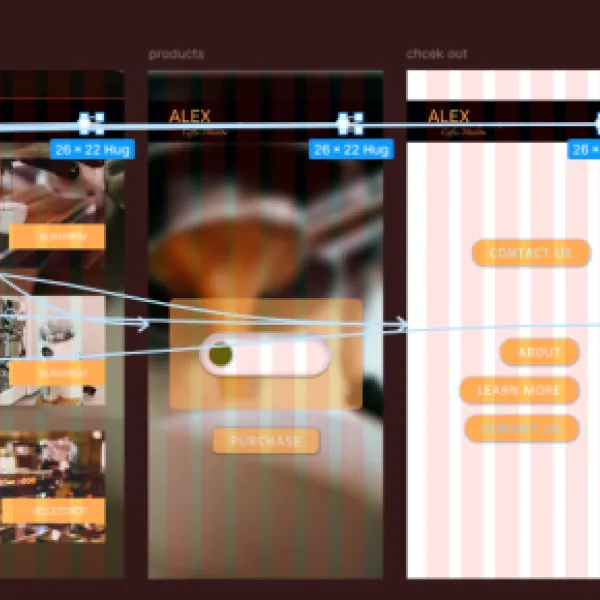
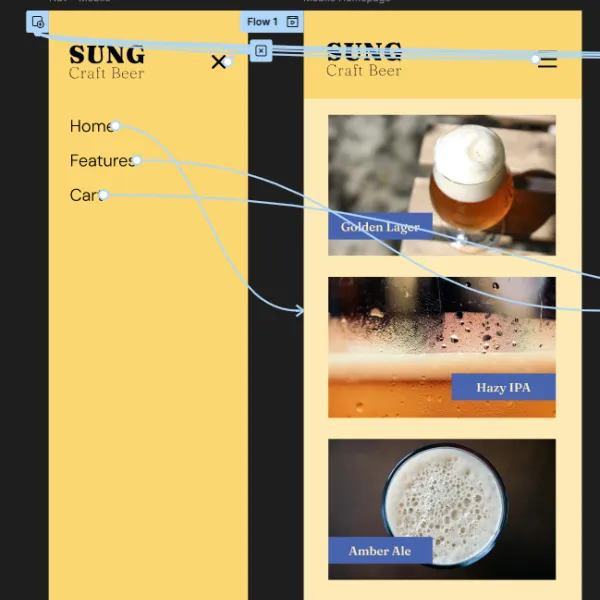
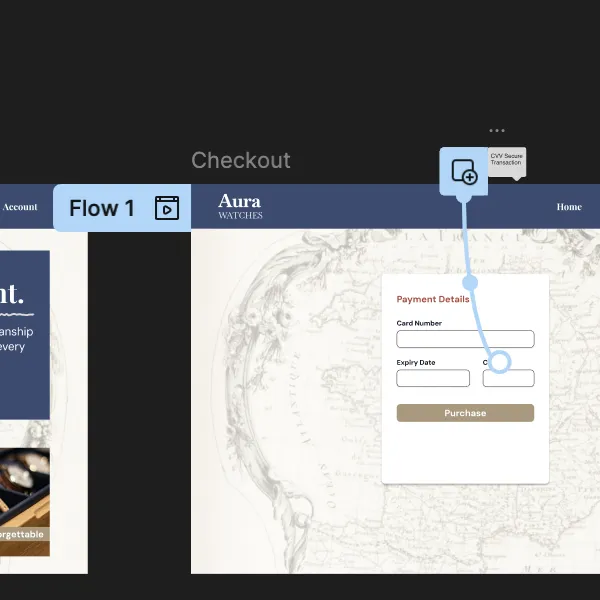
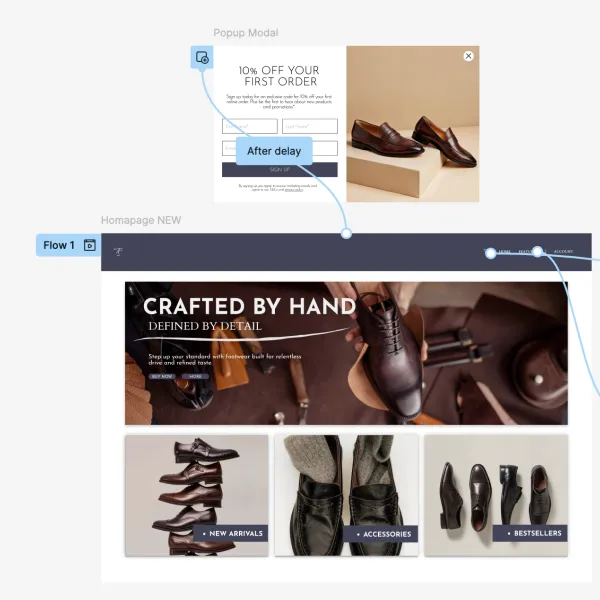
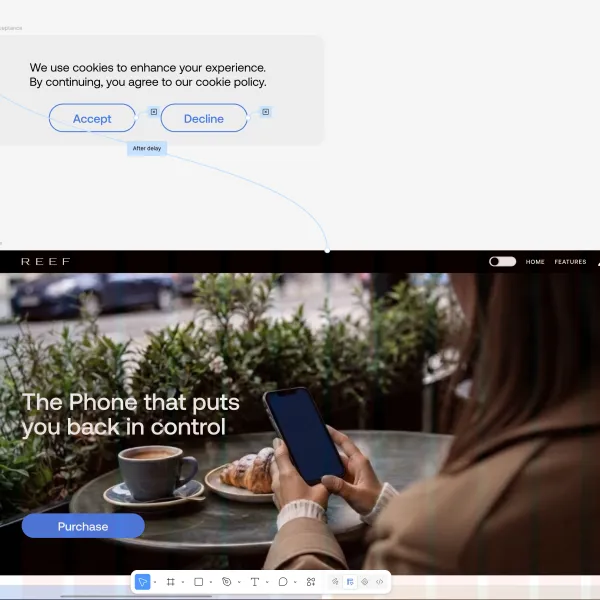
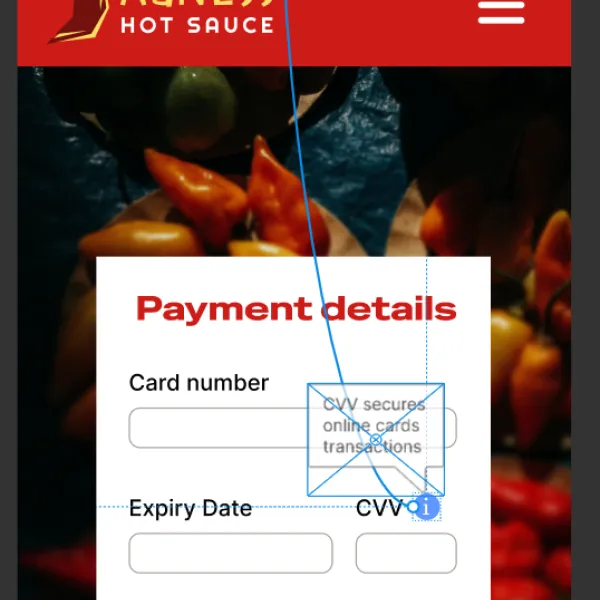
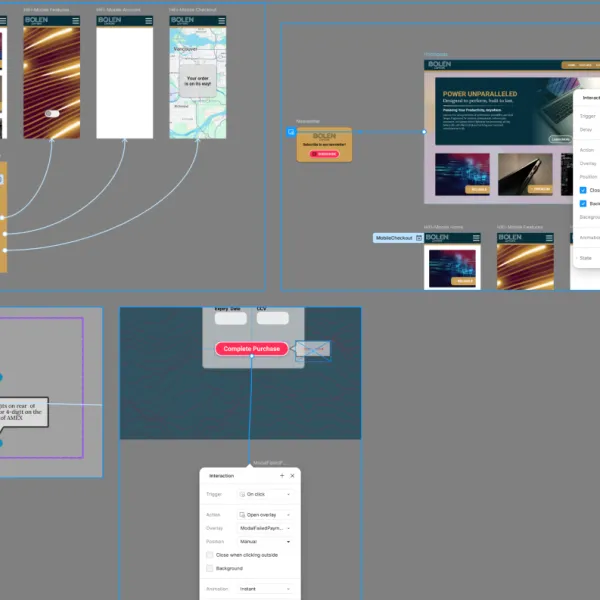
These are some of the mistakes I made during this module and a recap with the help of chatGBT of what not to do!. You added Auto Layout to an entire page frame, rather than using it inside smaller sections such as the header, cards, and labels. You tried to resize some items through Scale instead of the normal W and H dimension fields. Some label frames were set to fixed width, and their text boxes were also fixed-width, so “Hug contents” could not shrink them. You were trying to move text manually inside Auto Layout; Auto Layout controls its position through alignment and padding. The blue X you first saw was a prototype interaction marker, not automatically a visible close button. At first, the X/close control was outside the Nav mobile overlay frame. You were testing Close overlay before confirming the burger menu opened Nav mobile using Open overlay. Closing only works when the menu has been opened as an overlay—not when Nav mobile is the starting screen. Quick Figma recap: - Use Auto Layout for small sections, not the entire finished page. - Resize with W and H, not Scale. - For compact labels: frame and text should use Hug contents. - In Auto Layout, use alignment and padding to move text; don’t drag it. - Select actual layers/frames to copy—never just the page name. - For the mobile menu: - Burger menu: On tap → Open overlay → Nav mobile - Close button: a real visible X inside Nav mobile - Its 44 × 44 px clickable rectangle: On tap → Close overlay - Start the prototype on Homepage, then open the menu before testing the X.
0

Course info

97 lessons / 10 hours 35 quiz questions 20 projects Certificate of achievement

Overview

Hi there - my name is Dan Scott & welcome to Figma Essentials.

Together - you and me - are going to learn everything you need to get started working as a UX Designer using Figma.

You can try Figma for free by clicking here.

We’ll use this UI UX design tool to create beautiful User Interfaces and engaging prototypes. Most importantly... we'll cover the client expectations of you as a new UX designer. 

This course is aimed at people new to design, new to User Experience design. Even if you’re not totally sure what UX really means, don’t worry. We’ll start right at the beginning and work our way through step by step. 

First we’ll describe the brief & how to work with a UX persona.  

Then you’ll learn how to create simple wireframes.  

From there we’ll look at how to implement colours & images properly in your designs.

You’ll learn the do’s & don’ts around choosing fonts for web & mobile apps. 

You’ll learn how to create your own icons, buttons & other UI components. 

You’ll learn some pretty scary terms such as Components, Constraints & Multi Dimensional Variants. They are all really easy to understand once you know how. 

We’ll also make our lives easier by using free UI kits & plugins for Figma which will speed up our workflow dramatically!

We’ll build a simple Style Guide ready for client handoff. 

You’ll understand how to make both simple & advanced micro interactions, page transitions & animations 

Before the end of this course you will have made fully interactive prototypes 

You will take a project all the way through -  collaborating with other team members and exporting the right files ready to hand off to your developer or software engineer. 

We’ll be focusing on the software Figma but I’ll make sure to explain the techniques & terms used in the UX and how real world projects are run. You will develop a great understanding of the industry and will be able to manage your own UX projects.

I will be setting assignments through the course which will help develop your skills and enable you to create something special and unique for your own portfolio. 

Alright - it's time to upgrade yourself & go from Figma Zero to Figma Hero.

Daniel Walter Scott

Daniel Walter Scott

Founder of Bring Your Own Laptop & Chief Instructor

I discovered the world of design as an art student when I stumbled upon a lab full of green & blue iMac G3’s. My initial curiosity around using the computer to create ‘art’ developed into a full-blown passion, eventually leading me to become a digital designer and founder of Bring Your Own Laptop.

Sharing and teaching are a huge part of who I am. As a certified Adobe instructor, I've had the honor of winning multiple Adobe teaching awards at their annual MAX conference. I see Bring Your Own Laptop as the supportive community I wished for when I was first starting out and intimidated by design. Through teaching, I hope to bring others along for the ride and empower my students to bring their stories, labors of love, and art into the world.

True to my Kiwi roots, I've lived in many places, and currently, I reside in Ireland with my wife and kids.

Downloads & Exercise files

  • Powered by Marvin
  • Terms of use
  • Privacy policy
  • Cookie policy
  • © Bring your Own Laptop Ltd 2026
🎬 After Effects Essentials is Now LIVE!

🎬 After Effects Essentials is Now LIVE!

Kyle Hamrick’s brand-new After Effects Essentials course has officially launched!

Jump in and start bringing your ideas to life with motion, animation, and visual effects, all taught step-by-step from the ground up. 🚀

Whether you’re completely new to After Effects or ready to build your confidence, there’s plenty to explore, create, and animate.