How to draw using the Pen Tool in Adobe Illustrator CC
Questions


Student Gallery
Course info
Overview
Get ready to dive into the mesmerizing world of Adobe Illustrator, where we'll craft stunning looking graphics. But we won't stop at just learning the tools; we're about to unleash our creative powers by creating real-world, practical, and portfolio-ready projects. Together we will learn to:
• Master the art of drawing with simple shapes and lines.- • Unleash your creativity by combining and subtracting shapes using the Shape Builder.
- • Create advanced custom logos and graphics.
- • Explore the world of creative brushes, lines, and strokes to elevate your designs to the next level.
- • Use the Width tool to enhance your lines and strokes adding a style.
- • Conquer the pen, pencil, and curvature tools like a pro.
- • Dive into the wonderful world of fonts and the art of mastering type.
- • Use the intertwine feature to create interesting overlapping illustrations.
- • Learn the art of masking images and graphics.
- • Discover the magic of distorting, bending, warping, and liquefying illustrations.
- • Select and use color combinations like a true master of design.
- • Craft your own unique repeating patterns.
- • Transform real drawings into captivating stencil-style images.
- • Export your creations for print, web, social media, and more.
- • Acquire the techniques used by professional graphic designers.
- • Work with your own mini-brief - creating a unique Farmer's Market brand and bringing it to life.
- • Harness the power of Adobe's Generative AI features to push your creative boundaries.
- • Working with mood boards to gather inspiration.
- • Create realistic mockups to enhance your designs even further.
- • Engage in a wealth of class projects to put your skills to the test.
- • Stay ahead with a handy printable PDF cheat sheet.
- • Access downloadable exercise files to help you practice and refine your skills.
- • Benefit from forum support provided by the BYOL Teaching Assistant Team.
- • Discover professional workflows and shortcuts to work more efficiently.
- • Gain access to a treasure trove of additional resources and websites to supercharge your career.
But that's not all! I'll unveil Illustrator's hidden gems that will transform you into a pro at discovering and utilizing breathtaking vector based graphics. We'll dive into the latest Illustrator tools, including the mind-blowing Generative AI features that allow us to craft illustrations that were once thought impossible.
Whether you've never even opened Illustrator or have struggled with it in the past, I'm here to show you the easy way to create breathtaking artwork and portfolio projects to be proud of. Join me as we go from Illustrator zeros, to Illustrator superheroes!
Who this course is for
• Absolutely no previous Adobe Illustrator experience is required.- • This course is designed for newcomers to Illustrator and design in general, so no prior design, drawing, or illustration experience is necessary.
- • This is a relaxed, well-paced introduction, perfect for producing a wide range of drawings, illustrations, logos, and portfolio projects. Only basic computer skills are necessary - if you can send emails and surf the internet, you're more than capable of mastering this course.
What you'll learn
- • Drawing with Shapes & Lines
- • Drawing with the Shape Builder
- • Creating a custom logo
- • Working with Brushes
- • Drawing with the pen, pencil & curvature tool
- • Learn how to work with type & fonts.
- • How to vectorise an image in Illustrator
- • How to curve text in illustrator
- • How to trace an image in illustrator
• How to warp text in illustrator
• How to embed images in illustrator
• How to mask images & graphics.
• How to distort, bend, warp & liquefy illustrations.
• How to make 3D illustrations.
• How to make your own repeating patterns.
• How to create stencil style images from real drawings.
• How to save, print & export for Print, web & social media.
• Lots of real world exercises for you to practice.
• Loads or class projects for you to complete.
• Printable Cheat sheet.
• You will get the finished files so you never fall behind.
• Downloadable exercise files.
• Techniques used by professional graphic designers.
• Professional workflows and shortcuts.
• A wealth of other resources and websites to help accelerate your career.

Daniel Walter Scott
Founder of Bring Your Own Laptop & Chief Instructor
I discovered the world of design as an art student when I stumbled upon a lab full of green & blue iMac G3’s. My initial curiosity around using the computer to create ‘art’ developed into a full-blown passion, eventually leading me to become a digital designer and founder of Bring Your Own Laptop.
Sharing and teaching are a huge part of who I am. As a certified Adobe instructor, I've had the honor of winning multiple Adobe teaching awards at their annual MAX conference. I see Bring Your Own Laptop as the supportive community I wished for when I was first starting out and intimidated by design. Through teaching, I hope to bring others along for the ride and empower my students to bring their stories, labors of love, and art into the world.
True to my Kiwi roots, I've lived in many places, and currently, I reside in Ireland with my wife and kids.
Certificates
We’re awarding certificates for this course!
Check out the How to earn your certificate video for instructions on how to earn yours and click the available certificate levels below for more information.
Downloads & Exercise files
Is the Pen Tool in Illustrator really worth learning?
Yes. It is harder than the Curvature Tool, no question, but it gives you far more control over corners, curves, handles, and anchor points. Once you get comfortable with it, it becomes one of the most useful tools in Illustrator and a skill that carries over into plenty of other design apps too.
Illustrator Essentials: The Pen Tool
The Pen Tool has a bit of a reputation.
Some people hear the name and immediately tense up. Fair enough. It is one of those tools that feels awkward at first, and unlike friendlier tools in Illustrator, it does not do much hand-holding. But that is also exactly why it matters.
If the Curvature Tool is the easy-going mate that helps you get most of the way there, the Pen Tool is the one you call when you need proper control. Corners, smooth curves, anchor placement, handle direction, symmetry, edits after the fact. This is where the serious precision lives.
And yes, it is tricky. That is normal. Nobody picks this up and glides through it first time.
Why bother with the Pen Tool if the Curvature Tool already works?
The Curvature Tool is genuinely great. It handles a lot of the thinking for you, which makes it fast and approachable.
But there is a trade-off. The easier the tool is, the less direct control you usually have. Sooner or later, you run into a shape where you want to decide exactly how a path bends, where a corner should tighten, or how one curve should flow into the next.
That is where the Pen Tool earns its keep.
Curvature Tool: easier to learn, quicker to sketch with, less control
Pen Tool: harder to learn, more precise, much more control
It is also the tool you will keep seeing across Illustrator tutorials, and not just Illustrator either. The same basic Bezier pen approach shows up in Photoshop, InDesign, and plenty of CAD, 3D, and drawing software.
Start with a simple shape: corners only
The easiest way to get your head around the Pen Tool is to begin with something angular, like a crown.
Here is the first big rule:
Click once to create a corner point
Click and drag to create a curved point with handles
That is the opposite of how the Curvature Tool tends to feel, which is why people often stumble straight away.
When tracing a simple crown shape, you can just click from point to point around the outline. Each click creates a sharp turn. Nice and clean.
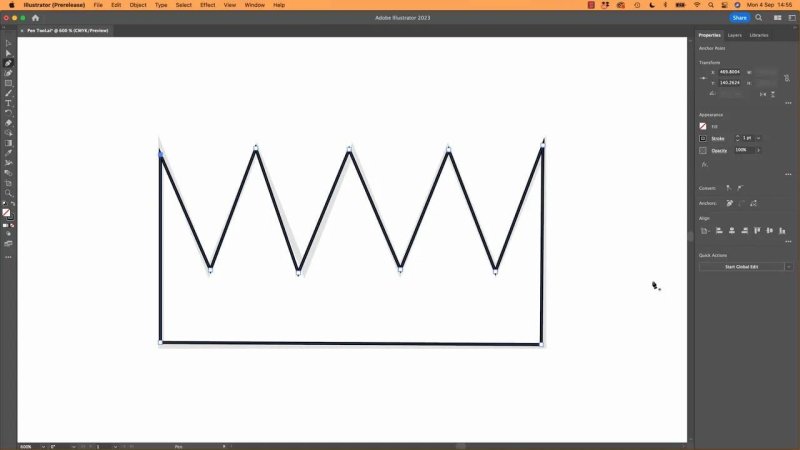
This is the cleanest way to start with the Pen Tool: a shape made almost entirely of corners.
One thing that can throw you early is fill colour. If your shape has a fill turned on while you are still drawing, Illustrator may start trying to fill the unfinished shape, which can make everything look wrong even when the path itself is fine.
If that happens, set the fill to none and keep a visible stroke. It is much easier to see what you are doing.
How curves work with the Pen Tool
Once corners make sense, the next step is curves. This is where the Pen Tool starts to feel more powerful and more annoying at the same time.
To draw a smooth curved path, do not just click. Click, hold, and drag. That creates direction handles.
Those handles tell the path how to enter and leave an anchor point. Unlike the Curvature Tool, which keeps a lot of that hidden until later, the Pen Tool puts the mechanics right in front of you.
That is both the blessing and the curse.
Look for the apexes
When tracing an organic shape, such as a blobby one-eyed creature, the best approach is still to look for the apexes. Those are the main turning points in the shape, where the curve changes direction most clearly.
Place anchor points on those key spots rather than scattering points everywhere.
Then drag the handles as you go to shape the curve.
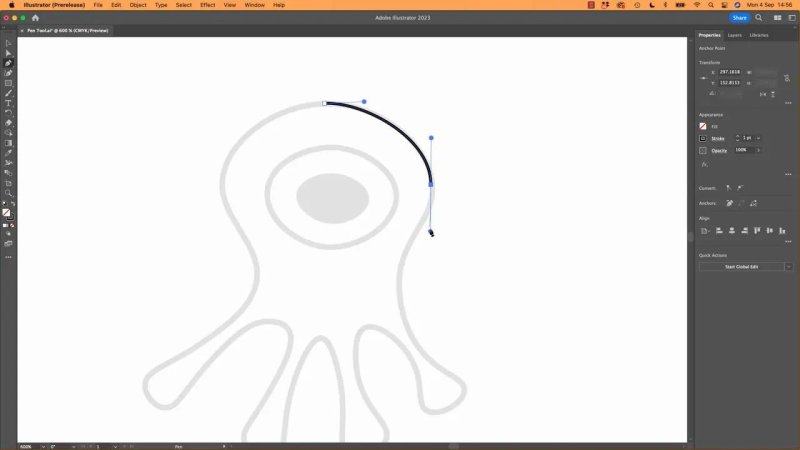
The handles are where the Pen Tool starts paying you back with real control.
The length of those handles matters a lot:
Short handles make the curve tighter and more abrupt
Longer handles make the curve pass more smoothly through the point
If a curve feels too pointy or too flat, the handle length is often the reason.
Do not try to make it perfect on the first pass
This bit is important because it saves a lot of frustration.
You are almost never going to nail every curve while drawing it. The Pen Tool works better when you accept that the first pass is for getting the structure in place. Fine tuning comes after.
Trying to fix every wobble immediately can actually make the next section harder, because each handle affects the flow into the next curve.
So if one section looks a bit off, keep moving. You can come back with the Direct Selection Tool and tidy it up once the whole path exists.
The seesaw problem: one handle affects the next curve
One of the weirdest things about the Pen Tool is that a handle that feels wrong for the current curve might still be necessary for the next one.
That is why it can feel like a seesaw.
You shorten a handle to improve one side, and suddenly the next side has no nice flow at all. You extend a handle for the next section, and now the previous one looks messy.
That is not you being bad at it. That is just how connected Bezier curves work.
The better approach is:
Place anchor points at sensible apexes
Get the general flow close enough
Finish the whole path
Refine with the white arrow afterwards
Common Pen Tool problems and how to fix them
You zoom off into nowhere while dragging
It happens. You get near the edge, something goes odd, and suddenly you are miles away from the shape.
The quick fix is:
Undo the last action
Use Command or Control + 0 to fit the artwork back on screen
You made a handle too tiny and the next curve looks terrible
This is classic. A tiny handle can make one part look neat, but it often leaves no smooth momentum for the following segment.
If the next curve has no flow, go back and give the previous handle a bit more length.
Caps Lock changed the cursor
If the Pen Tool suddenly turns into crosshairs instead of the pen icon, that is usually just Caps Lock.
Nothing is broken. Illustrator has not lost its mind. Just toggle Caps Lock off if you prefer the normal pen cursor.
Smart Guides are getting in the way
Some people like Smart Guides while drawing. Some do not. If they feel too distracting while using the Pen Tool, turn them off temporarily from the View menu, then switch them back on for other tasks.
You want to stop drawing the current path
If the path is still attached to your cursor and you just want out, hit the Escape key. That breaks the connection so you can stop and reset.
How to continue an unfinished path
This catches a lot of people.
If you deselect a path before finishing it, then come back with the Pen Tool, Illustrator gives you little cursor hints.
A small asterisk means you are about to start a brand new path
A small slash near an existing endpoint means you can continue the old path from there
Hover near the end anchor until that continue icon appears, then click the endpoint.
And remember the basic rule again:
Click once to continue with a corner
Click and drag to continue with a curve
Use the Direct Selection Tool to clean everything up
Once the shape is fully drawn, switch to the Direct Selection Tool, which is the white arrow and the A key shortcut.
This is where the path usually starts looking much better.
Click on anchor points, drag handles, and make subtle adjustments. Small movements can make a surprisingly big difference.
If you are new to this, do not be too timid. Sometimes the fastest way to understand what a handle does is to give it a proper wiggle and see how the line reacts.
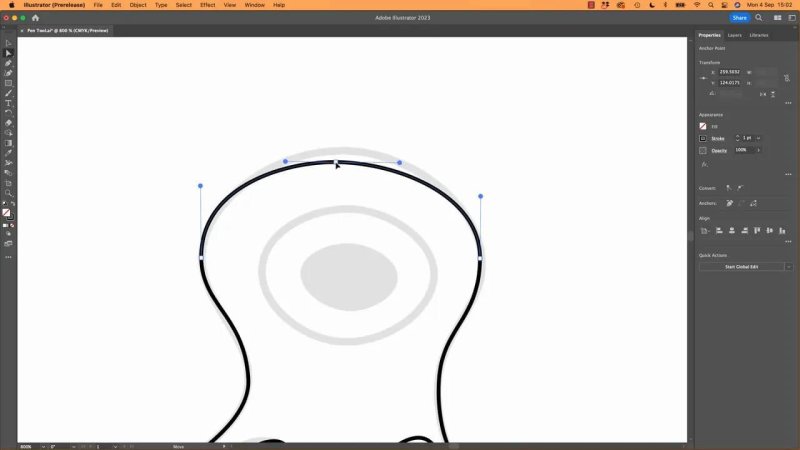
Most Pen Tool paths come together in the edit stage, not the first pass.
A few good habits here:
Select the actual anchor point or segment you mean to change
Make small changes once you understand the direction of travel
If one handle refuses to solve the issue, try adjusting the neighbouring anchor instead
Move the anchor point itself if it is sitting in the wrong place
When to add or remove anchor points
Sometimes a shape simply needs more control than your current anchors provide.
If you hover over an existing path with the Pen Tool, Illustrator shows a little plus symbol. That lets you add an anchor point. Hover over an existing anchor and it changes to a minus, which removes one.
This is useful, but there is a balance.
More anchor points give you more control, but too many often make lines bumpier and less elegant. A smooth shape usually comes from using as few points as you can get away with.
So the question is not “Can I add another point?” It is “Do I actually need one?”
Drawing more symmetrical shapes
The Pen Tool is not just for wobbly organic blobs. It can also handle tidy, balanced shapes, but symmetry demands a bit more discipline.
Take the ninja example. If you want the top of the hood or eye opening to feel balanced, a few principles matter:
Flat sections should actually be flat
Opposing handles should be similar lengths
Handles should line up cleanly rather than drifting off at random angles
Vertical or horizontal alignment often matters more than you expect
Holding Shift while dragging handles can help lock them into straighter directions, which is very handy when you are aiming for symmetry.
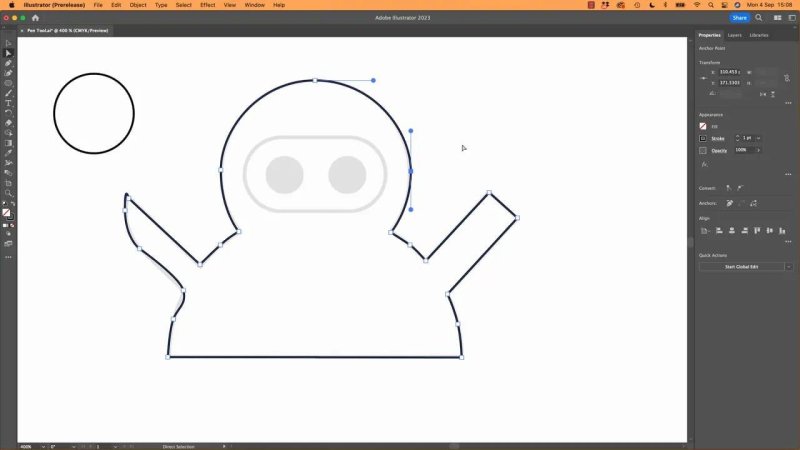
Symmetry gets easier when the handles are kept orderly instead of drifting off at odd angles.
A useful way to understand this is to compare it with a perfect ellipse. In a clean ellipse, the handles mirror each other. They are balanced, aligned, and proportionate. If one handle is much longer or angled differently, the shape starts to feel lopsided.
So if a supposedly symmetrical shape looks wrong, it is often because one of these is off:
An anchor is not centred
A handle is much longer than its opposite
A flat section is slightly tilted
A handle that should be vertical or horizontal is drifting
Sometimes the best fix is not the Pen Tool
Here is a refreshing truth: if you want a perfect circle, use the Ellipse Tool.
If you want a tidy rounded rectangle for the ninja face opening, use the Rounded Rectangle Tool.
There is no prize for forcing the Pen Tool to do everything manually. Part of getting good in Illustrator is knowing when another shape tool will get you cleaner results faster.
That is why mixing tools is completely sensible. Use the Pen Tool where you need custom control, and use built-in shape tools where geometry matters more than hand-drawn precision.
How to convert a point from corner to curve and back again
At some point you will create the wrong kind of point. You meant to make a curve, but made a corner. Or the other way round.
That is where the Anchor Point Tool comes in.
You can find it nested under the Pen Tool.
Click an existing curved point to convert it into a corner
Click and drag from a corner point to pull out handles and turn it into a curve
If it starts behaving strangely, do not panic. Give the handles a bit of movement and see what the point is trying to do. Often the weirdness comes from one stubborn handle rather than the whole point being wrong.
And again, if the anchor itself is in the wrong place, move it. A well-placed anchor point in the middle of the real apex usually behaves far better.
A realistic way to practise
The Pen Tool is one of those skills where a short explanation helps, but repetition does the heavy lifting.
The usual journey looks something like this:
It feels clumsy and annoying
You understand the theory but still fight the curves
You start recognising good anchor placement
You stop expecting perfection on the first pass
You begin editing paths with confidence
Eventually you either tolerate it or become one of those people who weirdly love it
There does seem to be very little middle ground. People tend to either hate the Pen Tool or swear by it.
The difference is usually not talent. It is time spent practising.
A practical workflow for tracing shapes with the Pen Tool
Turn off fill if it gets in the way and keep a visible stroke.
Zoom in enough to see the shape clearly.
Identify the apexes before placing points.
Click once for corners.
Click and drag for curves.
Do not obsess over perfection during the first pass.
Use the white arrow to refine anchor points and handles.
Add or remove anchor points only when necessary.
Use Shift when you need cleaner horizontal or vertical handle direction.
Use the Anchor Point Tool to convert corners and curves.
Use shape tools instead of the Pen Tool when perfect geometry matters more.
Why learning the Pen Tool pays off
The Pen Tool is not popular because it is easy. It is popular because it is flexible.
Once you understand how anchor points and handles actually control a line, you stop guessing. You can build cleaner logos, smoother icons, better illustrations, and more polished vector shapes overall.
And because the same underlying tool exists in so many creative applications, the effort does not stay locked inside Illustrator. You are learning a broader design skill.
FAQ
Why is the Pen Tool so hard to learn?
Because it gives you direct control over anchor points and handles instead of automating the curve for you. That extra control is useful, but it also means there is more to think about while drawing.
Should I use the Curvature Tool or the Pen Tool in Illustrator?
Use the Curvature Tool when you want speed and simplicity. Use the Pen Tool when you need precise control over corners, curves, and path flow. Most people end up using both depending on the job.
What does clicking versus dragging do with the Pen Tool?
Clicking creates a corner point. Clicking and dragging creates a curved point with direction handles that control how the line bends on either side.
How do I continue a path after deselecting it?
Grab the Pen Tool and hover near the existing endpoint until the cursor changes to the continue icon. Then click the endpoint and keep drawing from there.
How do I stop drawing a path without finishing it?
Press Escape. That detaches the active path from your cursor so you can stop cleanly and start again when ready.
Can I fix a bad Pen Tool path after drawing it?
Absolutely. In fact, that is normal. Use the Direct Selection Tool to move anchor points and adjust handles after the path is complete.
How many anchor points should I use?
Usually fewer is better, as long as the shape still behaves properly. Extra anchor points can help with control, but too many often make curves less smooth.
Is the Illustrator Pen Tool the same as the one in Photoshop?
Yes, the core idea is the same. It is the same Bezier-based drawing approach used in Photoshop, InDesign, and many other creative applications.
Written by Daniel Walter Scott — Founder of Bring Your Own Laptop & Chief Instructor
