Saving to the Creative Cloud versus locally on my desktop
Questions



Student Gallery
Course info
Overview
Get ready to dive into the mesmerizing world of Adobe Illustrator, where we'll craft stunning looking graphics. But we won't stop at just learning the tools; we're about to unleash our creative powers by creating real-world, practical, and portfolio-ready projects. Together we will learn to:
• Master the art of drawing with simple shapes and lines.- • Unleash your creativity by combining and subtracting shapes using the Shape Builder.
- • Create advanced custom logos and graphics.
- • Explore the world of creative brushes, lines, and strokes to elevate your designs to the next level.
- • Use the Width tool to enhance your lines and strokes adding a style.
- • Conquer the pen, pencil, and curvature tools like a pro.
- • Dive into the wonderful world of fonts and the art of mastering type.
- • Use the intertwine feature to create interesting overlapping illustrations.
- • Learn the art of masking images and graphics.
- • Discover the magic of distorting, bending, warping, and liquefying illustrations.
- • Select and use color combinations like a true master of design.
- • Craft your own unique repeating patterns.
- • Transform real drawings into captivating stencil-style images.
- • Export your creations for print, web, social media, and more.
- • Acquire the techniques used by professional graphic designers.
- • Work with your own mini-brief - creating a unique Farmer's Market brand and bringing it to life.
- • Harness the power of Adobe's Generative AI features to push your creative boundaries.
- • Working with mood boards to gather inspiration.
- • Create realistic mockups to enhance your designs even further.
- • Engage in a wealth of class projects to put your skills to the test.
- • Stay ahead with a handy printable PDF cheat sheet.
- • Access downloadable exercise files to help you practice and refine your skills.
- • Benefit from forum support provided by the BYOL Teaching Assistant Team.
- • Discover professional workflows and shortcuts to work more efficiently.
- • Gain access to a treasure trove of additional resources and websites to supercharge your career.
But that's not all! I'll unveil Illustrator's hidden gems that will transform you into a pro at discovering and utilizing breathtaking vector based graphics. We'll dive into the latest Illustrator tools, including the mind-blowing Generative AI features that allow us to craft illustrations that were once thought impossible.
Whether you've never even opened Illustrator or have struggled with it in the past, I'm here to show you the easy way to create breathtaking artwork and portfolio projects to be proud of. Join me as we go from Illustrator zeros, to Illustrator superheroes!
Who this course is for
• Absolutely no previous Adobe Illustrator experience is required.- • This course is designed for newcomers to Illustrator and design in general, so no prior design, drawing, or illustration experience is necessary.
- • This is a relaxed, well-paced introduction, perfect for producing a wide range of drawings, illustrations, logos, and portfolio projects. Only basic computer skills are necessary - if you can send emails and surf the internet, you're more than capable of mastering this course.
What you'll learn
- • Drawing with Shapes & Lines
- • Drawing with the Shape Builder
- • Creating a custom logo
- • Working with Brushes
- • Drawing with the pen, pencil & curvature tool
- • Learn how to work with type & fonts.
- • How to vectorise an image in Illustrator
- • How to curve text in illustrator
- • How to trace an image in illustrator
• How to warp text in illustrator
• How to embed images in illustrator
• How to mask images & graphics.
• How to distort, bend, warp & liquefy illustrations.
• How to make 3D illustrations.
• How to make your own repeating patterns.
• How to create stencil style images from real drawings.
• How to save, print & export for Print, web & social media.
• Lots of real world exercises for you to practice.
• Loads or class projects for you to complete.
• Printable Cheat sheet.
• You will get the finished files so you never fall behind.
• Downloadable exercise files.
• Techniques used by professional graphic designers.
• Professional workflows and shortcuts.
• A wealth of other resources and websites to help accelerate your career.

Daniel Walter Scott
Founder of Bring Your Own Laptop & Chief Instructor
I discovered the world of design as an art student when I stumbled upon a lab full of green & blue iMac G3’s. My initial curiosity around using the computer to create ‘art’ developed into a full-blown passion, eventually leading me to become a digital designer and founder of Bring Your Own Laptop.
Sharing and teaching are a huge part of who I am. As a certified Adobe instructor, I've had the honor of winning multiple Adobe teaching awards at their annual MAX conference. I see Bring Your Own Laptop as the supportive community I wished for when I was first starting out and intimidated by design. Through teaching, I hope to bring others along for the ride and empower my students to bring their stories, labors of love, and art into the world.
True to my Kiwi roots, I've lived in many places, and currently, I reside in Ireland with my wife and kids.
Certificates
We’re awarding certificates for this course!
Check out the How to earn your certificate video for instructions on how to earn yours and click the available certificate levels below for more information.
Downloads & Exercise files
Should I save Illustrator files to Creative Cloud or my computer?
For most Illustrator work, saving as a Creative Cloud document is the better default. It keeps a current offline copy on your computer, syncs changes when you reconnect, offers version history, and makes sharing far easier. Save locally when a specific workflow needs a physical file.
Saving Illustrator Files to Creative Cloud vs Your Computer
Please, save your document. Leaving an Illustrator file called Untitled 3 open for days is not a workflow I recommend, even if the computer has been behaving itself so far.
When you first save an Illustrator document, Adobe gives you a choice: save it to your computer or save it as a Creative Cloud document. Both options work, and local saving is exactly what it has always been. But Creative Cloud documents have become my default because they remove a surprising amount of risk and friction from everyday design work.
Save early, then choose where the file lives
As soon as you create a new document, use File > Save. Illustrator will ask whether you want to save to your computer or to the cloud. If you already know your preference, the Don’t show again option can remember it.
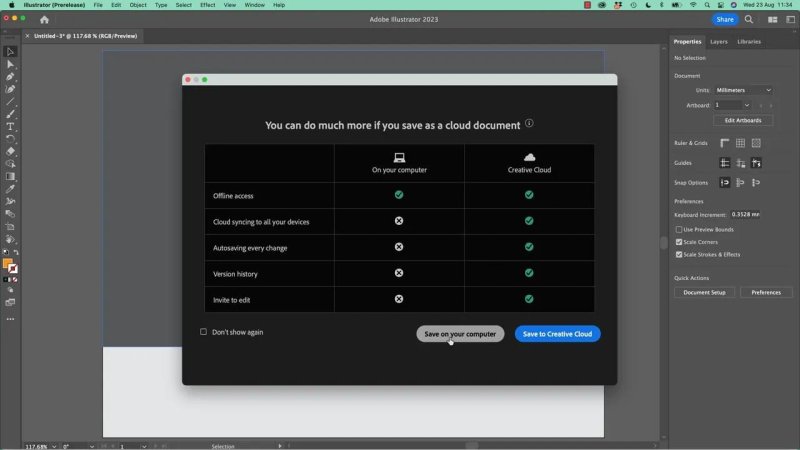
Illustrator presents local and Creative Cloud saving as two distinct options right from the first save.
That choice is not permanent. Even if you previously told Illustrator never to show the cloud option, you can still switch later from the save interface. Similarly, if you begin with a cloud document and later need a local copy, use File > Save As and save it to your computer.
Why Creative Cloud documents are worth using
I used to choose Save to computer automatically, mainly because it was familiar. Now I save almost everything to Creative Cloud. Local files still have their place, but cloud documents offer a few really useful advantages.
You can still work when you are offline
The big concern is usually, “What happens when I have no internet?” The answer is: your file is still available.
Creative Cloud keeps an up-to-date local version of the cloud document on your computer. You can open and work on it without an internet connection. Once the connection returns, Illustrator syncs those changes back to the cloud.
In practical terms, it behaves much like working with a local file, while giving you the benefits of a synced copy.
Your work is automatically kept up to date
This is the biggest benefit for me. With a traditional local file, it is easy to work for hours, forget to save, and then lose work when Illustrator or your computer crashes. That is a painful way to learn the value of saving.
Creative Cloud documents continually sync your updates. It is not repeatedly uploading an entire giant Photoshop or Illustrator file every time you make a tiny change, either. The syncing is more precise, updating the parts you have changed, such as an adjusted layer or a new text layer.
That makes cloud saving practical even when the internet connection is not amazing.
Version history gives you a safety net
With a standard desktop file, you can use Undo while the document remains open. Once you close it, that undo chain is gone.
Creative Cloud documents include version history, so you can go back through earlier states of the document, right back towards when it was created. If something important was deleted or a design direction went horribly wrong, you have a way to recover an earlier version rather than trying to rebuild it from memory.
Your files follow you between computers
If you use more than one computer, Creative Cloud documents are available wherever you sign in with the same Adobe account. That can be useful for moving between a Mac and a PC without manually copying files, emailing yourself attachments, or using a separate service such as Dropbox.
I do not need this every day, but if you regularly work across machines, it is very handy.
Sharing is much simpler
Creative Cloud documents can be shared through Invite to Edit. Rather than exporting, zipping, attaching, and emailing a file to a colleague, you can invite team members directly to the document.
That is especially useful when the file is large, when several people need access, or when you want to avoid the usual trail of files called final.ai, final-final.ai, and final-final-actually-this-one.ai.
What about Creative Cloud storage?
Check your Adobe plan to see your included storage allowance. A typical individual plan may include around 100 GB, while Teams and Enterprise plans can include much more, including terabytes.
For everyday Illustrator work, that can go a long way. If storage eventually becomes an issue, you can upgrade your plan or clear out older files. It is worth keeping an eye on, but it is not something I have had to worry about as a fairly heavy Creative Cloud user.
How to save an Illustrator document to Creative Cloud
Choose File > Save.
Select Save to Creative Cloud.
Give the document a clear name, such as Sleeping Fox V1.
Choose its cloud location and confirm the save.
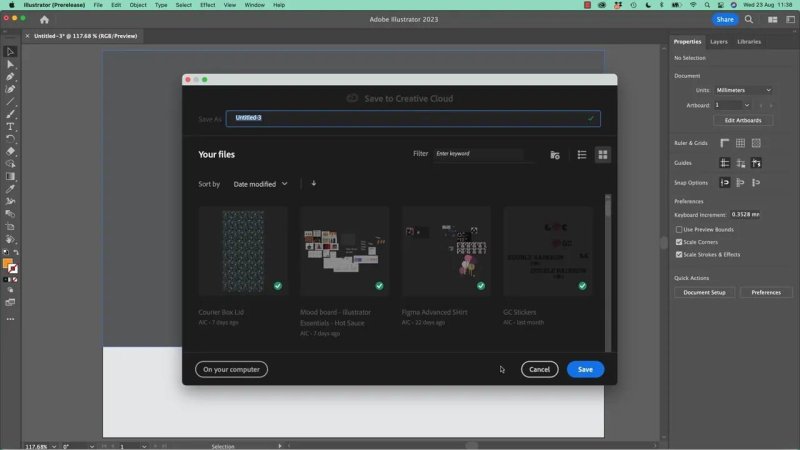
The cloud save window lets you name the Illustrator file and choose where it sits in your Creative Cloud documents.
Use meaningful names from the start. A name such as Sleeping Fox V1 gives you a clear first milestone, and the version history provides additional protection as the design develops.
Pay attention to linked files
One detail can catch you out: a cloud Illustrator document may contain linked assets that still live only on your computer.
For example, if you traced a hand-drawn image and that source image is linked rather than embedded, Illustrator may warn you that the linked file is on your computer and is not part of the cloud document. The Illustrator document itself is saved to Creative Cloud, but that external asset is not automatically travelling with it.
For now, acknowledge the warning and carry on. As your Illustrator skills grow, you can embed linked images so the asset becomes part of the document and you do not need to worry about missing linked files.
When saving locally makes more sense
Cloud saving is excellent for general design work, but local files are still useful in certain situations.
Exercise or project files: When you need to bundle files into a ZIP archive for someone else, keeping a local copy is practical.
Physical transfer workflows: A file destined for a 3D printer may need to be copied to a USB stick and carried to the printer.
Specific workplace requirements: Some teams or clients have their own file-storage systems and processes that require local files.
The point is not that local saving is wrong. It is simply that Creative Cloud documents are usually the more convenient default when there is no special reason to avoid them.
How to open local and Creative Cloud documents
Once the document is saved, Illustrator gives you several ways to get back to it.
Use the Home screen
The Home screen is often the easiest place to open recent work. It shows documents you have worked on whether they live on your desktop or in Creative Cloud.
A cloud document that is available offline is marked accordingly, while local-only files appear as files that live solely on the machine.
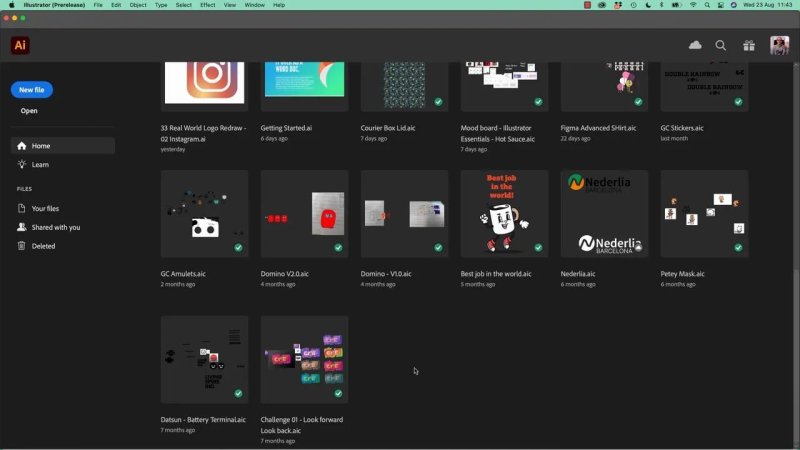
The Home screen brings local and Creative Cloud documents together, making recent work easy to find.
Use File > Open
File > Open works as normal for local files on your desktop or elsewhere on your computer. You can also choose Open Creative Cloud Documents to browse files stored in your cloud account.
Use Open Recent Files
For something you were just working on, File > Open Recent Files is often the fastest option of all. It saves you from browsing through folders or searching through cloud documents when the file is already in Illustrator’s recent list.
A sensible default for Illustrator saving
Save as soon as the document is created. For most projects, save to Creative Cloud and enjoy the automatic syncing, offline availability, version history, cross-device access, and easier collaboration.
Then use local saving when the job genuinely calls for it, such as packaging files, transferring work to hardware, or following a required team workflow. Either way, the important bit is no longer working in a brave little unsaved document called Untitled 3.
FAQ's
Can I open an Illustrator Creative Cloud document without internet access?
Yes. Creative Cloud keeps an up-to-date local copy on your computer, so you can open and work on the file offline. Your changes sync to the cloud when the internet connection returns.
Can I change an Illustrator file from cloud saving to local saving?
Yes. Use File > Save As and choose a location on your computer. You can also choose the Creative Cloud option again later if you previously selected a local saving preference.
Do Creative Cloud documents include linked images?
Not necessarily. Linked images can remain on your computer even when the Illustrator document is saved to Creative Cloud. Embed the linked assets when you need them to travel inside the document.
What is the quickest way to reopen a recent Illustrator file?
Use File > Open Recent Files. The Home screen is also useful because it displays both recent local files and Creative Cloud documents together.
Written by Daniel Walter Scott — Founder of Bring Your Own Laptop & Chief Instructor
