Class Project 04 - Curvature Tool
Questions


































Course info
Overview
Join Adobe Certified Professional and Adobe MAX Master Award winner Dan Scott on an incredible journey into Adobe Illustrator! This course is tailor-made for anyone new to Illustrator and the world of design. Dan starts from scratch and unravels the secrets and techniques that let you create anything your creative heart desires, from icons, logos, and postcards to beautifully hand-drawn illustrations.
It's a relaxed, well-paced introduction, and Dan's approach is simple: start with shapes. A surprising amount of professional vector work begins as a few basic shapes combined and subtracted with the Shape Builder. Once that clicks, you'll be ready to conquer the Pen, Pencil, and Curvature tools like a pro and dive into the wonderful world of fonts.
Together with Dan, you'll learn how to:
- Master the art of drawing with simple shapes and lines
- Combine and subtract shapes to build custom logos and graphics
- Draw with confidence using the Pen, Pencil, and Curvature tools
- Pair fonts and style type that suits your design
- Choose color combinations with a designer's eye
- Export your creations for print, web, social media, and more
You'll practice on real-world projects from icons and logos to postcards and hand-drawn illustrations, then bring everything together in a complete Farmers' Market brand built from your own mini-brief. You'll gather inspiration with a mood board, design the logo and graphics, and present it all in realistic mockups. Dan also walks through Illustrator's hidden gems, including the mind-blowing Generative AI and AI Assist features. Turn rough sketches into polished vectors with Concept to Vector, generate artwork from a text prompt, get AI feedback before you share your designs, and keep your layers tidy. Dan shows you where these tools save you time, and where they're not worth the effort.
Plus, you'll get a handy printable PDF cheat sheet, forum support from the BYOL Teaching Assistant team, and a treasure trove of additional resources and websites to supercharge your career. Whether you've never even opened Illustrator or you've struggled with it in the past, Dan is here to show you the easy way to create breathtaking artwork and portfolio projects you'll be proud of. Let's go from Illustrator zero to Illustrator hero!
Requirements
- Adobe Illustrator installed (sign up for a free trial here)
- No prior Illustrator, design, or drawing experience required
- Basic computer skills (if you can send an email and browse the web, you're ready)
Who this course is for
- Absolutely no previous Adobe Illustrator experience is required
- This course is designed for newcomers to Illustrator and design in general, so no prior design, drawing, or illustration experience is necessary
- This is a relaxed, well-paced introduction, perfect for producing a wide range of drawings, illustrations, logos, and portfolio projects
- Only basic computer skills are necessary; if you can send emails and surf the internet, you're more than capable of mastering this course!
What you'll learn
- Drawing with shapes and lines
- Combining and subtracting shapes with the Shape Builder tool
- Designing custom logos and vector graphics
- Mastering the Pen, Pencil, and Curvature tools
- Working with brushes, strokes, and the Width tool
- Working confidently with type and fonts
- Curving and warping text
- Picking fonts faster with AI Assist
- Choosing effective color combinations
- Embedding and masking images and graphics
- Removing image backgrounds with one click
- Tracing images and converting hand-drawn artwork into vectors
- Creating stencil-style artwork from real drawings
- Creating overlapping artwork with Intertwine
- Distorting, bending, warping, and liquefying artwork
- Creating simple 3D illustrations
- Viewing 2D artwork from new angles with Turntable
- Designing seamless repeating patterns
- Turning rough sketches into polished vectors with Concept to Vector
- Generating vector artwork from a text prompt with Generate Vector
- Getting AI feedback on your designs before you share them
- Organizing layers automatically with AI Assist
- Gathering inspiration with mood boards
- Building a complete Farmers' Market brand from your own mini-brief
- Presenting your work with realistic mockups
- Exporting artwork for print, web, social media, and clients
- Multiple hands-on class projects you can add straight to your portfolio
- Practical workflows, shortcuts, and techniques used by professional graphic designers

Daniel Walter Scott
Founder of Bring Your Own Laptop & Chief Instructor
I discovered the world of design as an art student when I stumbled upon a lab full of green & blue iMac G3’s. My initial curiosity around using the computer to create ‘art’ developed into a full-blown passion, eventually leading me to become a digital designer and founder of Bring Your Own Laptop.
Sharing and teaching are a huge part of who I am. As a certified Adobe instructor, I've had the honor of winning multiple Adobe teaching awards at their annual MAX conference. I see Bring Your Own Laptop as the supportive community I wished for when I was first starting out and intimidated by design. Through teaching, I hope to bring others along for the ride and empower my students to bring their stories, labors of love, and art into the world.
True to my Kiwi roots, I've lived in many places, and currently, I reside in Ireland with my wife and kids.
Downloads & Exercise files
Transcript
Hi everyone, it is class project time.
I want you to practice your curvature tool.
It's kind of like two projects in here.
I've snuck in two for the one class project,
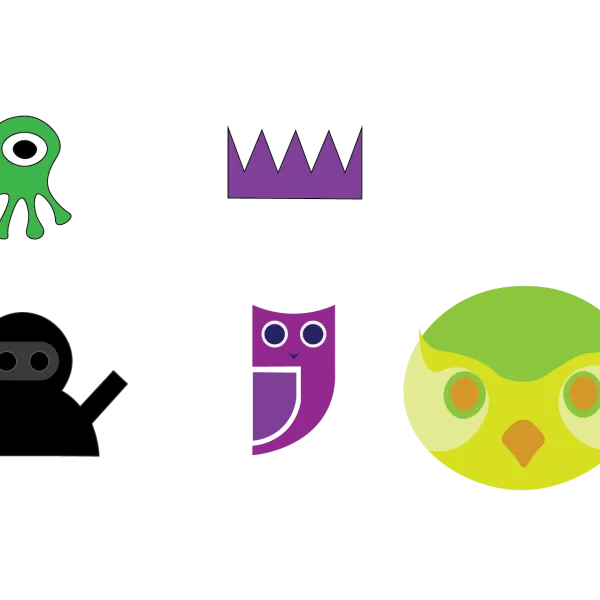
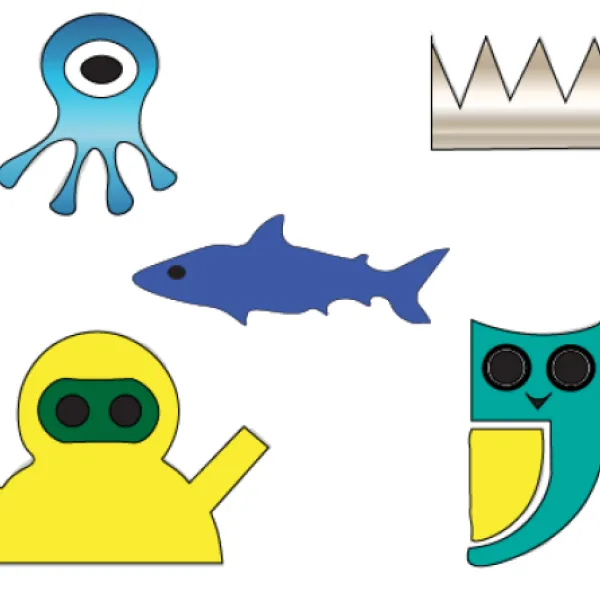
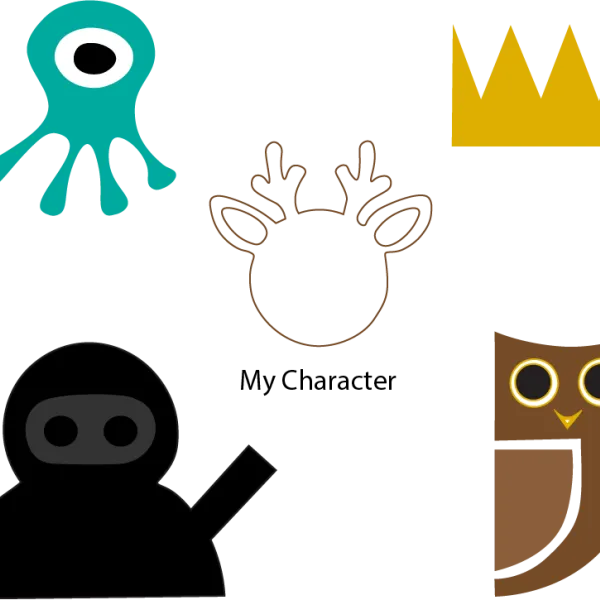
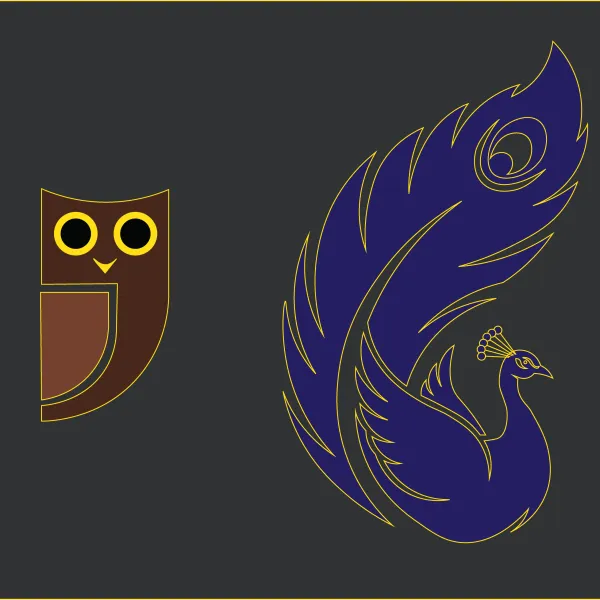
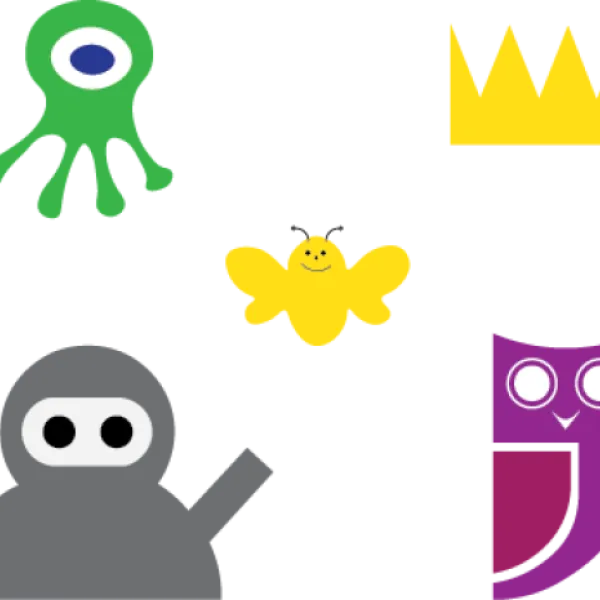
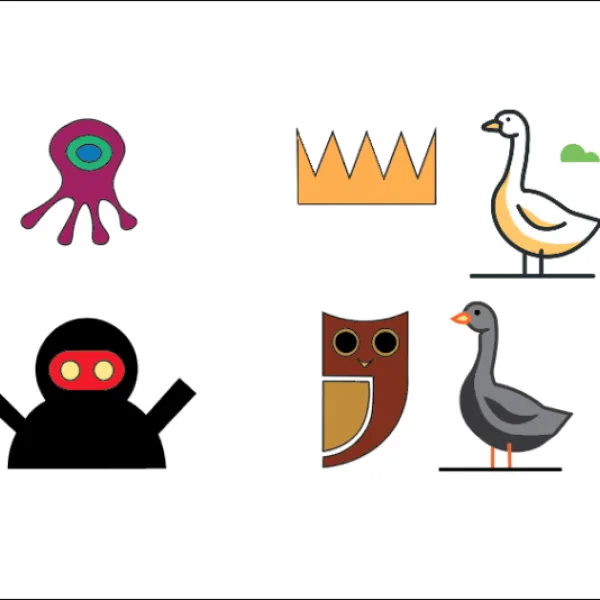
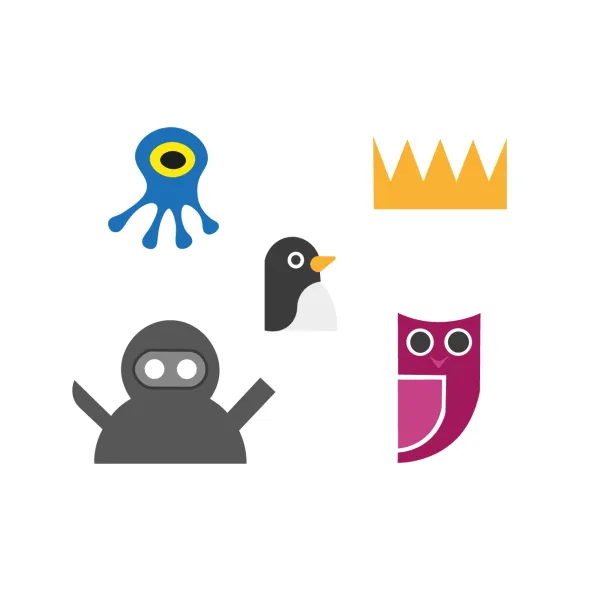
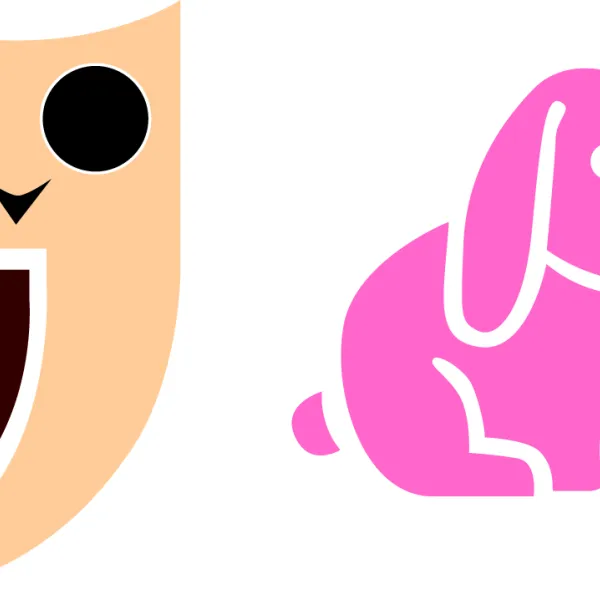
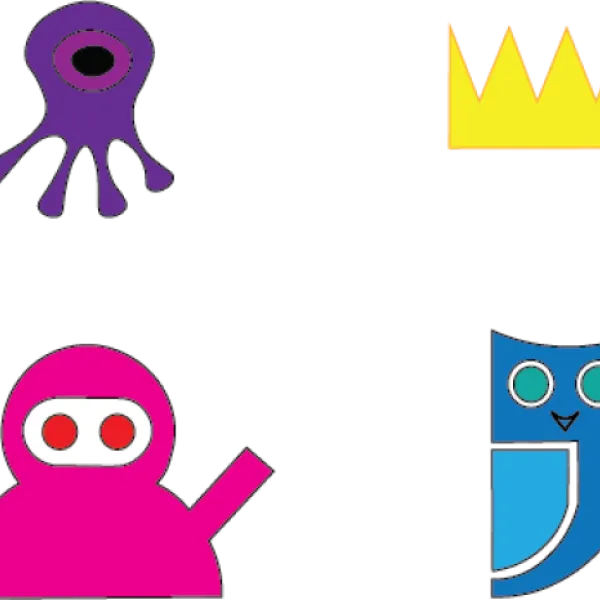
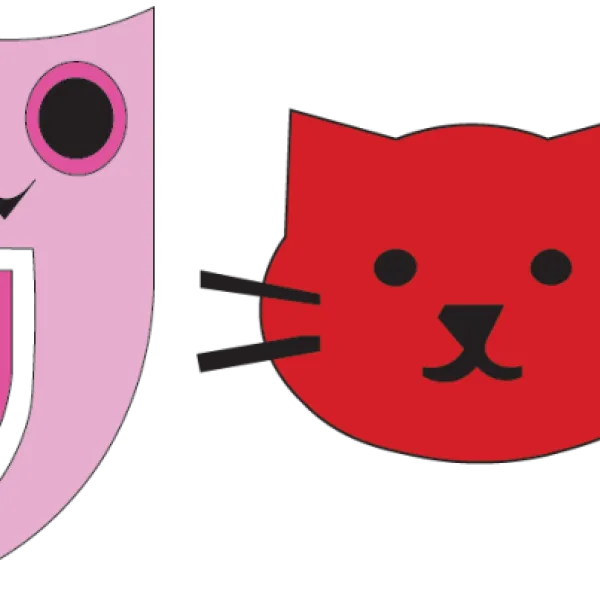
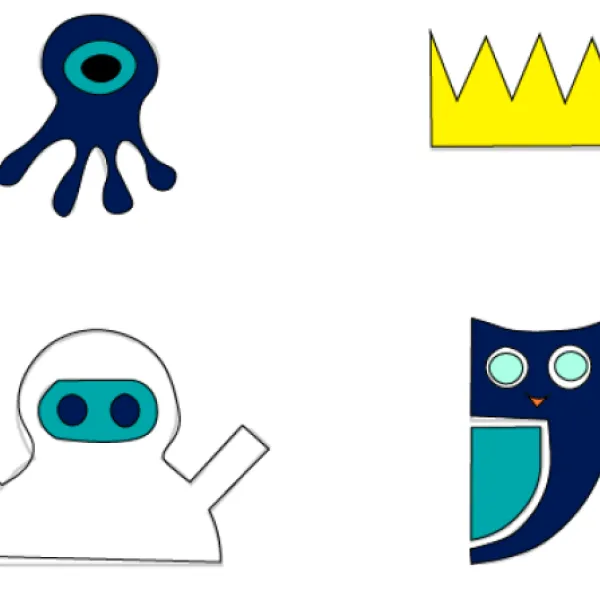
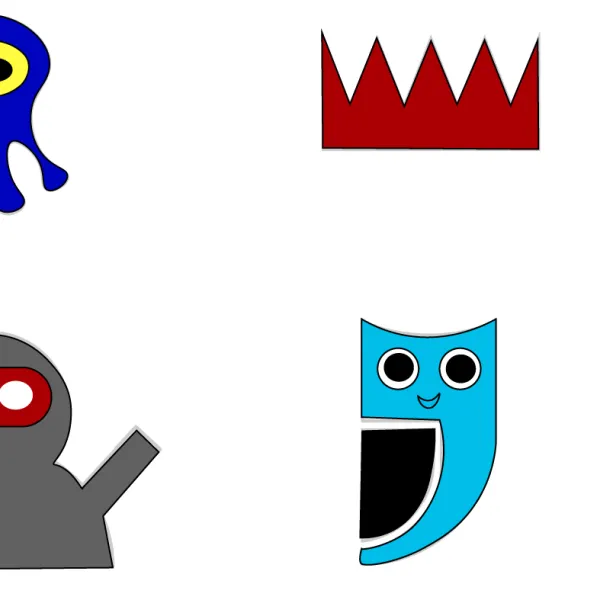
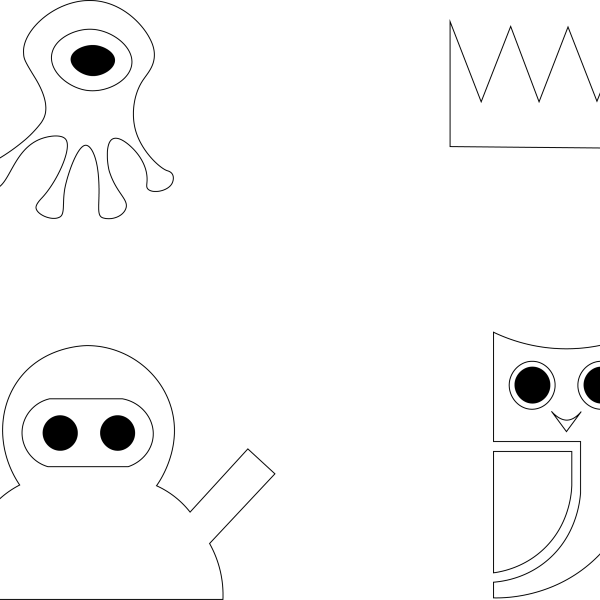
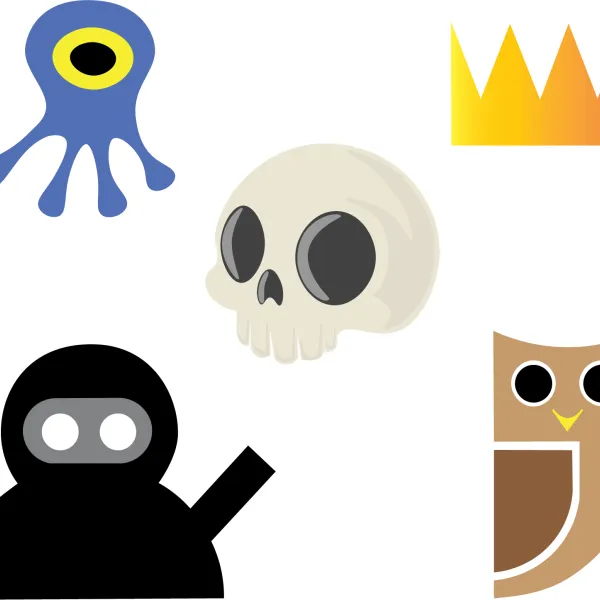
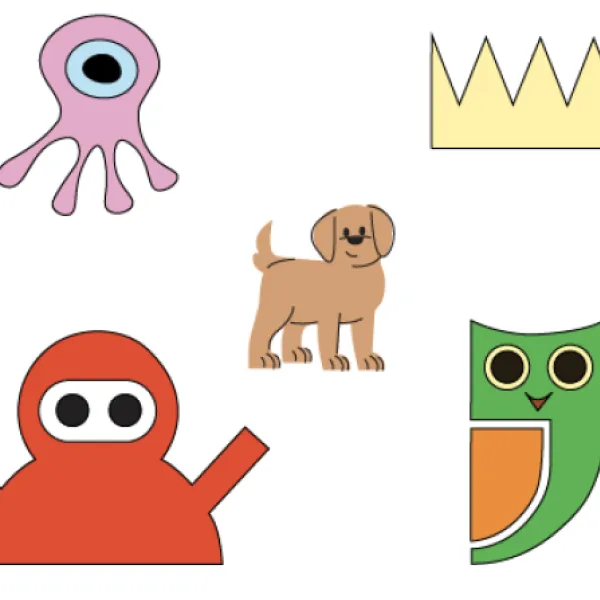
so, subproject one is I want you to redraw the owl
to just go through and using the tools that we've got so far, redraw the owl,
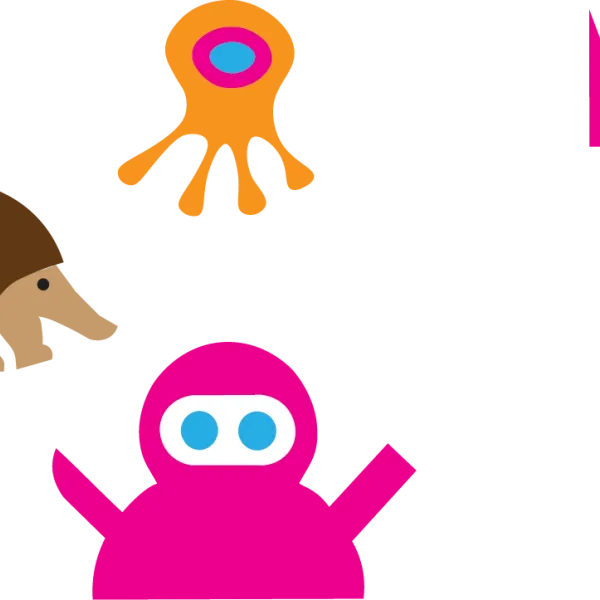
give them some color. Color, all of your little characters as well.
Curse a little bit because it's not doing what you want.
Mess with it a bit. Get it close enough.
It's not perfect.
Don't worry,
we're going to be doing the curvature tool a few times through this course.
Once you've done that one, the next thing I want you to do is I want you two.
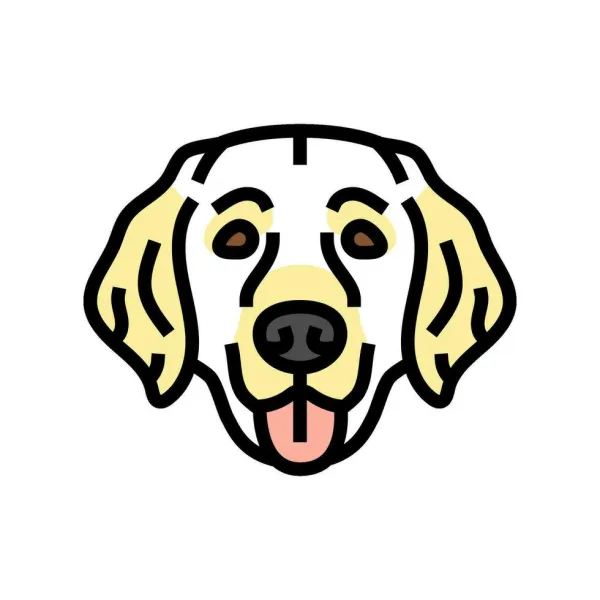
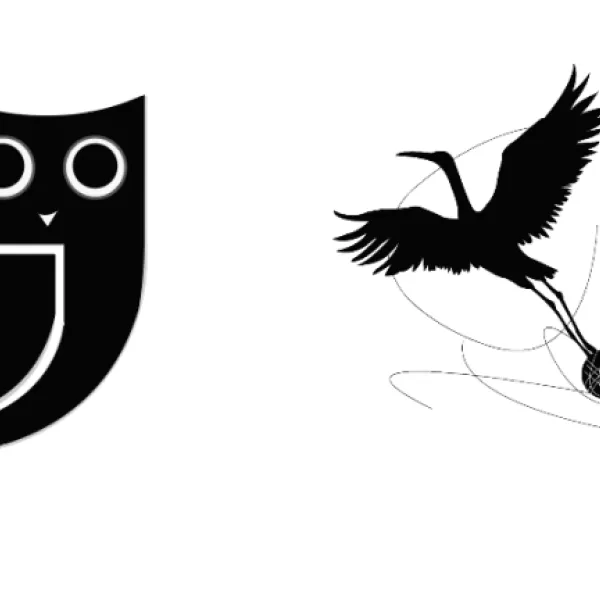
Subject two is I want you to find an icon version
of your creature that you picked for the course. Okay.
So remember in our brief, you picked, character or creature?
I'm using a fox. Okay. You can use whatever you like.
You can change it if you find the last thing was hard to find.
Okay.
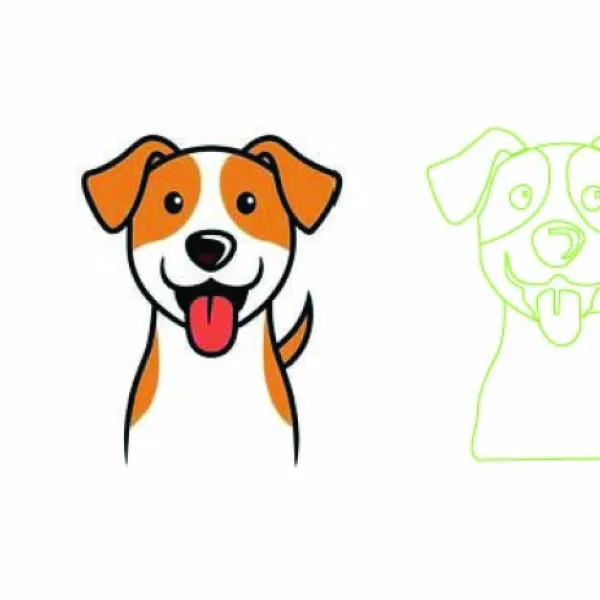
So pick your creature, and I want you to find something
you can draw over the top of.
Okay. Basically with tracing other people's work here.
And while tracing is, you know,
we don't want to copy people's work and use it, okay.
But in terms of practicing, it's the best way it's good to find other
people's work, practice, practice, practice, redrawing over the top of it.
But that's why in this, the deliverables for this one is that
I don't want you to share it on social media
because we're copying other people's work, upload it to the assignments, for sure,
but because we're copying somebody else's work, I don't want you sharing it around.
And if you do want to use it for anything, go to make sure that you go
and get the appropriate license.
But the way to find something good to draw is okay.
Go Google images, type in Fox. What are you creature?
If it's a cat, type in cat and then put a new icon
or logo afterwards and it should give you some results.
And what you're looking for is you're looking for something simple.
Don't go and think I'm going to make that okay,
because that's way out of our league right now.
We'll get to there
what we wanted something that only has one color and just simple shapes.
So I'm saying no to that.
No to that. What am I saying yes to then.
Wait if that's doable okay.
Probably not the two halftone. You could definitely do the two.
I've done this one here.
Really nice easy shape okay I pick this one.
This one's getting pretty tricky.
One of these could work okay.
So just have a look and just keep it simple.
Don't bite off too much at this stage.
This one could be done, but tricky.
That one there.
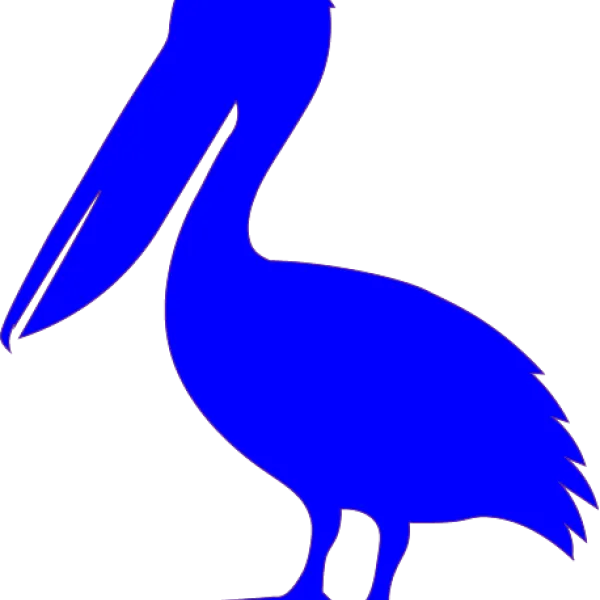
Perfect. Nice and simple.
So find some stuff, do some practice.
Upload it to the assignments.
If you are doing the class projects as we go along.
Another good word is silhouette, so a word
that it can never spell silly, witty
okay might be a better way to go.
The trouble is is can be quite detailed.
So use those terms.
Either your creatures name and use icon, logo or silhouette
and you'll find something.
Hopefully that is drawable, something like that looks drawable.
Practice it, upload it to the class projects.
The one thing I will say before we go is we might run into problems.
We looked at this way back
at the beginning of the course is the dreaded isolation mode.
You're like, what's happened?
Can I click on this?
It's grayed out, okay, and I can what's why is this on top now everything is lost.
The world is ending. What do I do?
You remember either just double click in the background
to get out of isolation mode, or double click to go in.
Okay, hit these arrows if you times come out okay.
That's one thing you might be getting lost in already, but there you go.
Use the tricks we've learned so far using the curvature tool.
Draw the owl.
We draw a creature for a bit of practice and then I will see you in the next video.
Don't skip the class projects. All right. Next video.
