How to use Generate Vector in Illustrator
Questions













Student Gallery
Course info
Overview
Join Adobe Certified Professional and Adobe MAX Master Award winner Dan Scott on an incredible journey into Adobe Illustrator! This course is tailor-made for anyone new to Illustrator and the world of design. Dan starts from scratch and unravels the secrets and techniques that let you create anything your creative heart desires, from icons, logos, and postcards to beautifully hand-drawn illustrations.
It's a relaxed, well-paced introduction, and Dan's approach is simple: start with shapes. A surprising amount of professional vector work begins as a few basic shapes combined and subtracted with the Shape Builder. Once that clicks, you'll be ready to conquer the Pen, Pencil, and Curvature tools like a pro and dive into the wonderful world of fonts.
Together with Dan, you'll learn how to:
- Master the art of drawing with simple shapes and lines
- Combine and subtract shapes to build custom logos and graphics
- Draw with confidence using the Pen, Pencil, and Curvature tools
- Pair fonts and style type that suits your design
- Choose color combinations with a designer's eye
- Export your creations for print, web, social media, and more
You'll practice on real-world projects from icons and logos to postcards and hand-drawn illustrations, then bring everything together in a complete Farmers' Market brand built from your own mini-brief. You'll gather inspiration with a mood board, design the logo and graphics, and present it all in realistic mockups. Dan also walks through Illustrator's hidden gems, including the mind-blowing Generative AI and AI Assist features. Turn rough sketches into polished vectors with Concept to Vector, generate artwork from a text prompt, get AI feedback before you share your designs, and keep your layers tidy. Dan shows you where these tools save you time, and where they're not worth the effort.
Plus, you'll get a handy printable PDF cheat sheet, forum support from the BYOL Teaching Assistant team, and a treasure trove of additional resources and websites to supercharge your career. Whether you've never even opened Illustrator or you've struggled with it in the past, Dan is here to show you the easy way to create breathtaking artwork and portfolio projects you'll be proud of. Let's go from Illustrator zero to Illustrator hero!
Requirements
- Adobe Illustrator installed (sign up for a free trial here)
- No prior Illustrator, design, or drawing experience required
- Basic computer skills (if you can send an email and browse the web, you're ready)
Who this course is for
- Absolutely no previous Adobe Illustrator experience is required
- This course is designed for newcomers to Illustrator and design in general, so no prior design, drawing, or illustration experience is necessary
- This is a relaxed, well-paced introduction, perfect for producing a wide range of drawings, illustrations, logos, and portfolio projects
- Only basic computer skills are necessary; if you can send emails and surf the internet, you're more than capable of mastering this course!
What you'll learn
- Drawing with shapes and lines
- Combining and subtracting shapes with the Shape Builder tool
- Designing custom logos and vector graphics
- Mastering the Pen, Pencil, and Curvature tools
- Working with brushes, strokes, and the Width tool
- Working confidently with type and fonts
- Curving and warping text
- Picking fonts faster with AI Assist
- Choosing effective color combinations
- Embedding and masking images and graphics
- Removing image backgrounds with one click
- Tracing images and converting hand-drawn artwork into vectors
- Creating stencil-style artwork from real drawings
- Creating overlapping artwork with Intertwine
- Distorting, bending, warping, and liquefying artwork
- Creating simple 3D illustrations
- Viewing 2D artwork from new angles with Turntable
- Designing seamless repeating patterns
- Turning rough sketches into polished vectors with Concept to Vector
- Generating vector artwork from a text prompt with Generate Vector
- Getting AI feedback on your designs before you share them
- Organizing layers automatically with AI Assist
- Gathering inspiration with mood boards
- Building a complete Farmers' Market brand from your own mini-brief
- Presenting your work with realistic mockups
- Exporting artwork for print, web, social media, and clients
- Multiple hands-on class projects you can add straight to your portfolio
- Practical workflows, shortcuts, and techniques used by professional graphic designers

Daniel Walter Scott
Founder of Bring Your Own Laptop & Chief Instructor
I discovered the world of design as an art student when I stumbled upon a lab full of green & blue iMac G3’s. My initial curiosity around using the computer to create ‘art’ developed into a full-blown passion, eventually leading me to become a digital designer and founder of Bring Your Own Laptop.
Sharing and teaching are a huge part of who I am. As a certified Adobe instructor, I've had the honor of winning multiple Adobe teaching awards at their annual MAX conference. I see Bring Your Own Laptop as the supportive community I wished for when I was first starting out and intimidated by design. Through teaching, I hope to bring others along for the ride and empower my students to bring their stories, labors of love, and art into the world.
True to my Kiwi roots, I've lived in many places, and currently, I reside in Ireland with my wife and kids.
Certificates
We’re awarding certificates for this course!
Check out the How to earn your certificate video for instructions on how to earn yours and click the available certificate levels below for more information.
Downloads & Exercise files
Transcript
Hi everyone.
In this video we are going to explore some artificial intelligence
inside of illustrator.
this is called text a vector where we type stuff in and it generates
stuff for us automatically.
None of this was drawn by me, it was all drawn by the computer.
You can kind of tell because a lot of foxes have five legs.
The visual style is great
and it's a great starting point for creativity in our drawing.
So I want to get into that now and early. Let's jump in.
All right. Let's create a new document okay.
It doesn't matter which one it is I'm going to use an illustration in 1920
by 1080 I like that size just to spice things up.
And it's actually not spicy at all. Just a rectangle. Okay.
So you've got a blank document.
We're gonna start with a blank one in this case to do this tutorial.
So make sure it's an empty one.
And what we're going to do is we want to be able to see the properties panel.
And there is the text of vector graphics.
I find it's a bit messy inside of here and I'm scared they're going to move it.
So we're going to go to window and going to open up
the text to vector graphic panel all on its own same thing.
I just find it's, just a little clearer when it's like this.
We're going to close that down.
So it's a little bit tidier. Okay.
And I'm going to type is remember the last thing I typed
I've already done this video once and it didn't go very well.
So I'm doing it again to be clear again okay.
So I'm going to have nothing selected.
I'm going to be on subject
and I'm going to go to I'm typing in chili pepper
because it kind of matches the brain that I'm working on.
And I'm going to hit generate.
And what ends up happening is magic.
This is being generated by artificial intelligence okay.
And that's pretty brilliant okay.
What you can do is I've just kicked off in the background, I can click back on it
and go in three by default gives you three variations one, two, three okay.
For you to pick from. And it doesn't matter
when you're clicking it over here and the little thumbnails.
Or you can hit this little arrow here to go through them.
It doesn't matter.
You can type in this prompt here or in this contextual task bar prompt.
It's up to you whether you like doing it up there or in here.
Now, the next thing that you're going to have to learn as a designer,
as a creative, is kind of how to prompt this thing, to get it to do what you want.
So that can be really tricky.
I'm still finding it quite frustrating.
Like if I want it to be less colorful, I want it to be like more of,
I'm going to say line art. Okay?
So I want it to be kind of like
I'm trying to work out the language my head of like, is this what I want?
So this is going to be a big part of what we learn together is kind of generative.
AI comes along and makes all these things is like how to get it
to do what I want, and it's exactly not what I wanted.
Okay.
So I'm going to have to think, all right, so I want black and white sketch.
And like the cool thing
about this is that it's it's pretty amazing what it makes.
And it's at its worst point ever.
It's only going to get better.
So I'm being quite prescriptive.
And it has gone and got closer to where I want to go.
That's kind of cool.
One of the things with text vector is that if you have something already
selected or anything on your app board and not a blank document.
Can you see anything here on the style and settings?
If I say and that's on by default says match Active Artboard,
what you might find is if you've got stuff already on there,
it's going to try and match the style and color.
Okay, so turn that off, okay?
If you have got something else on and what will happen
is when you generate something new, it will generate like a fresh
go at it, not try and mimic something that already is there.
The other thing is don't be afraid to keep clicking.
Generate to say actually give it another go.
You get not wildly different ones, but it might give you the option
that you're looking for.
There you go.
Come on. It's amazing what it actually makes.
The other thing you might do is over here in this.
Okay, like, actually let's switch it from subject to icon.
The subject is going to be kind of more of like an illustration style
icon is going to give you an icon style.
Let's see the difference okay.
It's not huge at the moment.
I'm hoping to get like a logo kind of graphic,
you know, like an icon for a website.
I don't get that.
I get kind of something that is very still illustration style.
It's pretty good though.
I bitch if you're doing it with me.
Okay. Yours on a completely different.
It's amazing how it, you know, and I say black and white.
That's not black and white.
It's very monochrome.
So let's leave that guy over there.
I'm going to have nothing selected and go back up to subject.
And you can't. It's amazing what you can do.
Like kind of like describing a scene.
So let's go chili Pepper with this is the one.
And when I went chili Pepper was fire coming from the top.
Hellboy folks.
And that's where I ended up.
Butch.
Look how cool that is.
Oh man.
Okay, so it is brilliant at this like illustrative style,
especially when animals involved people not so good at
the foxes and flames are do they not go so well together.
Click on it. Excellent.
So there's not what you want okay.
As awesome as you want this kind of like icon style okay.
Now that we've got some basic illustrator skills
okay we can go with the direct selection tool.
Actually my toolbar has changed isn't it.
I've kind of come back I'm going to go back to the basic one.
I'm doing the advanced course.
Don't tell anyone. Okay.
I've come back to do this is because it's new.
And so I'm going to go to the white arrow okay.
And I'm going to say I like this color.
I'm going to hold shift and grab that color there and that color there.
Okay.
Well let's say I don't like that color
when I got them selected, I can go over to here in my properties
panel and kind of down the bottom, it takes the vector gets in the way here.
I don't like it there okay. I like it in its panel.
So I've kind of closed it up.
And now I can go to my fill color and say actually
I'm going to pick a different color.
Okay.
The cool thing is not only can I change the color of this
because it's vector, okay, I can use my white arrow and go,
actually, I like this bit, but this just needs to come out a bit
or actually click on the actual anchor point.
Then you can see I can say move that around a little bit.
We're going to go through how to do these handles
and anchor points later in the course.
But I wanted to get this in early because it's super exciting.
And also there is this like oh do I need to learn illustrator
if I can just you know, use, some of this generative AI stuff
to create these vectors and totally do, because if you need to change anything,
all needs to be changed.
And like this here, it's kind of a chilly ish.
I'm not sure what these pearls are doing.
Oh, I'll edit it.
And then we're straight into learning how to use illustrator.
So it's more of a supportive tool for creatives.
Okay, so yeah, it's awesome.
I wanted to get an early and as we go through the course,
you'll be able to manipulate the things that it creates more easily.
The other cool thing is that, I call it generative AI.
That's the name in the background.
This one's called text vector. Okay.
But this text vector is using generative AI.
And that content that it creates this fox in this, chili
pepper here is, commercially usable, which is super cool.
I get to use this for my paid products for my company.
All right. That is going to be it for this one.
I will do some more artificial intelligence powered illustrative stuff
later in the course.
But for now, goodbye to you and the spicy fox.
We've got one, two, three, four, five arms and legs.
this. There's a fox. No, fox.
This is five legs.
All right, I'll see you in the next video.
Bye. Mutant fox.
Can Adobe Illustrator turn text prompts into editable vector graphics?
Yes. Illustrator’s Text to Vector Graphic feature uses generative AI to create editable vector artwork from a written prompt. It is brilliant for generating creative starting points, icons, and illustrations, but you still need Illustrator skills to refine colours, shapes, anchor points, and occasional wonderfully weird AI mistakes.
How to Use Illustrator Text to Vector Graphics Using AI
Illustrator can now make vector artwork from a few words. Type a prompt, hit Generate, and it creates artwork that you can select, recolour, reshape, and pull apart just like any other vector graphic.
That is the exciting bit. The important bit is that it is not a replacement for design skills. Sometimes it gives you a fantastic chilli pepper. Sometimes it gives you a chilli pepper with mysterious pearls, or a fox with five legs. Either way, it gives you editable vector material to work with.
Create a blank Illustrator document
Start with a new document. The exact size is not especially important for experimenting, but an artboard around 1920 pixels x1080 pixels is a nice roomy place to play with generated artwork.
For this exercise, begin with an empty artboard. This makes it easier to see precisely what is being generated and prevents existing artwork from influencing the result while you are learning.
Open the Text to Vector Graphic panel
You may find Text to Vector Graphic inside the Properties panel, but it can feel a little cramped in there. A cleaner approach is to open it as its own panel:
Go to Window.
Choose Text to Vector Graphic.
Move or dock the panel somewhere comfortable.
This gives you a dedicated space for entering prompts, choosing a generation type, reviewing variations, and adjusting style settings without the rest of the Properties panel getting in the way.
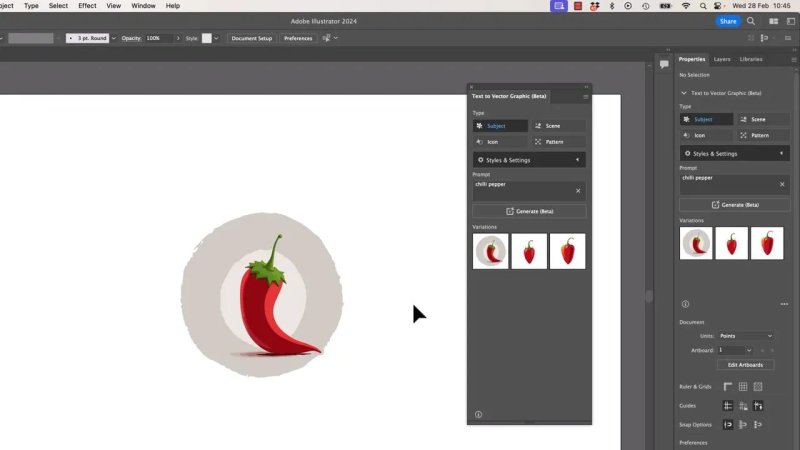
Each generation provides three variations, so you can quickly compare different takes on the same idea.
Generate your first AI vector graphic
With nothing selected, choose Subject in the Text to Vector Graphic panel. Then enter a simple prompt such as chilli pepper and select Generate.
Illustrator produces three variations by default. Select a variation from the thumbnails in the panel, or use the arrows in the contextual taskbar to cycle through them. You can also enter or revise your prompt in either location, so use whichever interface feels more natural.
The results are generated as vector artwork, not a flat raster image. That is a big deal because the artwork is immediately available for proper Illustrator editing.
Prompting is a design skill now
The difficult part is often not pressing Generate. It is working out how to describe what you actually want.
A vague prompt can produce something visually impressive that is completely wrong for the job. For example, asking for a less colourful chilli pepper with “line art” may still create something that is not remotely the restrained black-and-white sketch you had in mind.
When that happens, be more specific. Instead of relying on “line art,” try language such as:
Black and white sketch
Monochrome ink illustration
Simple outlined icon
Minimal vector logo graphic
This is part of the creative process with generative AI: turn the picture in your head into useful descriptive language, assess what comes back, and refine the prompt.
It can be frustrating, but it is worth remembering that this technology is at its earliest and roughest stage. It will improve. More importantly, you will improve at directing it.
Be specific, then generate again
Do not be afraid to hit Generate repeatedly. A new generation will not necessarily be wildly different, but it may give you the one useful option you were looking for.
Think of it less like placing a single order and more like asking a very fast, slightly chaotic illustrator for a fresh batch of thumbnail ideas.
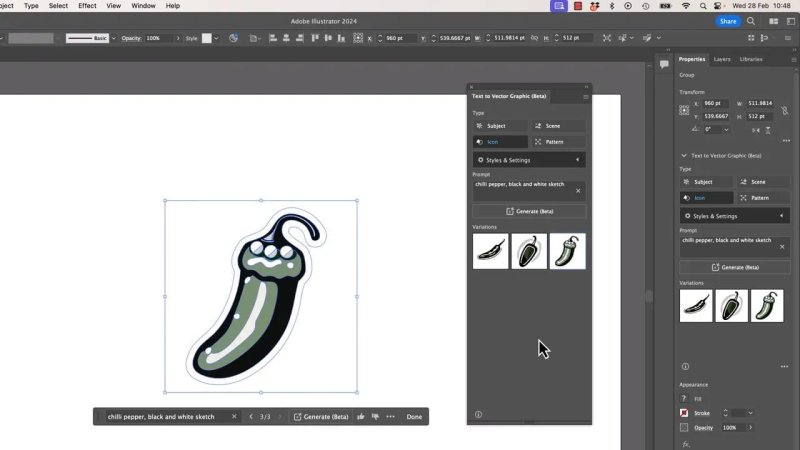
A more prescriptive prompt can push the output much closer to a simple black-and-white sketch direction.
Understand Match Active Artboard
When your document already contains artwork, look under Style and Settings for Match Active Artboard. This option is enabled by default.
With it switched on, Illustrator tries to match the style and colours of artwork already on the artboard. That can be useful when you are building a consistent set of illustrations or icons.
But when you want a completely fresh visual direction, turn it off. Otherwise, the generated artwork may keep trying to mimic what is already there instead of following your new prompt cleanly.
Subject versus Icon
The generation type makes a difference to the kind of result Illustrator aims for.
Subject generally produces more illustrative artwork.
Icon is intended to produce a more compact, icon-like or logo-like graphic.
In practice, the distinction is not always dramatic. Selecting Icon does not guarantee a perfect website logo, and it may still return an illustration-style result. It is still worth testing both options, especially if you are trying to move from a detailed scene towards a simpler graphic.
The output is also surprisingly variable. Give the same prompt to two people and there is a good chance they will receive noticeably different results.
Use descriptive prompts to create scenes
Text to Vector Graphic is especially fun when you start describing a scene rather than naming a single object. A prompt such as a chilli pepper with fire coming out of the top can lead to vivid, polished illustrative artwork.
It tends to be particularly strong at stylised animals, objects, and flames. People can be less reliable. And animals can be very enthusiastic about extra limbs. That is not a reason to avoid it, just a reason to inspect the result before using it.
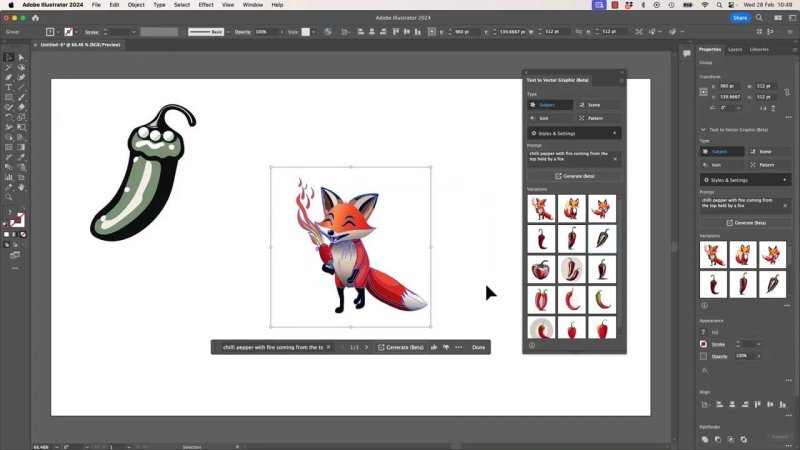
Scene-based prompts can produce charming illustration ideas, although a quick anatomy check is always sensible.
The crucial advantage: the result is editable vector artwork
This is where Illustrator’s AI generation becomes genuinely useful. You are not stuck with whatever it creates.
Use the Direct Selection tool, the white arrow, to select individual areas of the generated graphic. From there, you can make practical design decisions:
Select one or more coloured shapes and change their fill colour.
Choose parts of the artwork you like and preserve them.
Move individual anchor points.
Adjust paths and handles to change the shape.
Remove strange details that do not belong.
For example, if the generated pepper is nearly right but has a strange cluster of decorative shapes, do not throw the whole thing away. Select the unwanted pieces and edit or remove them. If a curve needs to extend a little further, grab the relevant anchor point and move it.
That is why learning Illustrator still matters. AI can help you create the first draft, but design work is often in the last 20 percent: refining form, simplifying shapes, correcting colours, and making the artwork actually fit the project.
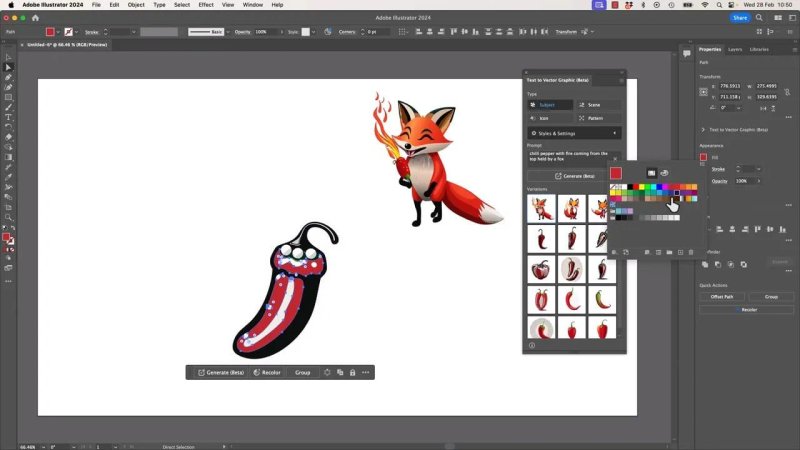
Because the generated artwork is vector-based, individual regions can be selected and recoloured directly in Illustrator.
Use generative AI as a supportive creative tool
Text to Vector Graphic is best treated as a creative support tool. It can get you past the blank page, create interesting directions quickly, and generate source artwork that you can transform using your own judgement.
It is especially useful when you need:
A quick illustration concept to develop further.
A set of visual directions to compare.
A starting point for a custom icon or decorative graphic.
Editable vector elements that can be recoloured or reshaped for a brand.
It does not remove the need to understand colour, composition, vector editing, anchor points, or the visual requirements of the job. In fact, the more Illustrator skills you have, the more useful the generated results become.
Commercial use of generated artwork
The vector content created through Illustrator Text to Vector Graphic is commercially usable. That means the generated assets can be used in paid products and company work, which makes the feature far more practical than a novelty experiment.
Still, treat every generation as working artwork. Review it carefully, refine it, and make it yours. The best result is rarely the first thing that appears on the artboard. It is the version you shape after the generation has given you a useful starting point.
FAQ's
Where is Text to Vector Graphic in Illustrator?
You can find it in the Properties panel, or open it as a separate panel by choosing Window and then Text to Vector Graphic.
Are Illustrator Text to Vector Graphics editable?
Yes. The generated results are vector artwork, so you can select individual shapes, change fills, edit anchor points, adjust paths, and remove unwanted elements.
What does Match Active Artboard do?
It makes Illustrator try to match the colours and visual style of artwork already on the active artboard. Turn it off when you want a fresh, independent generation.
Should I use Subject or Icon in Text to Vector Graphic?
Use Subject for more illustration-focused output and Icon when you want a more compact icon-style direction. Test both, because the result can vary and Icon may still generate something fairly illustrative.
Can generated Illustrator vectors be used commercially?
Yes. The generated content is commercially usable, including for paid products and company work.
Written by Daniel Walter Scott — Founder of Bring Your Own Laptop & Chief Instructor
