How to add Gradients across multiple objects in Illustrator
Questions


Student Gallery
Course info
Overview
- - How to use artificial intelligence to boost your creativity in ideation.
- - The quick way to take hand-drawn sketches and vectorize and color them.
- - The building blocks needed to set you loose on a huge variety of beautiful effects and techniques.
- - To make beautiful charts and graphs for your documents.
- - Color mastery to make quick color adjustments, Pantones, and blend it all together beautifully.
- - How to master images inside of your illustrator workflow.
- - To harness all the secret gems that'll help you level up your typography skills.
- - All the tricks of the trade for drawing complex shapes easily.
- - To double your creativity with the Transform and Distort section.
- - To speed up your personal workflow to get the most out of your creative day.
- The Curvature Tool
- How to master corners with corner widget effects
- How to work with Compound Paths
- The difference between Expand & Expand Appearance
- How to create Graphic Styles
- How to make Symbols
- How to use the Smooth Tool
- Advanced use of Simplify Path
- What Live Shape Effects are for
- How to make Repeating Grids & Concentric Circles
- How to make Random Objects
- Advanced Keyboard Shortcuts in Illustrator
- How to add a Gradient on a Stroke
- How to add a Gradient in Text
- How to use the Freeform Gradient tool
- How to use Advanced Color Swatches
- How to use Global Color Swatches
- What is the difference between RGB vs CMYK color modes?
- How to proof colors
- How to use Pantone Spot Colors
- Recolor Artwork & Changing all colors at once
- How to use Blending Modes
- How to work with Images & Blending Modes
- How to make Black & White Images
- Learn Advanced Workflow Tricks
- All the Super Selection Mastery
- How to use the History Panel
- Advanced Fonts Tricks & Tips
- Use Retype to know what Font is being used
- How to put Text Inside a Letter or Shape
- How to use the Touch Type Tool
- How to add a Connected Stroke Around Multiple Shapes
- How to Offset a Stroke with Text
- How to make a Bar Chart in Illustrator
- How to make a Pie Chart in Illustrator
- Layer Power Moves
- Advanced Artboard & Pages Tricks
- How to Unlink vs Embedded Images
- How to Crop Images Rather than Mask
- How to Mask Inside Text & Multiple Shapes
- How to you use the Puppet Warp Tool
- How to use the Distort Envelope Shape & Type
- How to use the Envelope Mesh
- How to blend lines together
- How to make a Linocut Effect
- How to make 3D Gradient Lettering Blends
- How to spin text into a ring
- How to turn text into a 3D donut shape
- How to make a Duotone image effect
- How to make a Roughen Stamp Vector Effect
- How to make a Neon Sign Glow Effect
- How to use a Halftone Effect using Plugins
- Advanced Exporting Assets Tricks in Illustrator
- How to use the Dimension Tool
So what're you waiting for? Let's start the course now!

Daniel Walter Scott
Founder of Bring Your Own Laptop & Chief Instructor
I discovered the world of design as an art student when I stumbled upon a lab full of green & blue iMac G3’s. My initial curiosity around using the computer to create ‘art’ developed into a full-blown passion, eventually leading me to become a digital designer and founder of Bring Your Own Laptop.
Sharing and teaching are a huge part of who I am. As a certified Adobe instructor, I've had the honor of winning multiple Adobe teaching awards at their annual MAX conference. I see Bring Your Own Laptop as the supportive community I wished for when I was first starting out and intimidated by design. Through teaching, I hope to bring others along for the ride and empower my students to bring their stories, labors of love, and art into the world.
True to my Kiwi roots, I've lived in many places, and currently, I reside in Ireland with my wife and kids.
Certificates
We’re awarding certificates for this course!
Check out the How to earn your certificate video for instructions on how to earn yours and click the available certificate levels below for more information.
Downloads & Exercise files
How do you make one gradient span multiple shapes in Illustrator?
You need to turn the selected objects into a Compound Path, then apply the gradient to that combined shape. If you skip that step, Illustrator gives each object its own separate gradient, which is usually not the effect you were after.
How to Add One Gradient Across Multiple Objects in Illustrator
This catches loads of people. You select a bunch of icons, apply a gradient, and Illustrator happily puts a gradient on every single object individually.
Technically, yes, you added a gradient to lots of stuff. Practically, no, that is not what you meant.
What you usually want is one smooth band of colour that runs across all the objects together, so the left object picks up one side of the gradient, the middle object gets the transition, and the right object gets the far end.
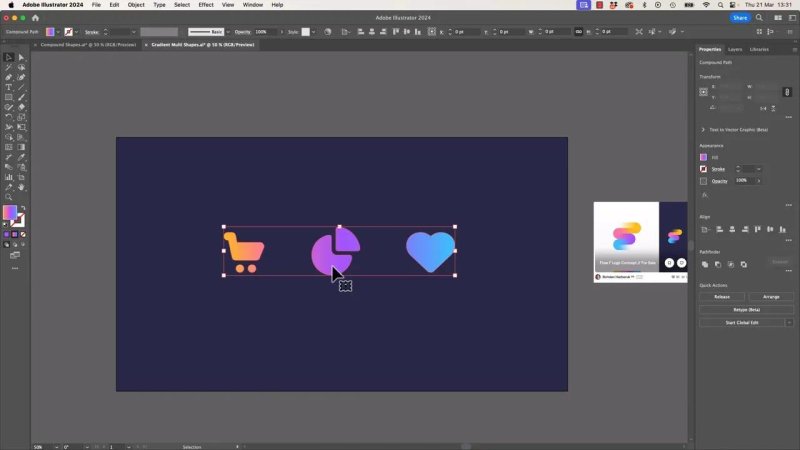
This is the goal: one gradient line controlling all the shapes together.
The quick fix
If you only want the answer, here it is:
Select all the objects.
Make them a Compound Path.
Use Command+8 on Mac or Control+8 on Windows.
Apply a gradient fill.
Grab the Gradient Tool and drag across the objects.
That gives you one shared gradient instead of several little separate ones.
Why the usual approach fails
If you leave the artwork as separate shapes, Illustrator treats each object like its own little world. So when you apply a gradient, every icon gets its own gradient line, its own start point, and its own end point.
You can sort of fake it by selecting everything and dragging the Gradient Tool across the set, but it is still multiple gradients underneath. That means editing becomes awkward fast.
For example, if you click into one shape and change a colour stop, you are only changing that one object's gradient. The others keep their own settings. That is why you see multiple gradient annotators and why the result feels messy.
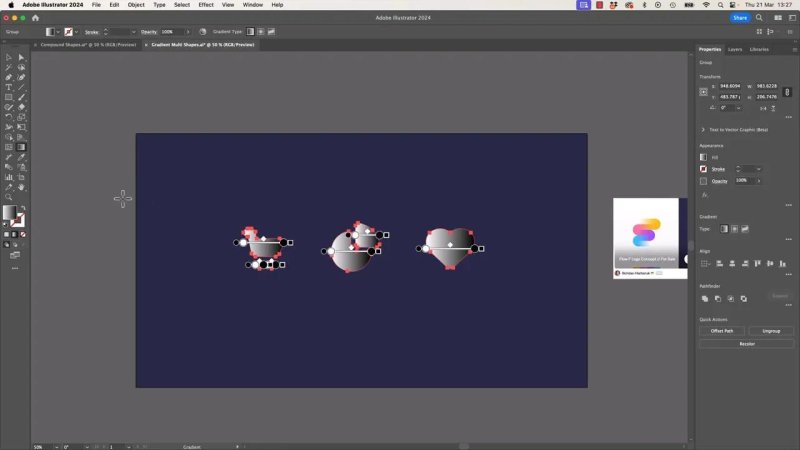
When you skip the compound path, Illustrator gives each object its own gradient control.
The proper method step by step
1. Select all the shapes
Start with the objects that should share one gradient. In the example, that is a cart, a pie chart, and a heart icon.
2. Turn them into a Compound Path
With everything selected, use Command+8 on Mac or Control+8 on Windows.
You can also find the same command in Illustrator's object menus if you prefer clicking, but the shortcut is the easy one to remember.
3. Apply a gradient fill
Once the shapes are a compound path, go to Fill and choose a gradient. A simple black to white gradient is fine to start with because the real point is to get the behaviour working first.
4. Use the Gradient Tool
Now grab the Gradient Tool and drag across the full width of the artwork.
This is the moment the trick pays off. Instead of separate gradients on each icon, you get one continuous gradient band that stretches across the combined shape.
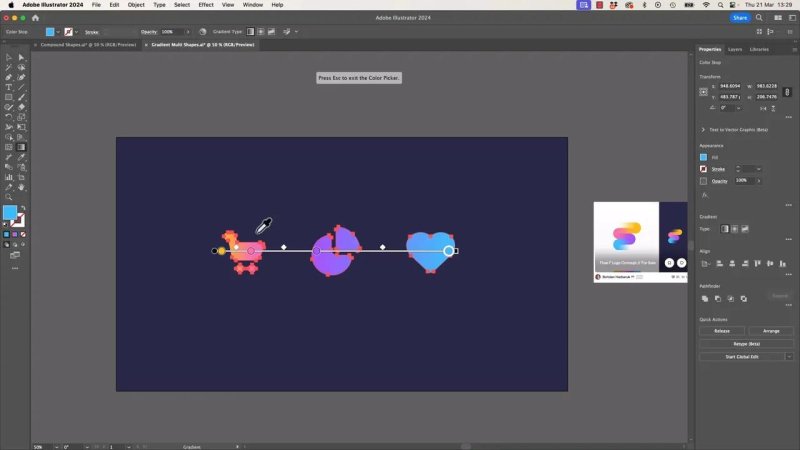
Once the shapes are combined properly, the colour transition flows cleanly from left to right.
What a compound path is really doing here
Normally, a compound path is something people meet when they need to punch a hole through a shape.
Think of a smaller square sitting on top of a bigger square. Turn those into a compound path, and Illustrator treats them as one object with a cutout. That is the standard use.
But it also works brilliantly as a trick for gradients across multiple separate objects, because Illustrator now reads the whole selection as a single fillable item.
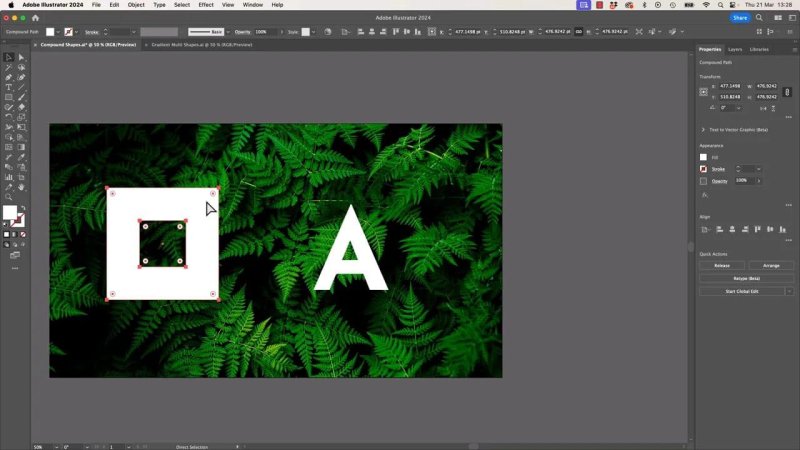
Compound paths are usually used for cutouts, but the same idea solves multi-object gradients too.
How to customise the colours
Once the shared gradient is in place, you can style it however you like.
One neat way to do that is to sample colours from an inspirational image using the Eyedropper Tool. Click a gradient stop, then use the eyedropper to pick a colour. Repeat for the other stops until the blend feels right.
In the example, the gradient is built from several colours rather than just two, which gives it a richer, more modern look.
To edit the gradient stops
Click a stop on the gradient line to select it.
Double click the stop to change its colour.
Use the Eyedropper Tool to sample from another image if needed.
Click beneath the gradient line to add a new stop.
Drag an unwanted stop away from the line to delete it.
What the middle diamonds do
Between colour stops, Illustrator shows little midpoint controls. These decide which colour has more influence in that section of the blend.
If you move one closer to the left stop, the right colour takes over more space. Move it closer to the right stop, and the left colour dominates more of the transition.
It is basically a balance control for how the colours mix between stops.
One important warning
If you release the compound path later, the effect falls apart.
That shared gradient depends on Illustrator treating all those shapes as one object. Break the compound path apart, and you are back to separate pieces with separate fills.
So if the gradient is working nicely, be careful about releasing the compound path unless you are happy to rebuild the effect.
Why this trick matters
It sounds like a tiny Illustrator trick, but it comes up all the time in icon sets, logo explorations, badge designs, and any artwork made from multiple simple shapes.
Once you know the fix, it stops being one of those weirdly frustrating Illustrator problems and becomes a quick, reliable move.
The whole thing comes down to one idea: if you want one gradient across many objects, make Illustrator see them as one object first.
FAQ
Why does Illustrator apply a separate gradient to each object?
Because each shape is still an independent object. Illustrator fills them one by one unless you combine them into a compound path first.
What shortcut makes a compound path in Illustrator?
Use Command+8 on Mac or Control+8 on Windows.
Can I use a group instead of a compound path?
No, a regular group will not give you one shared gradient across all the shapes. The key is converting the selection into a compound path so Illustrator treats it as a single fillable object.
Can I add more than two colours to the gradient?
Yes. Add extra gradient stops, then edit each stop's colour. You can also sample colours with the Eyedropper Tool for a more tailored palette.
What happens if I release the compound path?
The shared gradient setup breaks. Once the shapes stop acting like one object, Illustrator no longer maintains that single continuous gradient across them.
Written by Daniel Walter Scott — Founder of Bring Your Own Laptop & Chief Instructor
